Showing posts with label youtube. Show all posts

Monday, July 27, 2026

YouTube's Hidden Premium Gem Revealed

Featured Image

New YouTube Feature Allows Free Users to Download Videos

YouTube has quietly introduced a new feature that allows free users to download videos, a capability previously reserved for those with a YouTube Premium subscription. This change went largely unnoticed until a sharp-eyed Reddit user uncovered the update and shared it with the community.

The newly available feature enables all users to download videos in low or medium quality—specifically at 144p and 360p resolutions. This functionality is especially beneficial for individuals who are traveling or trying to minimize their mobile data usage. However, the feature comes with several limitations. High-quality downloads, such as those in full HD or higher, still require a YouTube Premium subscription. Additionally, music videos and Shorts are excluded from this download option.

It remains unclear how widely this update has been rolled out across different regions. Some users have reported seeing the feature, while others have not. The limited availability raises questions about whether this is a temporary test or a more permanent shift in YouTube’s strategy.

This development follows the recent announcement of a new YouTube Premium Lite plan in the UK, which offers a reduced price compared to the standard Premium subscription. The introduction of this cheaper tier suggests that YouTube is experimenting with ways to provide more value to users without requiring them to pay for the full Premium experience.

One Reddit user described their discovery as an accidental finding. They mentioned that they were attempting to save a video for later viewing when they accidentally clicked the download button. What they found was surprising: the ability to download videos without needing a Premium account. They expressed their excitement, calling it a “big step” for YouTube.

Other Reddit users welcomed the change, highlighting the benefits of having access to a download feature without paying for a subscription. One user recalled the days when they had to rely on unreliable third-party websites to download YouTube videos. Now, they appreciate the convenience of being able to do so directly through the platform.

Another user noted that even though they currently have a Premium account, they are pleased that more features are becoming available to free users. They believe this move helps maintain the appeal of the Premium subscription by offering additional perks beyond just ad-free viewing.

Some users simply responded with positive feedback, saying “Much better.”

While this update may seem small, it represents a significant shift in YouTube’s approach to its free-tier users. By expanding access to certain features, the company could be aiming to increase user engagement and loyalty. It also raises the question of whether more features will follow suit in the future, potentially changing the way users interact with the platform.

For now, the ability to download videos at lower resolutions is a welcome addition for many, but the limitations remain clear. As more users explore this new functionality, it will be interesting to see how YouTube continues to evolve its offerings for both free and paid users.

Wednesday, October 22, 2025

I Replaced My YouTube "Watch Later" With NotebookLM and Transcripts — It Changed How I Consume Content

Featured Image

Expanding the Use of NotebookLM Beyond Traditional Research

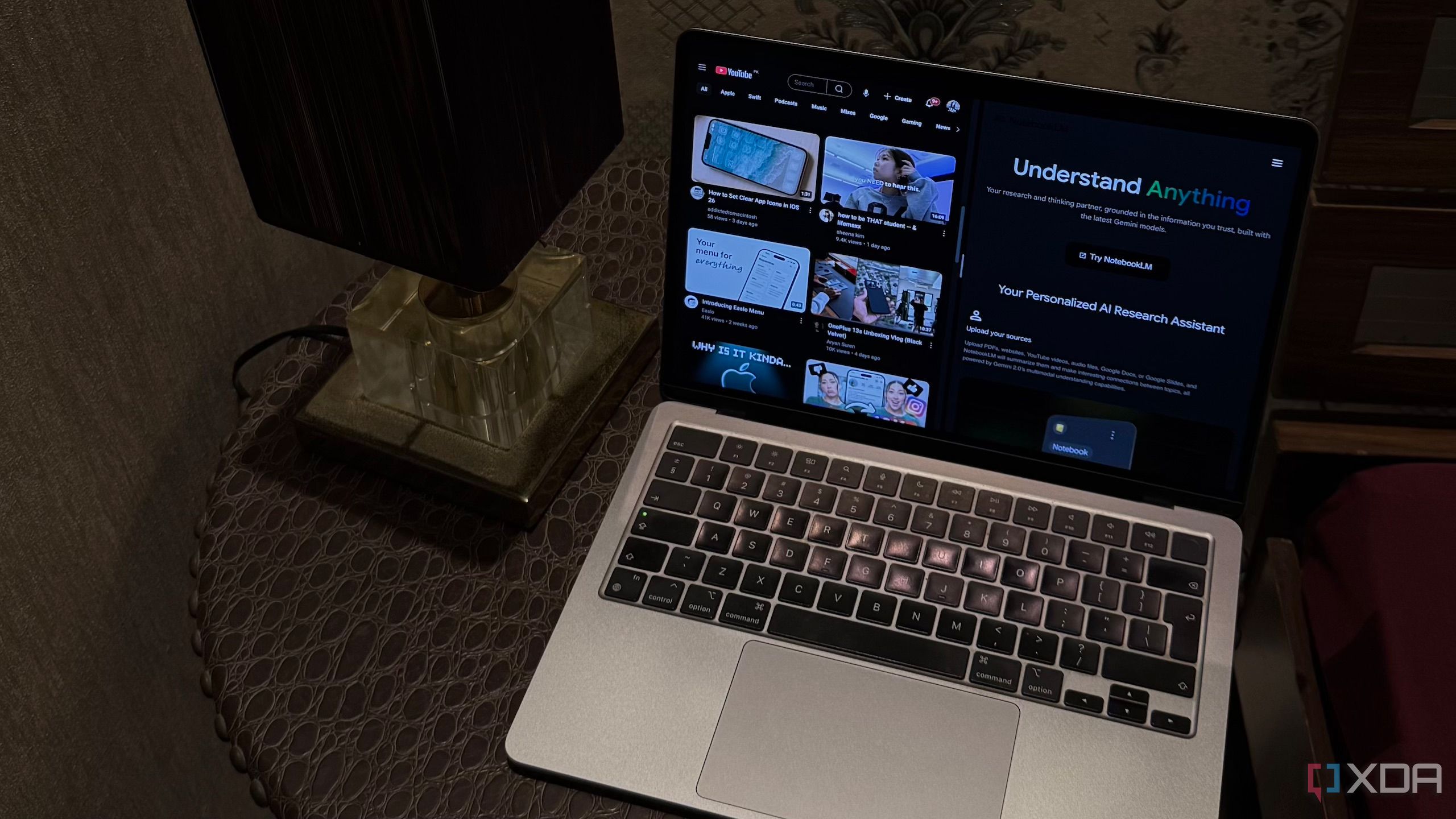
Google’s AI-powered research assistant, NotebookLM, has become a go-to tool for many individuals who want to conduct research more efficiently and gain a deeper understanding of various topics. While its primary function is to assist with academic and professional research, users have found creative ways to integrate it into their daily lives beyond just studying for exams or preparing for work projects.

For instance, some people have started using NotebookLM to watch Netflix shows and read books, which might seem unusual at first but can be quite effective. The key lies in how the tool processes content. Instead of watching videos in the traditional sense, users leverage NotebookLM to analyze transcripts and extract valuable insights from lengthy YouTube videos. This method has transformed the way many consume content, making the process more streamlined and efficient.

Why a NotebookLM Queue for YouTube Watch Later?

One of the most significant benefits of using NotebookLM is the ability to organize and manage content more effectively. For example, I used to rely on YouTube's "Watch Later" list to keep track of videos I wanted to watch later. However, this approach often led to disorganization and inefficiency. Each time I wanted to watch a video, I had to manually create a new notebook, upload the video URL, and set everything up from scratch. This process was tedious and time-consuming, especially when I couldn’t immediately watch the video due to other commitments.

To streamline this workflow, I decided to create a dedicated "Watch Later" queue within NotebookLM. This approach allows me to keep all my videos in one place, eliminating the need to switch between different platforms and ensuring that I can easily access and manage my content.

Setting Up Your NotebookLM Watch Later Queue

Creating a dedicated notebook for your YouTube "Watch Later" list is surprisingly straightforward. One of the easiest ways to do this is by using a Chrome extension designed specifically for this purpose. Among the available options, the NotebookLM YouTube Link (Source) Automator stands out as a user-friendly tool that simplifies the process of adding multiple videos to your notebook.

Here’s how the setup works:

  1. Install the Extension: Begin by installing the NotebookLM YouTube Link (Source) Automator extension on your browser.
  2. Access Your Watch Later List: Navigate to your YouTube "Watch Later" playlist.
  3. Extract Playlist: Click on the extension icon and select the "Extract Playlist" option. This will pull up to 100 videos from your playlist.
  4. Add to NotebookLM: Once the videos are extracted, head to the NotebookLM notebook you created and use the extension to add all the videos to your notebook with a single click.

This method saves a significant amount of time and effort, allowing you to focus on the content rather than the setup process.

Using Your NotebookLM Watch Later Queue

Once your queue is set up, using it becomes a seamless experience. When you're ready to "watch" a video, simply open your dedicated notebook and select the specific video you want to review. NotebookLM doesn't actually play the video; instead, it analyzes the transcript and provides summaries, highlights key points, and answers any questions you may have about the content.

After you’ve finished reviewing a video, you can remove it from the queue to keep your notebook organized. This ensures that you always know which videos you still need to watch, making the entire process more manageable and efficient.

The Benefits of a NotebookLM Watch Later Queue

Creating a NotebookLM Watch Later queue has significantly improved my content consumption habits. It has saved me time, reduced mental clutter, and made it easier to stay on top of my video and book reading goals. If there's one regret I have, it's that I didn't set this up sooner. Once I implemented this system, I realized how much time and energy I had been wasting trying to keep track of videos on YouTube. Now, everything is in one place, and I can focus on what really matters—learning and growing.

I Replaced My YouTube "Watch Later" With NotebookLM and Transcripts — It Changed How I Consume Content

Featured Image

Expanding the Use of NotebookLM Beyond Traditional Research

Google’s AI-powered research assistant, NotebookLM, has become a go-to tool for many individuals who want to conduct research more efficiently and gain a deeper understanding of various topics. While its primary function is to assist with academic and professional research, users have found creative ways to integrate it into their daily lives beyond just studying for exams or preparing for work projects.

For instance, some people have started using NotebookLM to watch Netflix shows and read books, which might seem unusual at first but can be quite effective. The key lies in how the tool processes content. Instead of watching videos in the traditional sense, users leverage NotebookLM to analyze transcripts and extract valuable insights from lengthy YouTube videos. This method has transformed the way many consume content, making the process more streamlined and efficient.

Why a NotebookLM Queue for YouTube Watch Later?

One of the most significant benefits of using NotebookLM is the ability to organize and manage content more effectively. For example, I used to rely on YouTube's "Watch Later" list to keep track of videos I wanted to watch later. However, this approach often led to disorganization and inefficiency. Each time I wanted to watch a video, I had to manually create a new notebook, upload the video URL, and set everything up from scratch. This process was tedious and time-consuming, especially when I couldn’t immediately watch the video due to other commitments.

To streamline this workflow, I decided to create a dedicated "Watch Later" queue within NotebookLM. This approach allows me to keep all my videos in one place, eliminating the need to switch between different platforms and ensuring that I can easily access and manage my content.

Setting Up Your NotebookLM Watch Later Queue

Creating a dedicated notebook for your YouTube "Watch Later" list is surprisingly straightforward. One of the easiest ways to do this is by using a Chrome extension designed specifically for this purpose. Among the available options, the NotebookLM YouTube Link (Source) Automator stands out as a user-friendly tool that simplifies the process of adding multiple videos to your notebook.

Here’s how the setup works:

  1. Install the Extension: Begin by installing the NotebookLM YouTube Link (Source) Automator extension on your browser.
  2. Access Your Watch Later List: Navigate to your YouTube "Watch Later" playlist.
  3. Extract Playlist: Click on the extension icon and select the "Extract Playlist" option. This will pull up to 100 videos from your playlist.
  4. Add to NotebookLM: Once the videos are extracted, head to the NotebookLM notebook you created and use the extension to add all the videos to your notebook with a single click.

This method saves a significant amount of time and effort, allowing you to focus on the content rather than the setup process.

Using Your NotebookLM Watch Later Queue

Once your queue is set up, using it becomes a seamless experience. When you're ready to "watch" a video, simply open your dedicated notebook and select the specific video you want to review. NotebookLM doesn't actually play the video; instead, it analyzes the transcript and provides summaries, highlights key points, and answers any questions you may have about the content.

After you’ve finished reviewing a video, you can remove it from the queue to keep your notebook organized. This ensures that you always know which videos you still need to watch, making the entire process more manageable and efficient.

The Benefits of a NotebookLM Watch Later Queue

Creating a NotebookLM Watch Later queue has significantly improved my content consumption habits. It has saved me time, reduced mental clutter, and made it easier to stay on top of my video and book reading goals. If there's one regret I have, it's that I didn't set this up sooner. Once I implemented this system, I realized how much time and energy I had been wasting trying to keep track of videos on YouTube. Now, everything is in one place, and I can focus on what really matters—learning and growing.

Saturday, August 23, 2025

Google Drive Has a New Feature for Videos

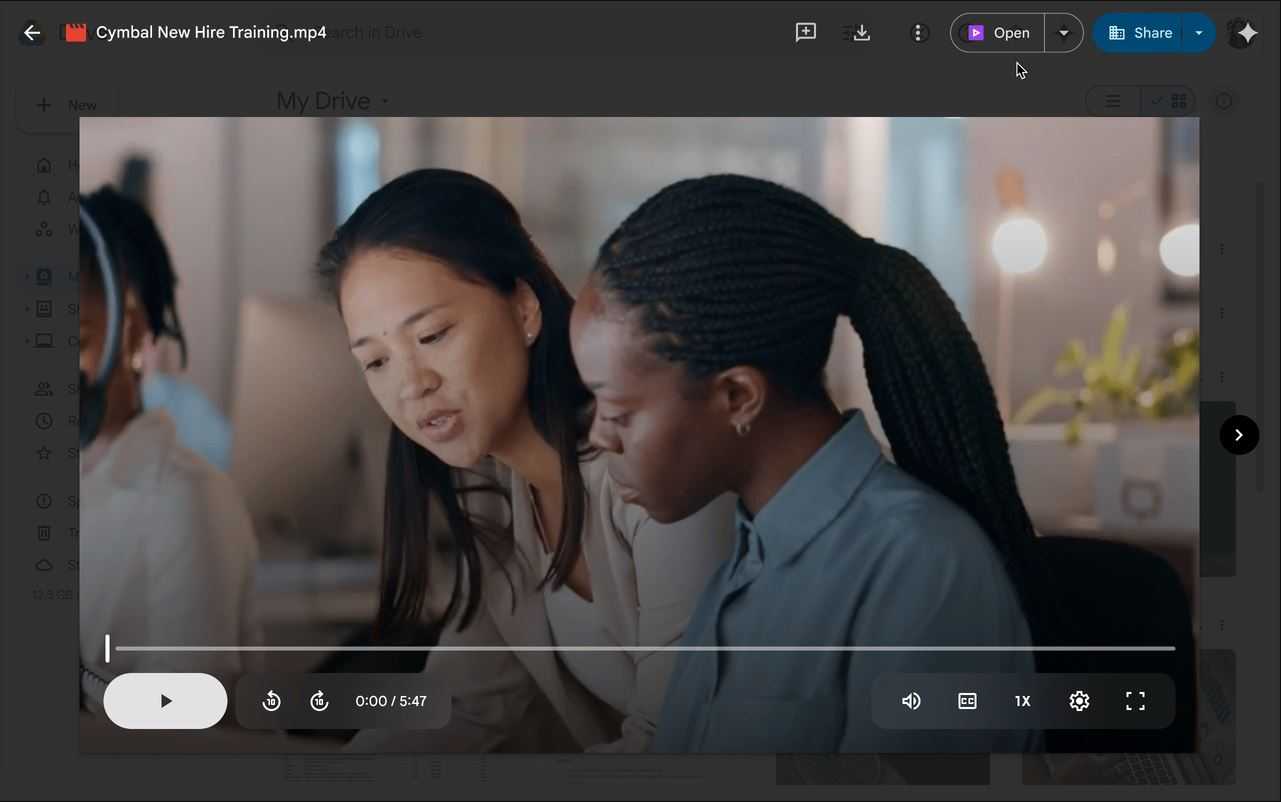
Google just made it much easier to edit videos stored in Google Drive. The company added a new "Open" button in the upper right of the video preview screen that opens the file in Google Vids. This is a major improvement because editing previously required a whole process of downloading and re-uploading.

Once you click the Open button, the video file will automatically open in Google Vids, where you can make all sorts of edits. This includes trimming clips, adding text, music, and a lot more. This makes it really easy to do simple edits without needing a more complex editing program. I pay for the 2TB storage with Google, and editing videos is a huge pain because it requires downloading the files and then reuploading them after editing.

One huge detail to know is that when Vids opens the video file, it creates a new Vids file. This means you'll still have to go through the regular steps to save or export it to a different file format. The new tool also has some limitations, as individual clips can only be up to 35 minutes long and have a maximum file size of 4 GB.

The new feature is currently being rolled out, and for some users, it might take a while to appear. According to Google, it could take longer than 15 days for the feature to be fully visible to all users on both Rapid Release and Scheduled Release domains. This shortcut will be enabled by default for Google Workspace users, but for admins, you can turn it off at the organizational level if needed. However, you should know that if Google Docs are turned off for your domain, Vids access will also be unavailable.

This new video editing shortcut is the latest in a series of improvements Google has been making to Drive's video capabilities. Just last October, Google launched a new video player, and in May, the company added a Gemini AI feature that can summarize videos stored in Drive.

As of now, this feature is available for a number of Google Workspace plans, including Business Starter, Standard, and Plus, as well as all of the Enterprise, Essentials, and Nonprofits plans. It's also available to those with the Gemini Education or Gemini Education Premium add-ons. On top of that, it's also available for those with Google AI Pro and Ultra. Unfortunately, it looks like personal Google accounts can't use the new feature at all.

I subscribe to Google One, but it hasn't been rolled out to me yet. So if you don't see it, don't worry, rollouts tend to take a while. Google has a timeframe of 15 days for this rollout, so the longest wait could be until September 6, 2025. Either way, if you're interested, it's a good idea to check every day until you see the button appear.

Target:Google

Friday, August 22, 2025

Make YouTube Less Annoying by Changing These Eight Settings

YouTube used to be this cool website where you could watch hours of entertaining videos from other people like you, with few interruptions. Of late, though, its management has made a series of decisions that make it harder for folks like me to enjoy the site. From shoving YouTube Shorts into every corner of the site to playing videos in lower resolutions, there are a bunch of things that have made YouTube an objectively worse website and app than it used to be. Fortunately, you can undo some of the damage to get a better YouTube experience. Here's a list of settings you can tweak and tools you can use to fix the worst of YouTube's annoyances.

Get YouTube Premium if you can

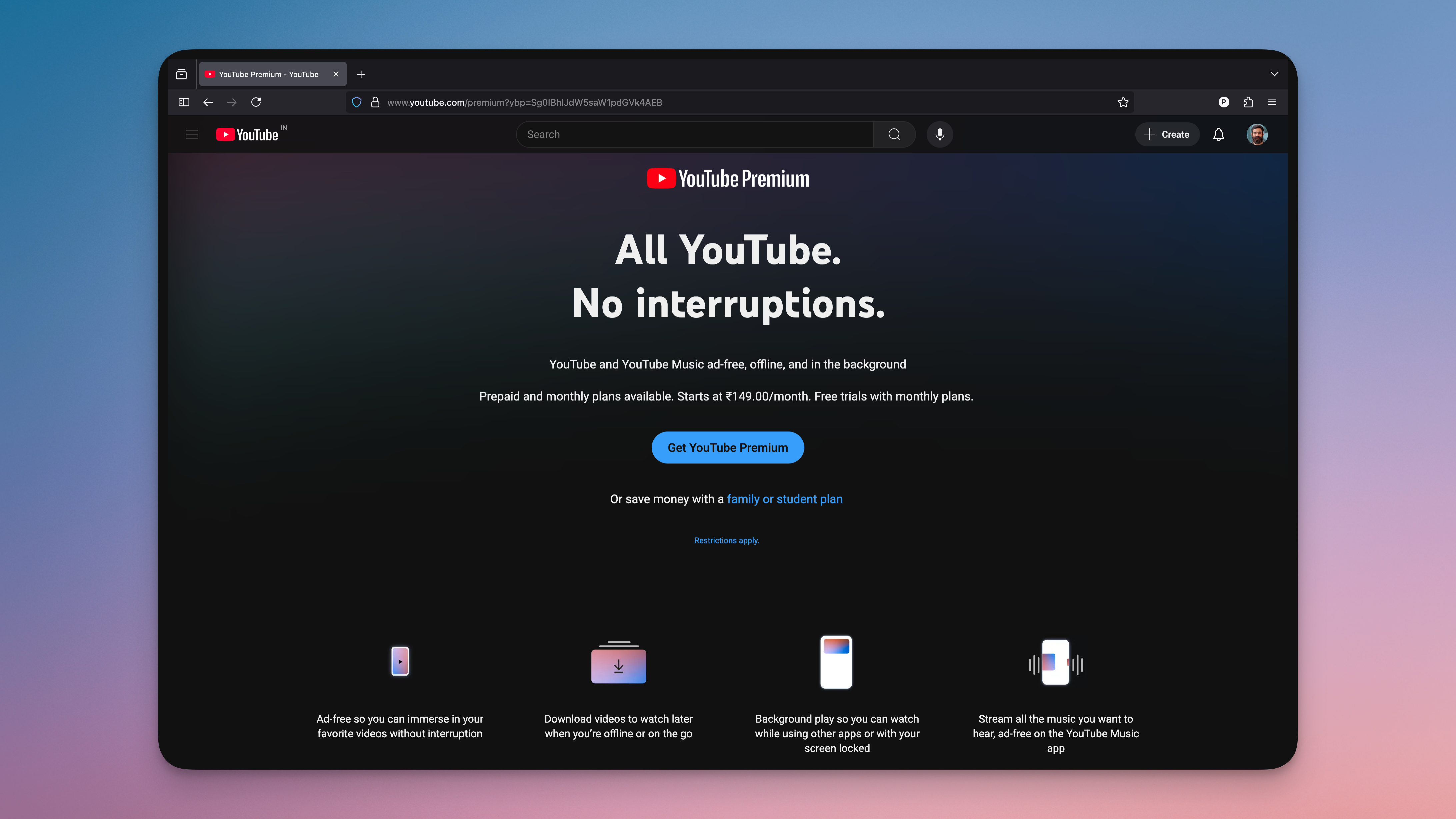
I really dislike telling people to pay up for a better experience, but YouTube's aggressive monetization has left us with little choice. Fortunately,YouTube Premium is one of the best digital subscriptions.you can get, so if you can spare $14 per month and you use YouTube a lot, then you should get it. I recommend it just to get rid of ads, but it also lets you download videos in high quality. If you're really short on cash, though, you can see ifThese ad-free YouTube apps still work. There's even aYouTube Premium Lite subscription at $8/month, which significantly reduces the ads you will encounter, and may be worth it for some people.

Enable helpful privacy options

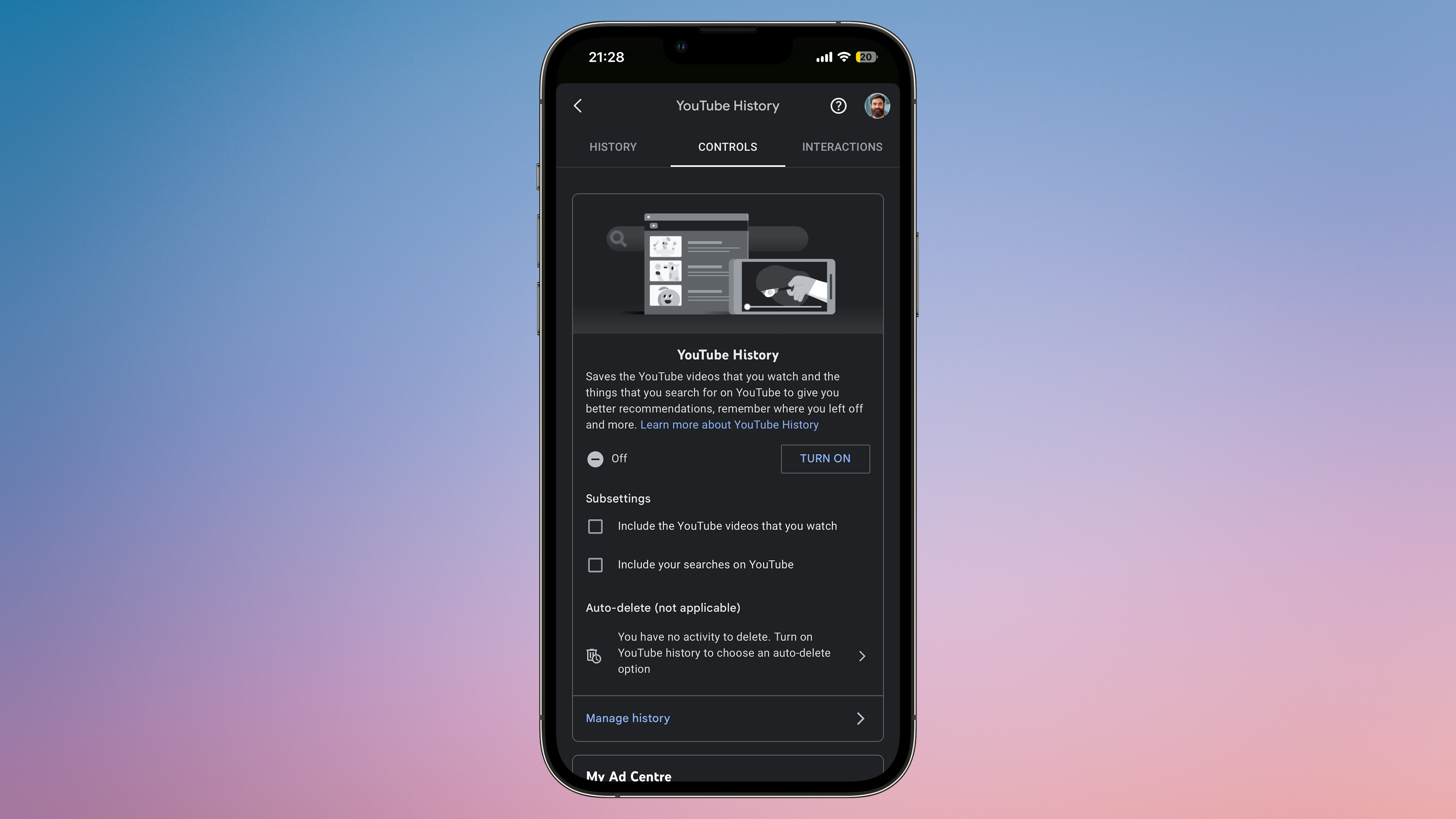
On the YouTube app, you can pause tracking on your watch history and search history, plus disable ad personalization. These options will improve your privacy when you use YouTube, but they may have certain side effects such as seeing less relevant ads or not seeing your feed on the YouTube homepage. I can live with these trade-offs, because they reduce the time I spend watching videos, but if you value YouTube's suggested videos, then you shouldn't pause watch history.

To enable this, go to the YouTube app and tap the profile icon in the top-right corner. Now, go toSettings > Manage all history. In theControlstab, you can turn off your YouTube History. You can also tapManage historyin the same tab and clear all your data there. Use theMy Ad Centersection to disable personalized ads, too. When you're done, take a minute to go through everything inYouTube Settings > Your data in YouTubeto ensure that no traces of saved YouTube data are left.

Improve picture quality

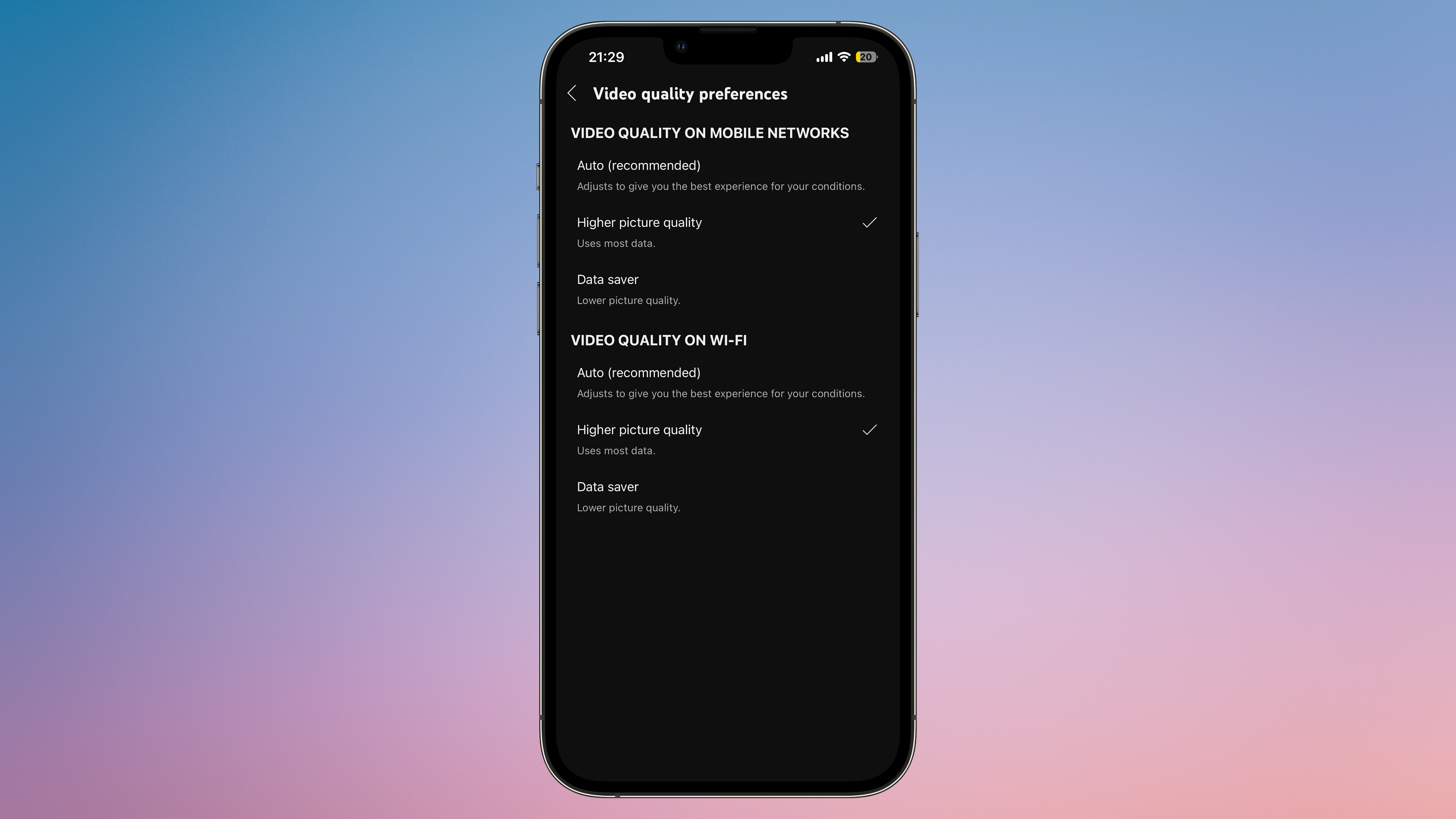
YouTube sometimes defaults to lower quality videos, and honestly, that can get annoying really fast, especially when all of our devices have such nice displays these days. You can fix that by going toYouTube Settings > Video quality preferences. TapOn Wi-Fiand selectHigher image quality. This will play videos in a higher resolution by default, at least while you are connected to a network.

Fix important playback settings

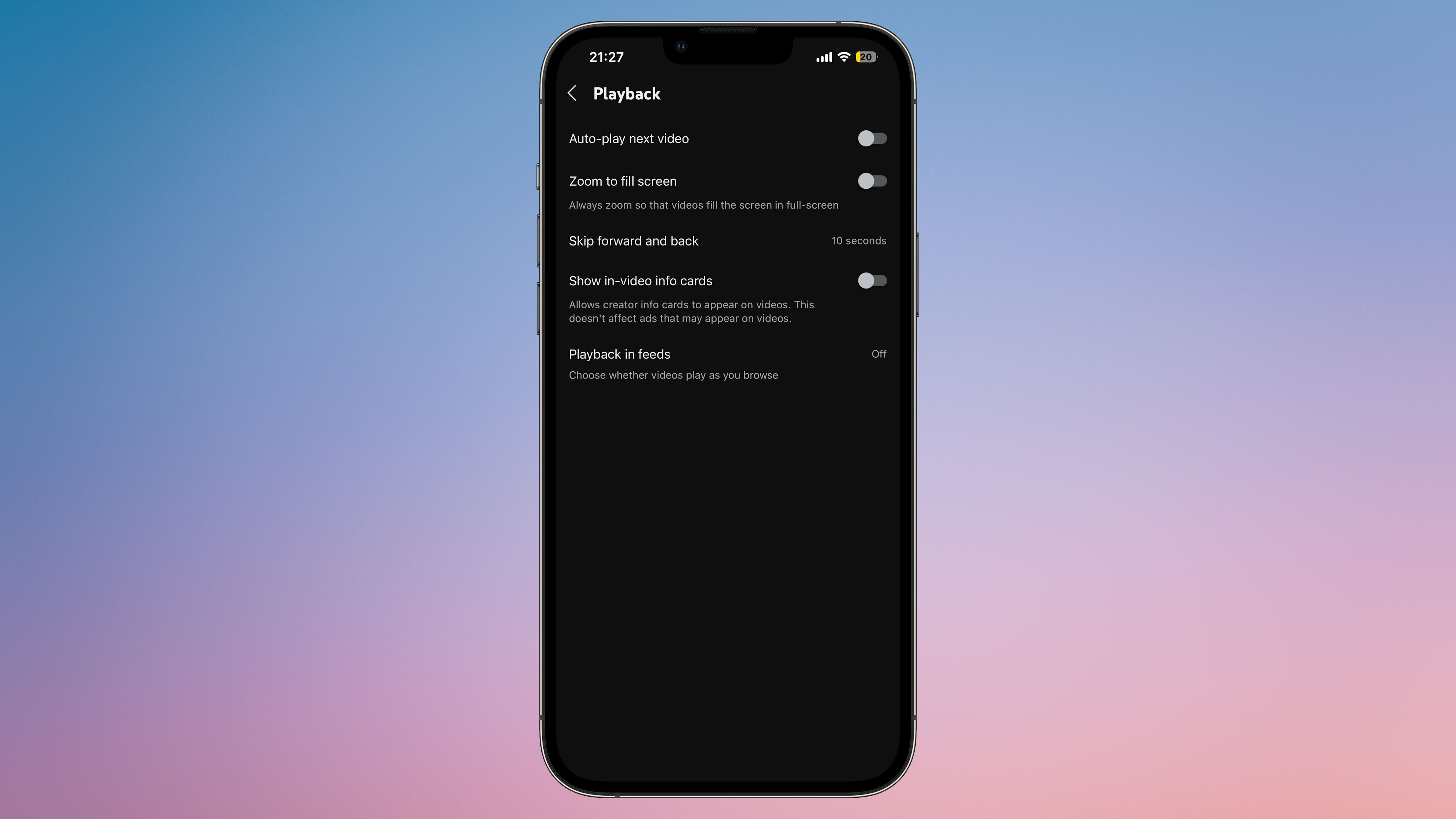
I really dislike YouTube's habit of autoplaying video previews when I'm browsing on the app. You can disable that by going toYouTube Settings > Playback. Disable on this pageAuto-play next video,Show in-video info cards, andPlayback in feeds. That should fix the most egregious of YouTube's automatic interruptions.

Reduce notification spam

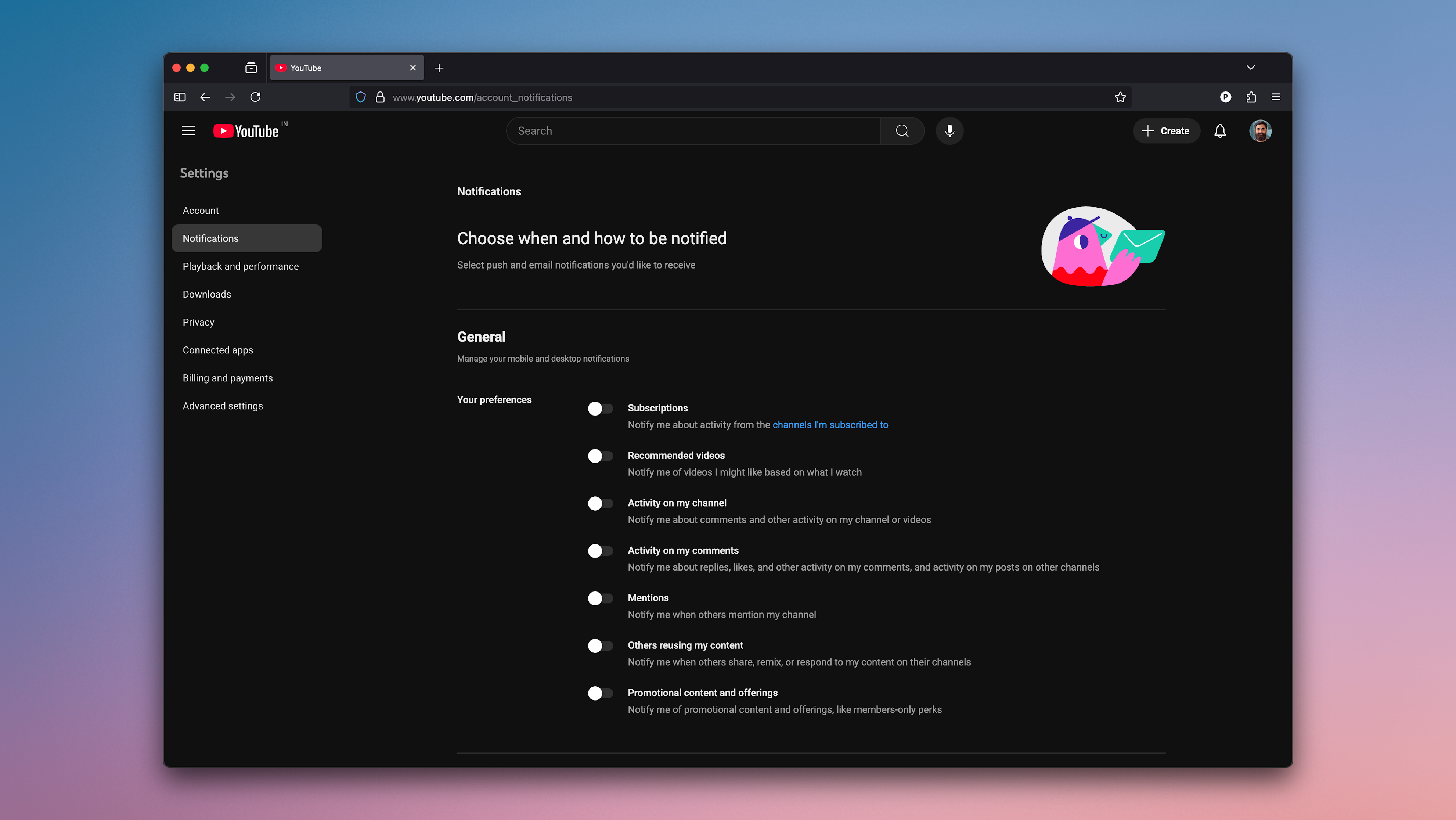
If you prefer to receive fewer notifications, then you should try adjusting your YouTube notification settings. Go toYouTube Settings > Notificationsand disable notifications for everything you don't need. I prefer to disable notifications globally via my iPhone's settings, but doing it via the YouTube app lets you receive certain notifications, while disabling the more annoying ones.

Keep your subscriptions private

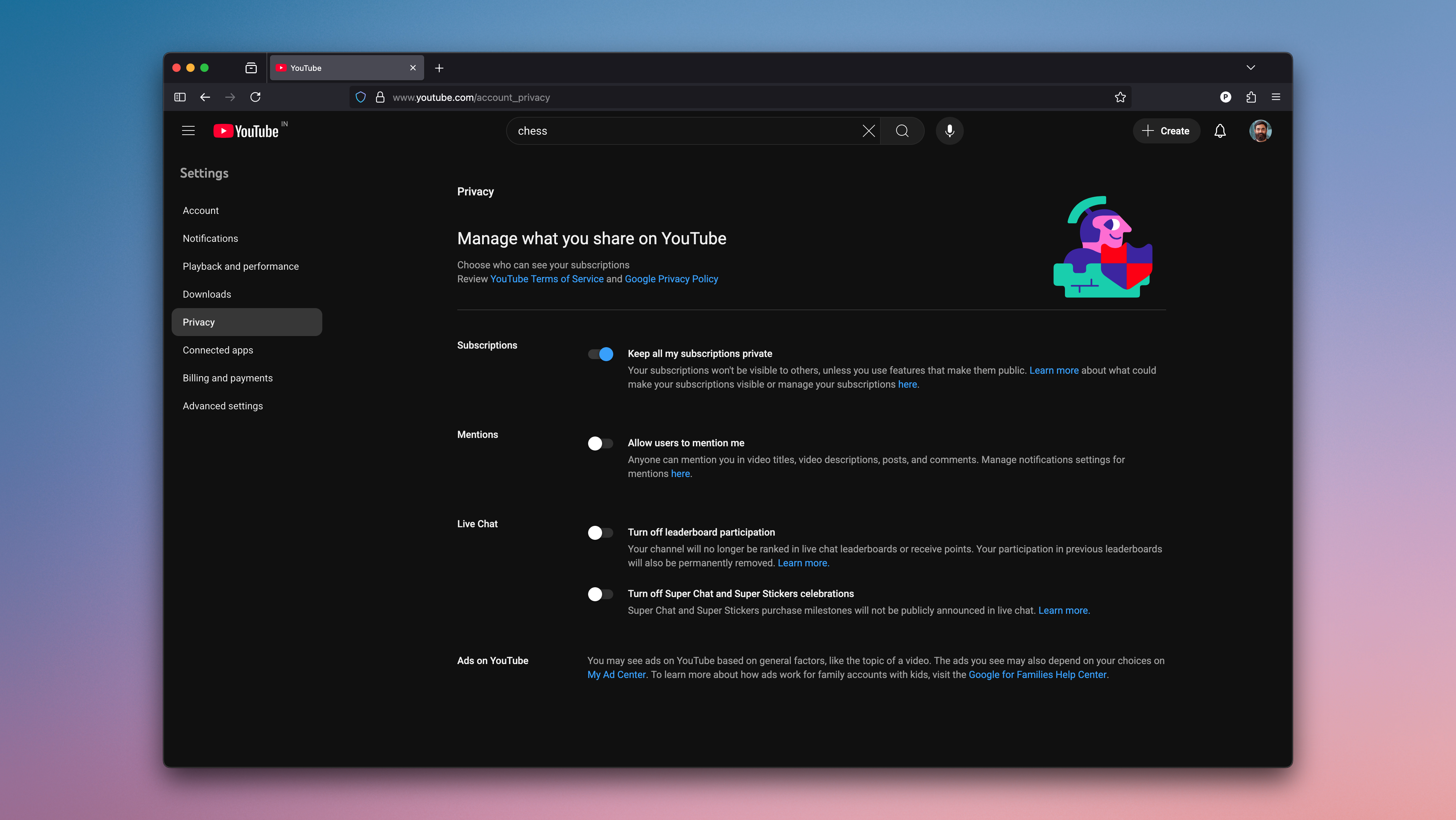
For most people, I recommend not revealing your YouTube subscriptions on your profile. Random strangers need not know which videos you're interested in, and you can adjust that easily via YouTube's website. This option didn't appear on YouTube's iPhone app for some reason, so I recommend logging into YouTube on a browser and going toSettings > Privacy. This opens YouTube'sAccount privacy settingspage, where you can enableKeep all my subscriptions private.

Use an extension to change hidden YouTube settings

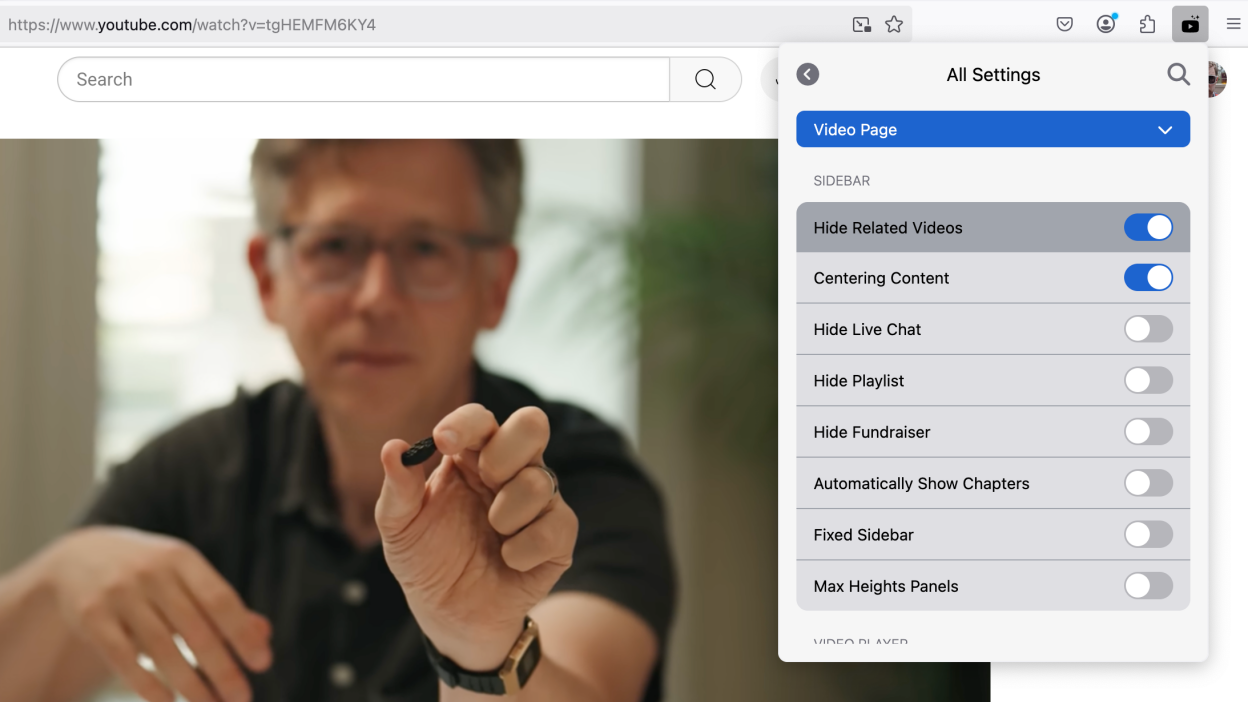
My colleagueJustin Pot recently wrote about Untrap, an excellent extension that lets you hide all the junk on YouTube. It works with all popular browsers and lets you clean up your YouTube feed in just a few clicks. You can use it to hide a bunch of things, including YouTube Shorts, suggested videos, live chats, and much more. It lets you make around 300 tweaks to the site.

Try third-party apps for an algorithm-free YouTube experience

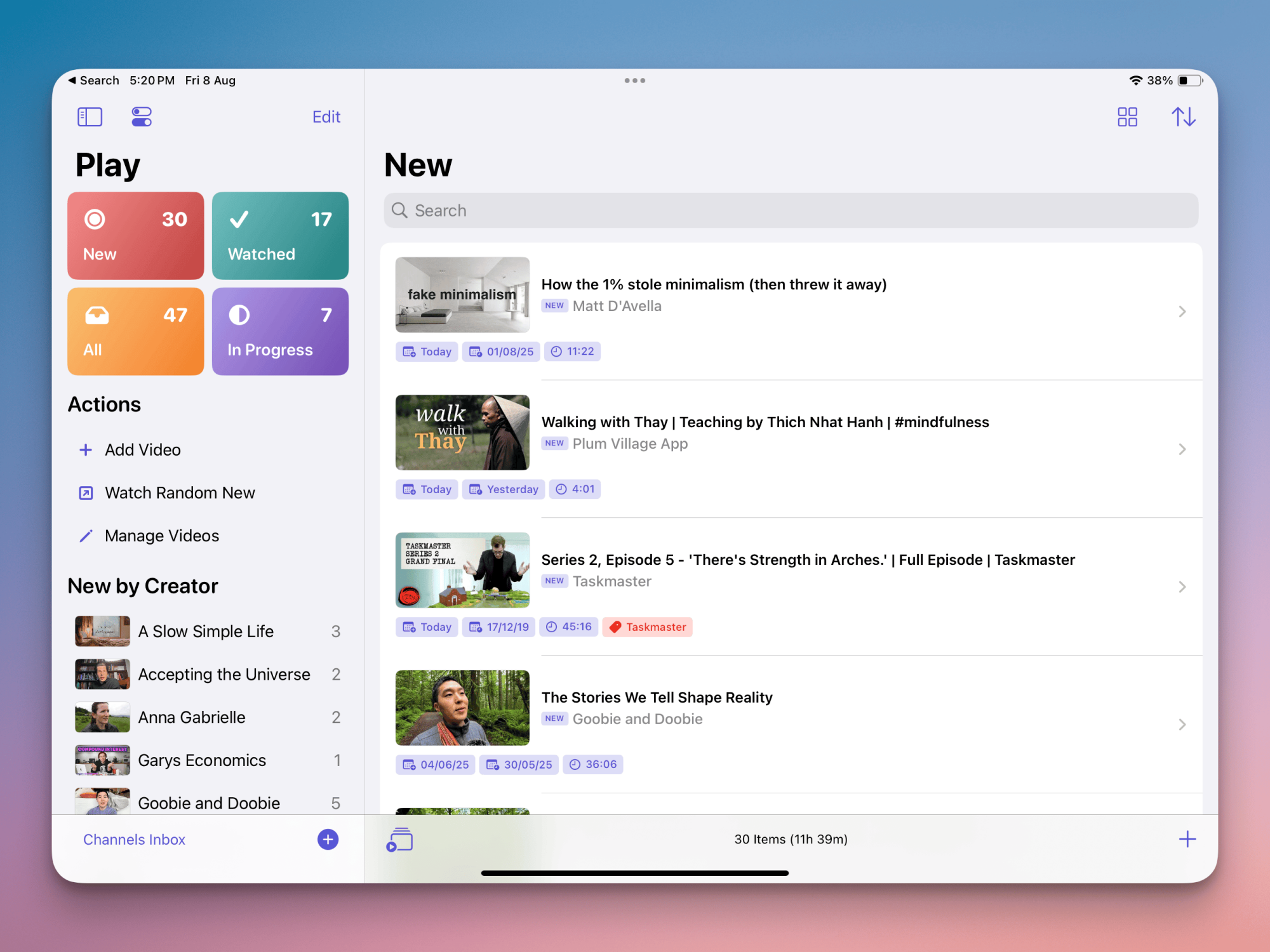
If you're tired of being trapped by YouTube's algorithm, you can use third-party apps to completely free yourself from the feed. My colleagueKhamosh Pathak wrote about Playand a couple of other alternatives that help you do just that. Depending on your platform and preferences, you can tryPlay,Unwatched for YouTube, orNewPipeto gain more control over what you watch and not let algorithms define your watching habits.

If you enjoyed this story, be sure to followThe Shiro Copron MSN.