Showing posts with label web development. Show all posts

Saturday, March 7, 2026

Built 5 Websites in Under an Hour Using ChatGPT-5 — Here's How

Featured Image

Exploring the Power of AI in Website Creation

In today’s digital age, building a website has become an essential step for businesses and individuals alike. While there are numerous website-building applications available, many users find them complex or time-consuming. However, with the advent of advanced AI tools like ChatGPT-5, the process has become significantly more accessible. I recently experimented with this AI to see how it would handle creating websites from scratch, and the results were both intriguing and informative.

A Simple Start: “Build a Website for Me”

My first attempt was straightforward—prompting ChatGPT-5 with the simple request: “Build a website for me.” The result was a complete, albeit generic, website. It seemed too good to be true, so I decided to push the boundaries by providing more detailed prompts for different types of businesses.

Case Study 1: Always Sunny Garden Center

For my first real test, I created a prompt for a garden center called "Always Sunny Garden Center." The goal was to design a vibrant, joyful website that reflected the company's friendly and family-owned vibe. The prompt included specific details about layout, color scheme, and navigation. The result was impressive, though it could have used more personalized elements like testimonials or a specific font palette. The code generated by ChatGPT-5 was clean and functional, and the process took about five minutes.

Case Study 2: Tumbles & Giggles Indoor Playground

Next, I tried a prompt for an indoor playground called "Tumbles & Giggles." The focus was on reassuring parents about safety while highlighting the fun aspects of the playground. The site needed to be clear and easy to navigate, with a playful and modern aesthetic. However, the AI did not include images of children, which is crucial for a business targeting families. This highlighted the need for additional prompts if realistic visuals are required.

Case Study 3: The Daily Grind Cafe

For a neighborhood cafe named "The Daily Grind," the prompt emphasized a cozy and inviting atmosphere. The AI struggled initially with generating authentic visuals, but after re-prompting, it improved. However, the site still felt similar to previous ones, indicating that the AI might rely on templates. Including specific requests for photographs helped enhance the visual appeal.

Case Study 4: Tangerine Twist Soda Marketing Site

Finally, I created a marketing website for a soda brand called "Tangerine Twist." The prompt asked for a high-converting landing page with images of young adults enjoying the beverage. Despite the explicit request, the AI failed to include realistic images. However, the product rendering and copywriting were impressive, showcasing the AI's potential in content creation.

What Comes Next After Code Generation?

Once the code is generated, the next steps involve testing the site in a browser to ensure everything functions correctly. If adjustments are needed, users can tweak the code and download it locally. Hosting options vary, with free services like GitHub Pages being ideal for beginners. More advanced users might opt for cloud services like AWS or Google Cloud.

Purchasing a domain name and connecting it to the hosting provider is the final step before launching the site. Many platforms allow for easy uploads through drag-and-drop interfaces or Git integration.

Final Thoughts

ChatGPT-5 proves to be a powerful tool for quickly creating functional websites. While it excels at generating basic layouts and content, achieving more advanced features like realistic images requires additional prompts. For those looking to get their site up and running without extensive coding knowledge, AI tools like ChatGPT-5 offer a viable solution. However, for more customized or complex projects, additional effort and possibly other tools may be necessary.

Friday, August 22, 2025

Bluehost in 60 minutes: making WordPress hosting easier

It's been a while since I usedBluehost, and the company has recently unveiled a host of new plans, as well as announcing aNew CEO.

So, afterHostinger,DreamHost, andKinstaI figured why not do Bluehost next in myOne Hour Withseries.

I've only got 60 minutes, so let's crack on.

Start the clock 0:00

Sign up

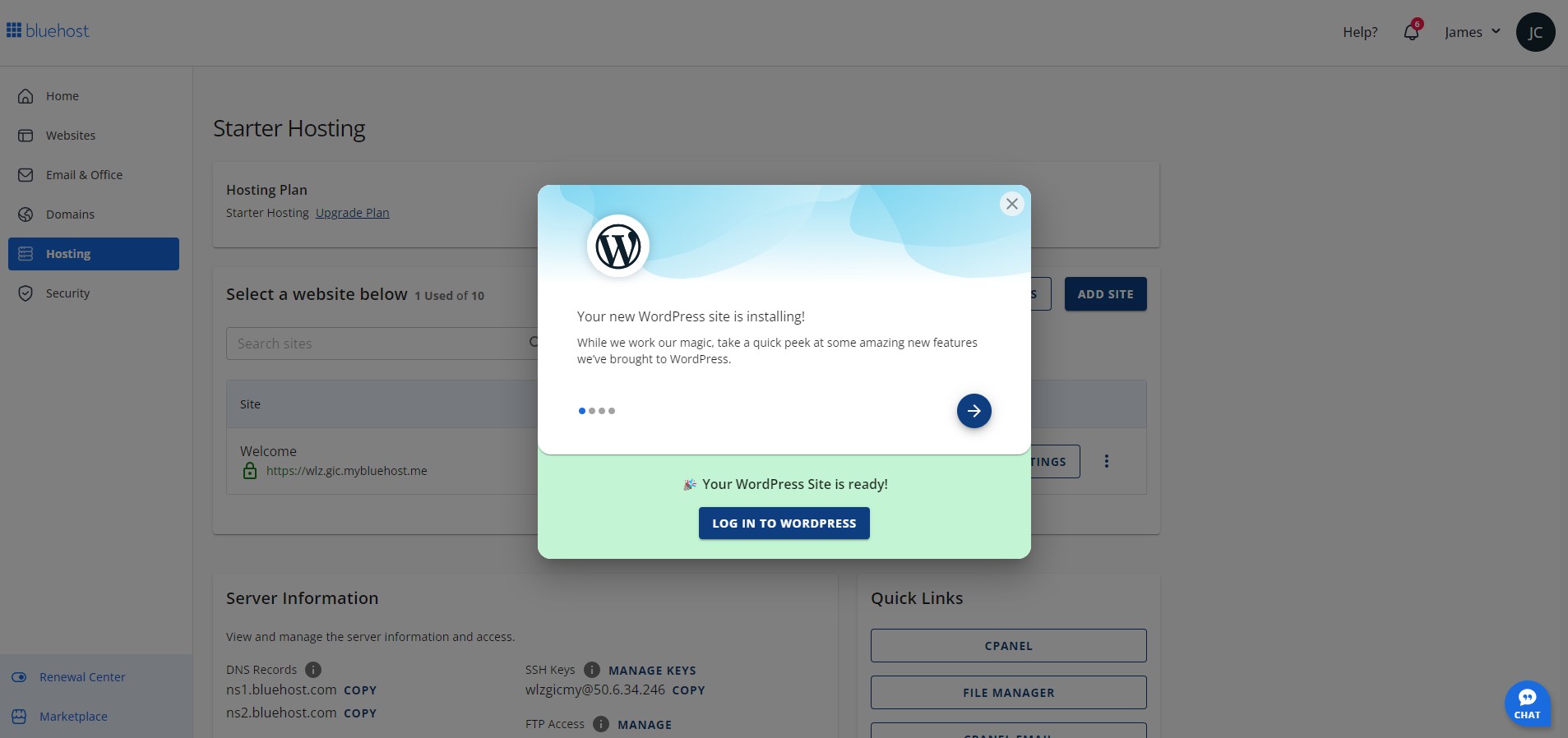
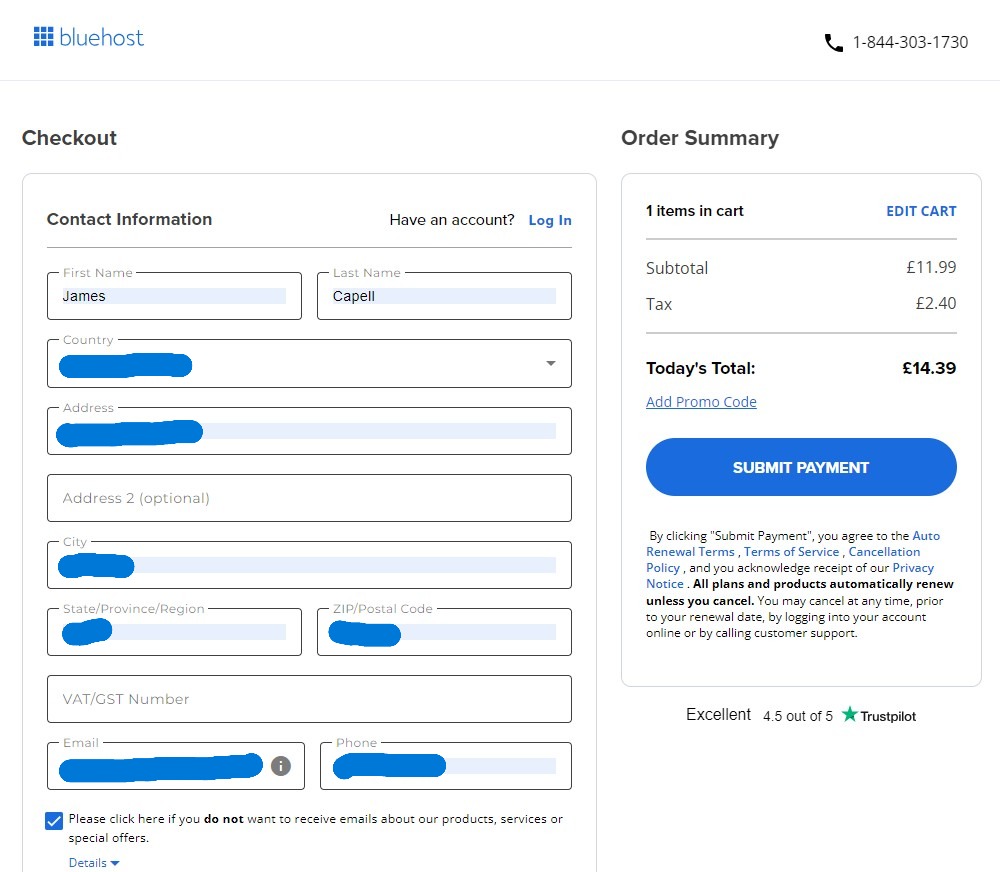
Pretty easy and no surprises. I entered my payment details, and pretty much instantly I was directed to the panel with a message telling me WordPress was installing.

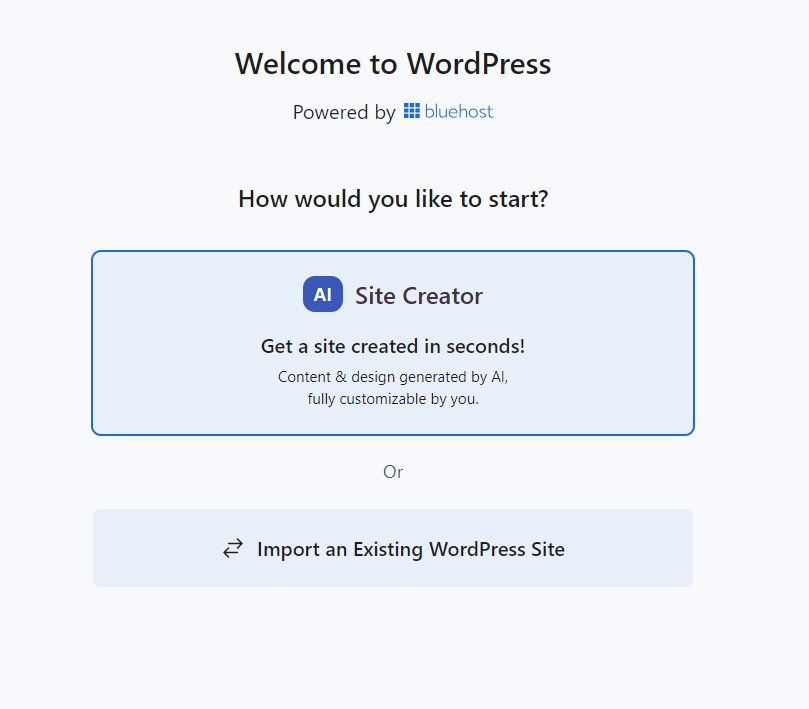
Before I had the chance to take screengrabs and read the messages from Bluehost in the pop-up box, WordPress had already been installed. I closed the box and was then asked how I wanted to build my WordPress site.

I was a little surprised to not see more options for templates here - but that's not a complaint, I quite like the simplicity.

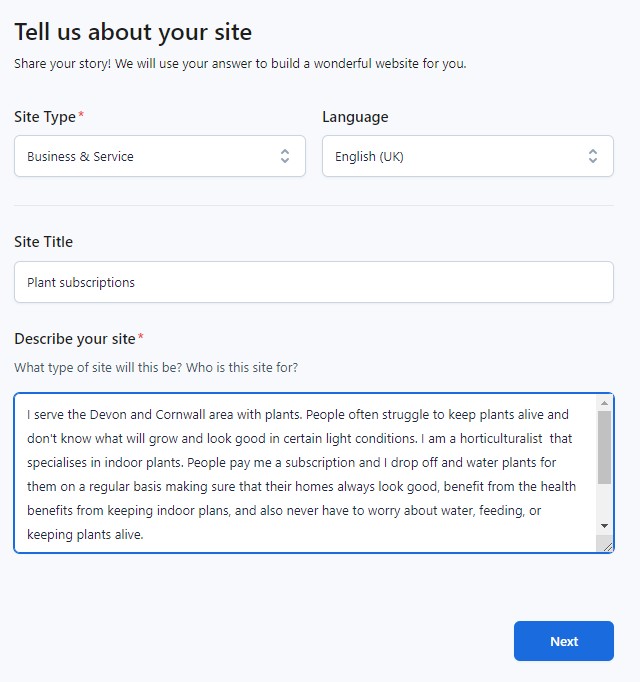
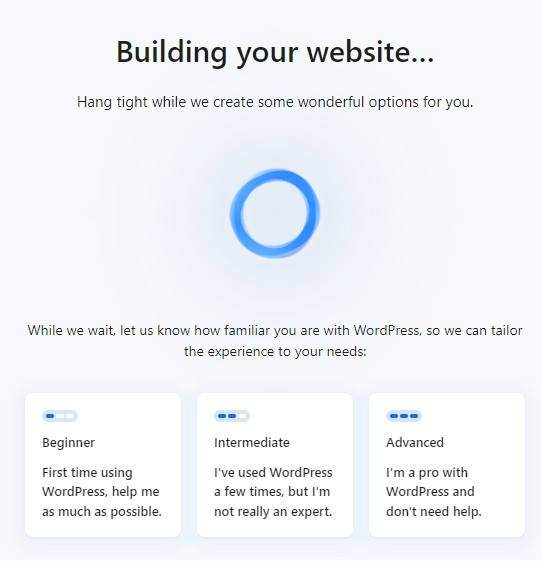
The idea for this site was to offer a plant watering and rental service. I described the site, and then was presented with help options.

06:57

I chose intermediate, but as always I struggled with WordPress, and later regretted not selecting beginner.

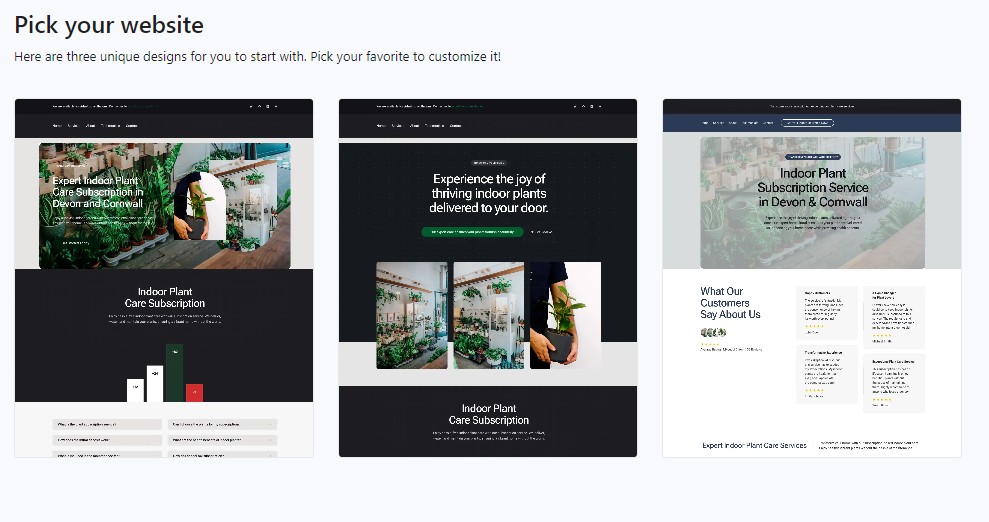
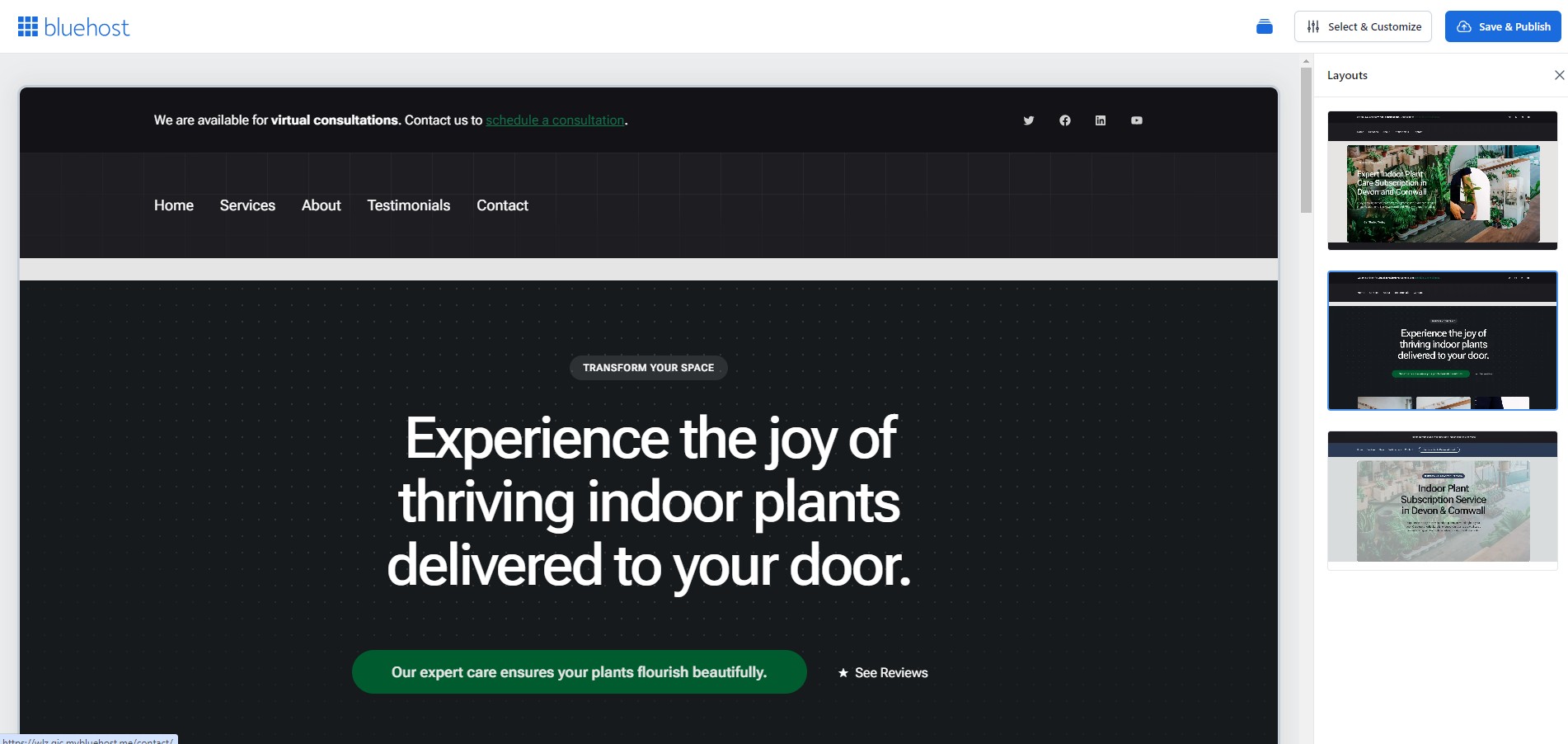
I was then given three templates to choose from and picked the first.

Then, I started having the same WordPress page builder issues that I usually have.

It was easier for me this time because I have a little more experience with WordPress - but I still found it somewhat confusing and unintuitive trying to edit and change page elements.

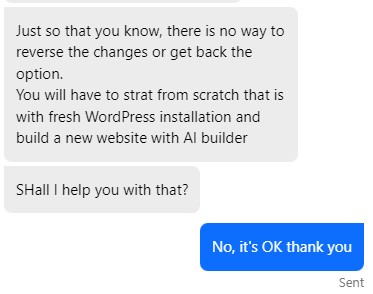
I regretted selecting intermediate when I set up the site. I asked support if there was any way I could get it back but sadly, I would have had to start again from scratch.

20:11

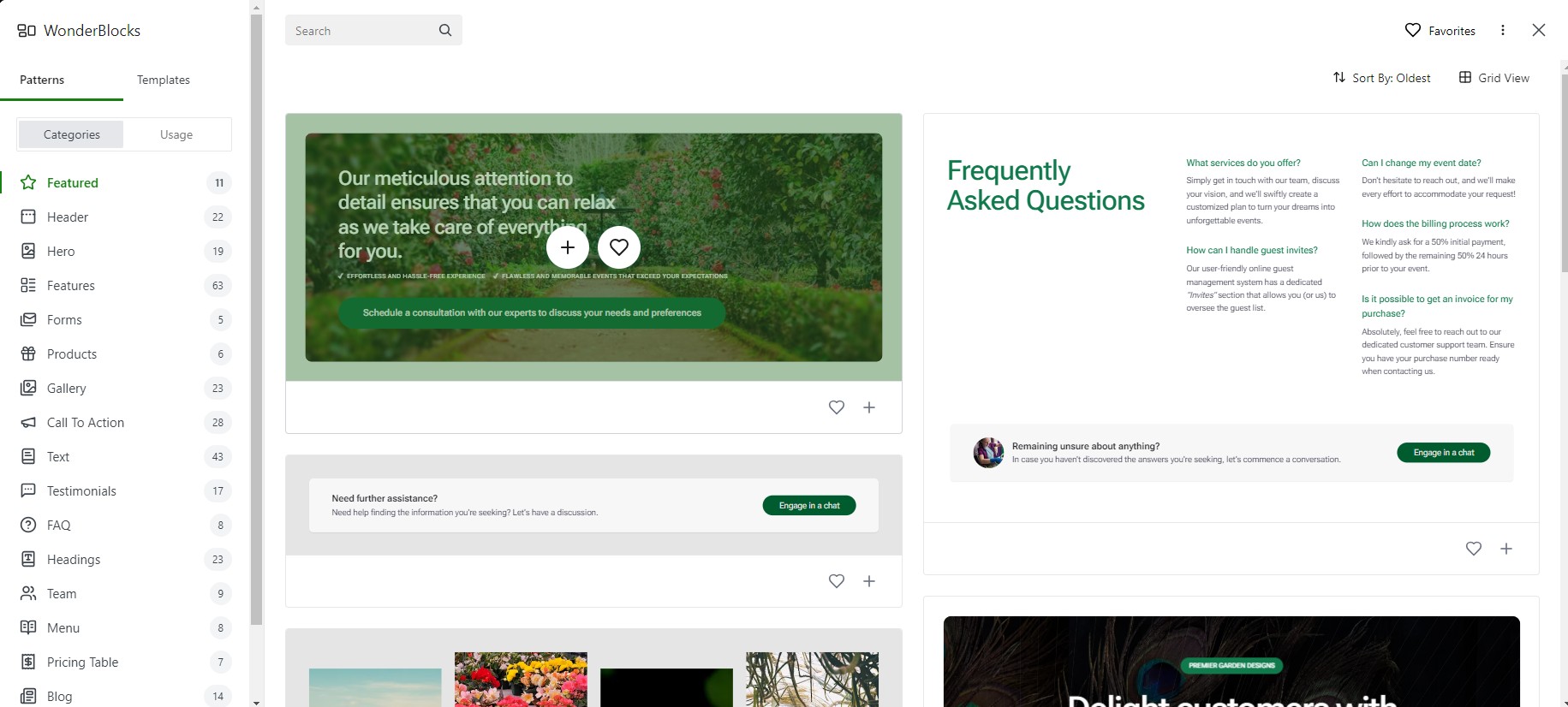
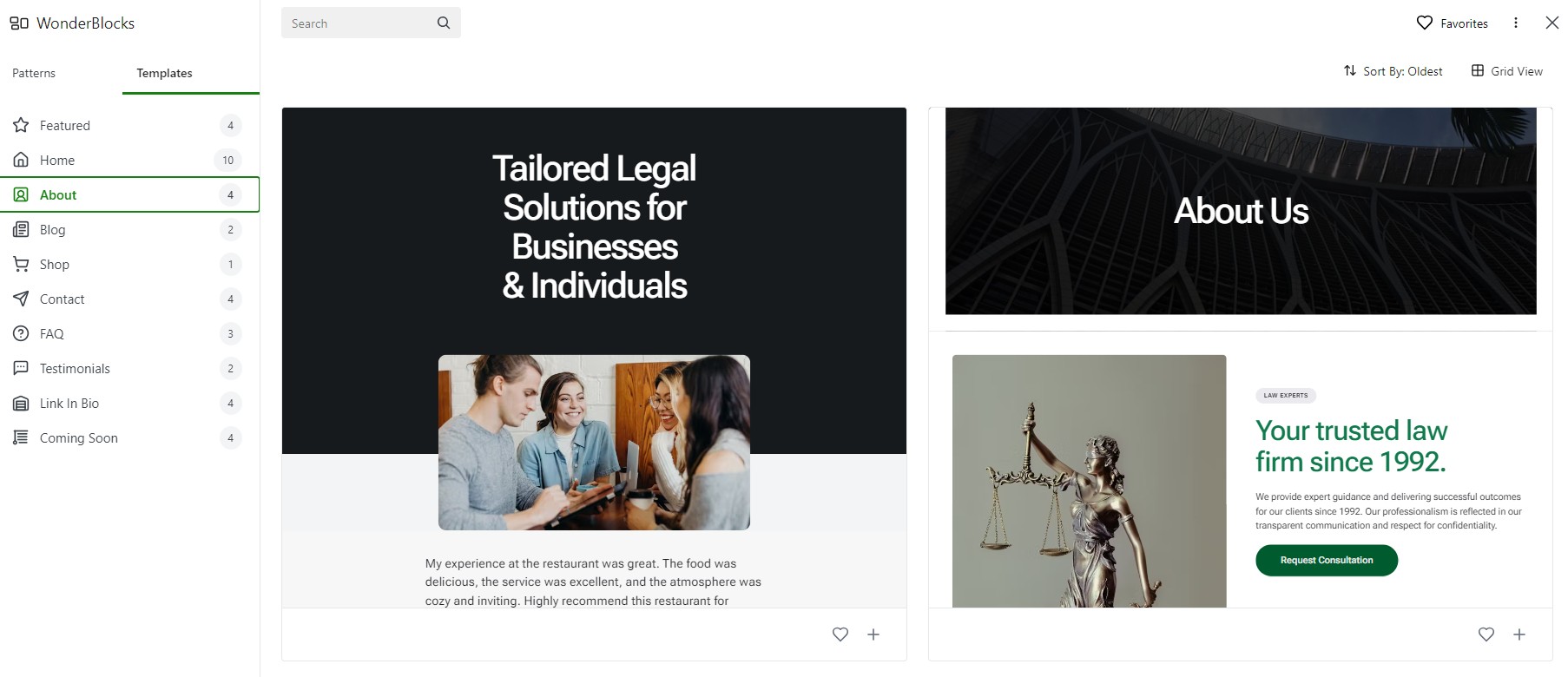
I persevered and I managed to get roughly what I was looking for. I did think there would be a bit more help as standard and that I wouldn't be using the Gutenberg drag and drop page builder as much. There was WonderBlocks, a selection of template sections for your site.

WonderBlocks is a neat tool that lives in the top left corner and contains loads of templates for things like headers, hero images, forms, galleries, testimonials, and a whole bunch of other stuff.

I actually have to praise Bluehost for this - I like this tool a lot. I think the overall user experience is still limited due to the WordPress page editor, but this helps out a lot.

To use one of the templates, you just need to click the plus sign under the template and it adds it to your page. Then you can edit it and move it around.

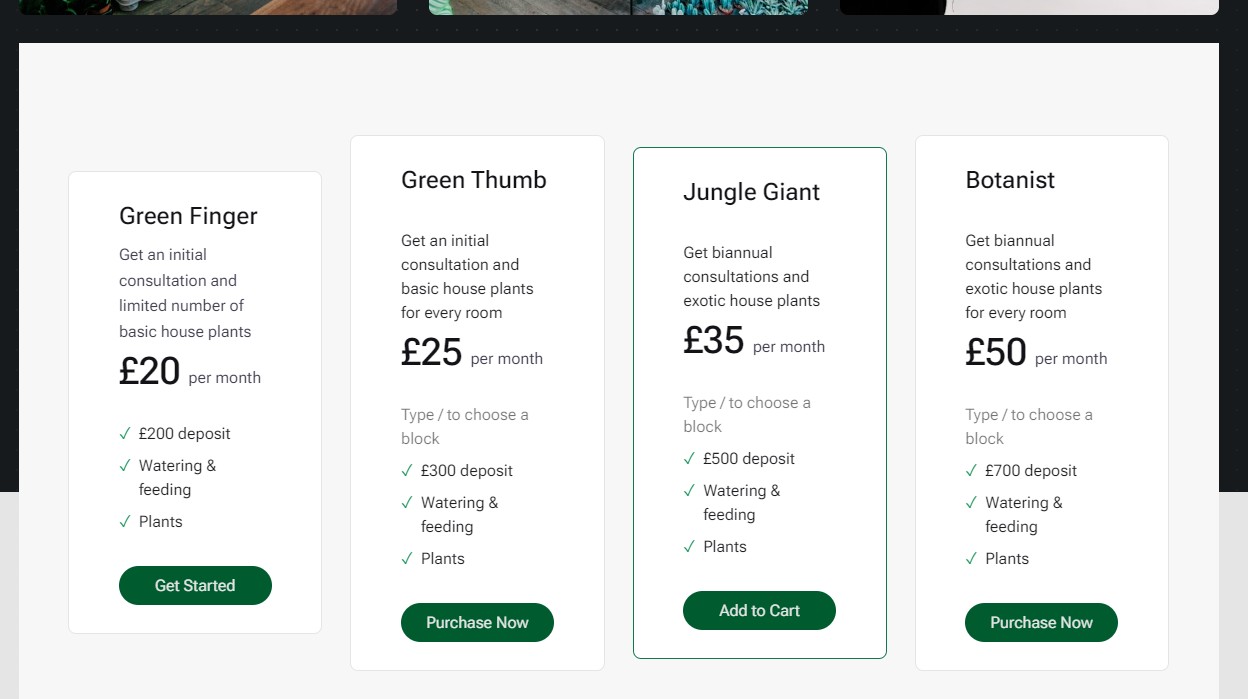
I used it to create a subscription plan section for my site. I saved a lot of time and frustration by doing it this way.

Earlier, I criticized Bluehost for not having any templates and just offering the AI website builder, but actually I think it's better this way. You get a very simple and workable layout from the AI page builder and then you get to customize it with template blocks.

32:45

That's enough of page building

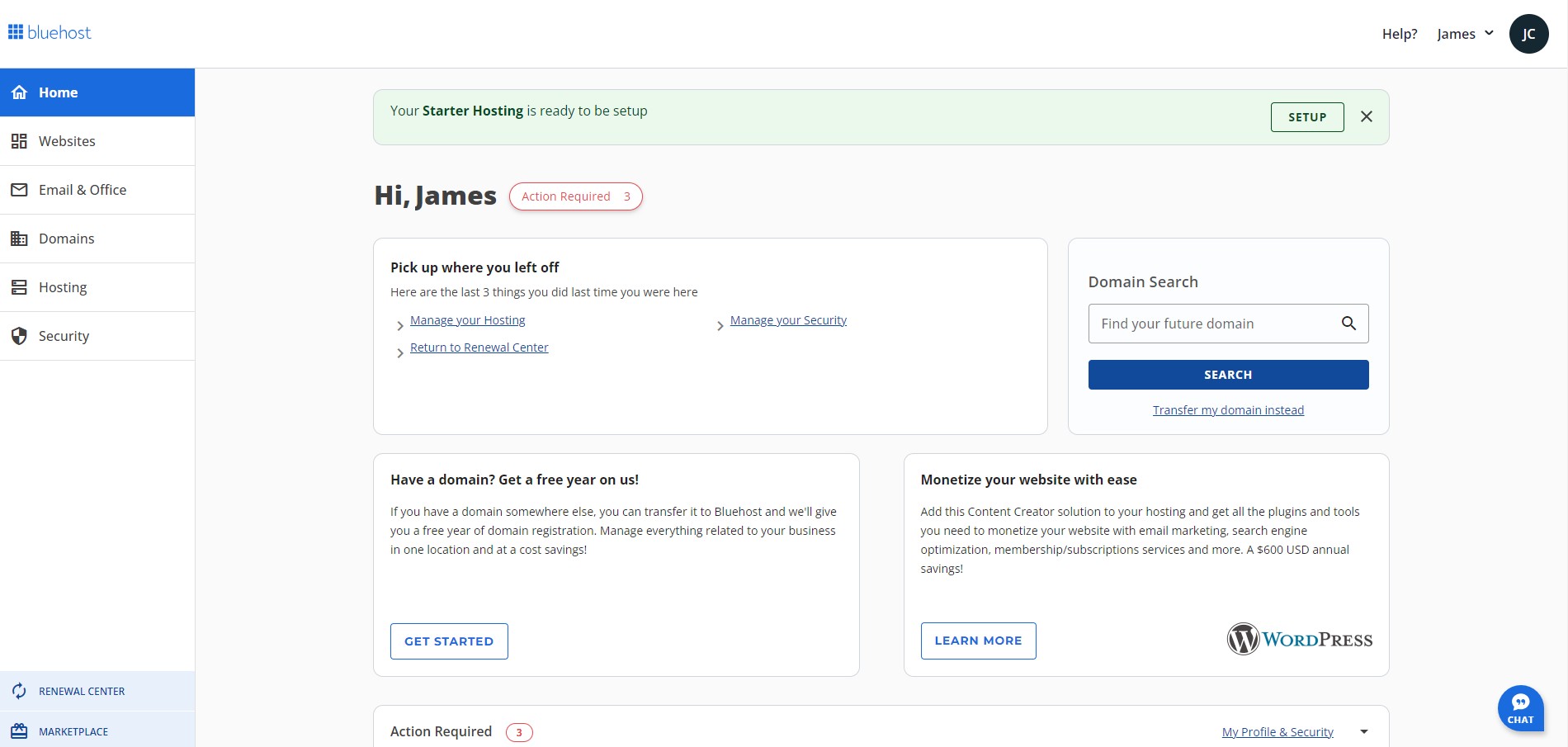
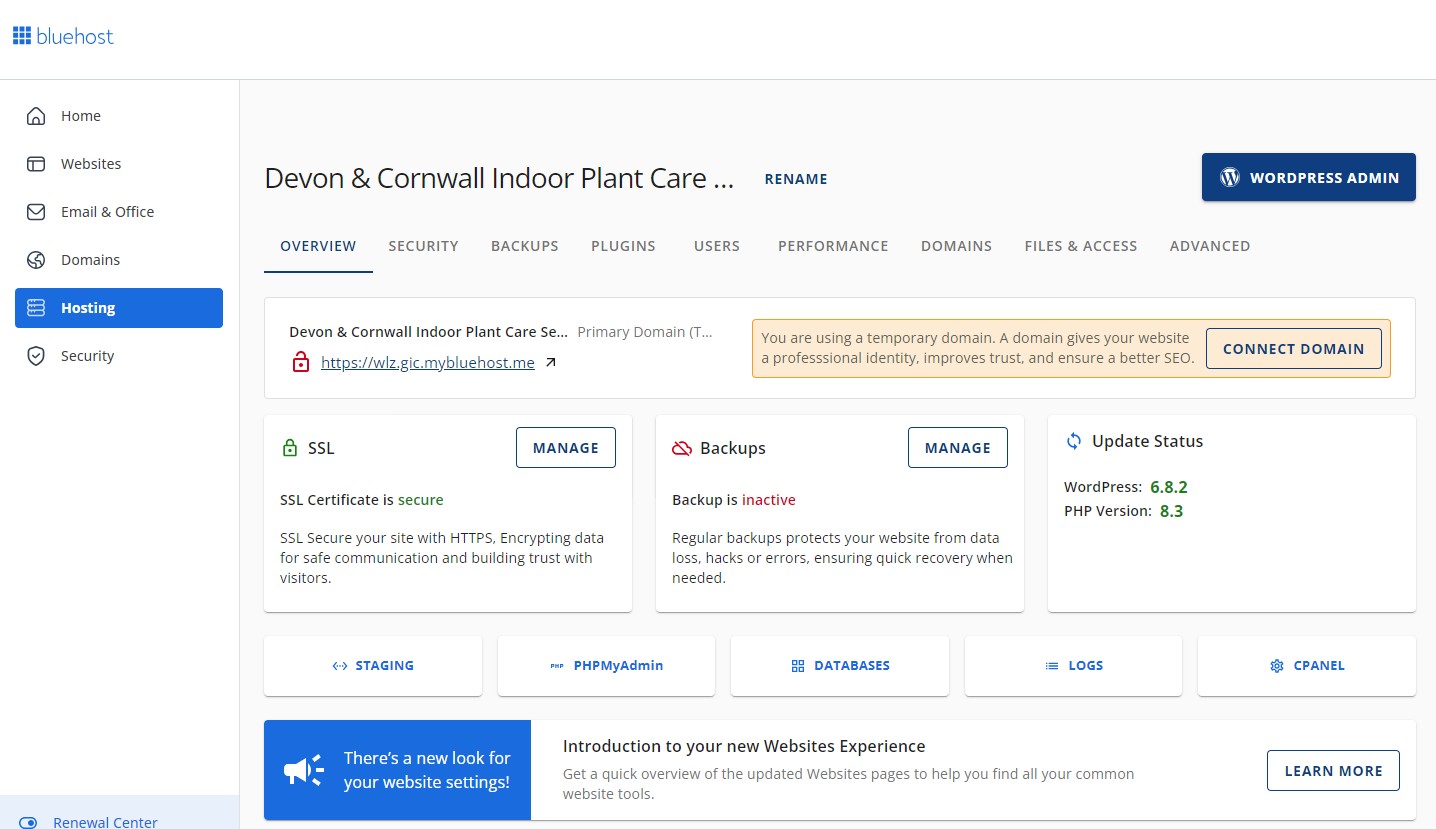
The control panel at Bluehost is very clean - the most technical things are all hidden from you, and a lot of the site management tools are integrated into the WordPress CMS rather than hosting panel.

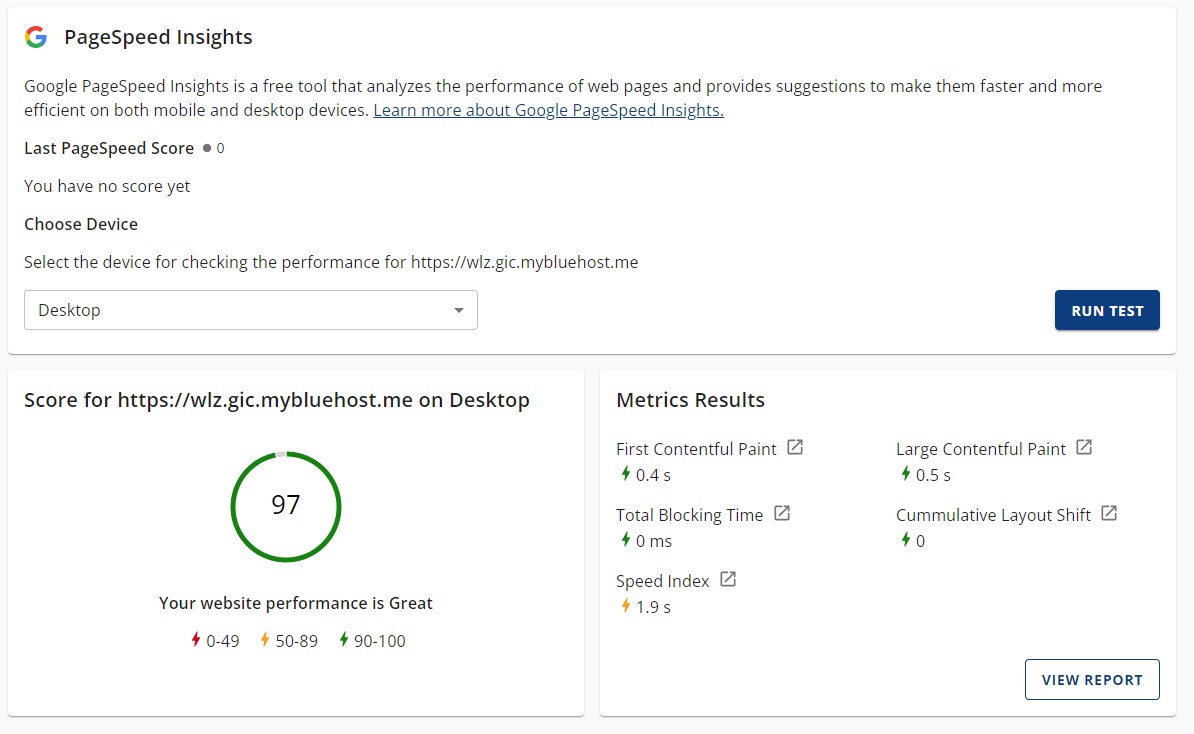
While I was in there, I did a quick speed test using a free tool from Google - you'd be foolish to use this as the main testing tool, but it's good for basic diagnostics and from Google itself.

I don't usually do speed tests when I do aOne Hour WithBecause I do more thorough testing in the full review, but I was curious and this took a second. It showed only moderate performance for Speed Index, which could be because of what I call plug-in bloat.

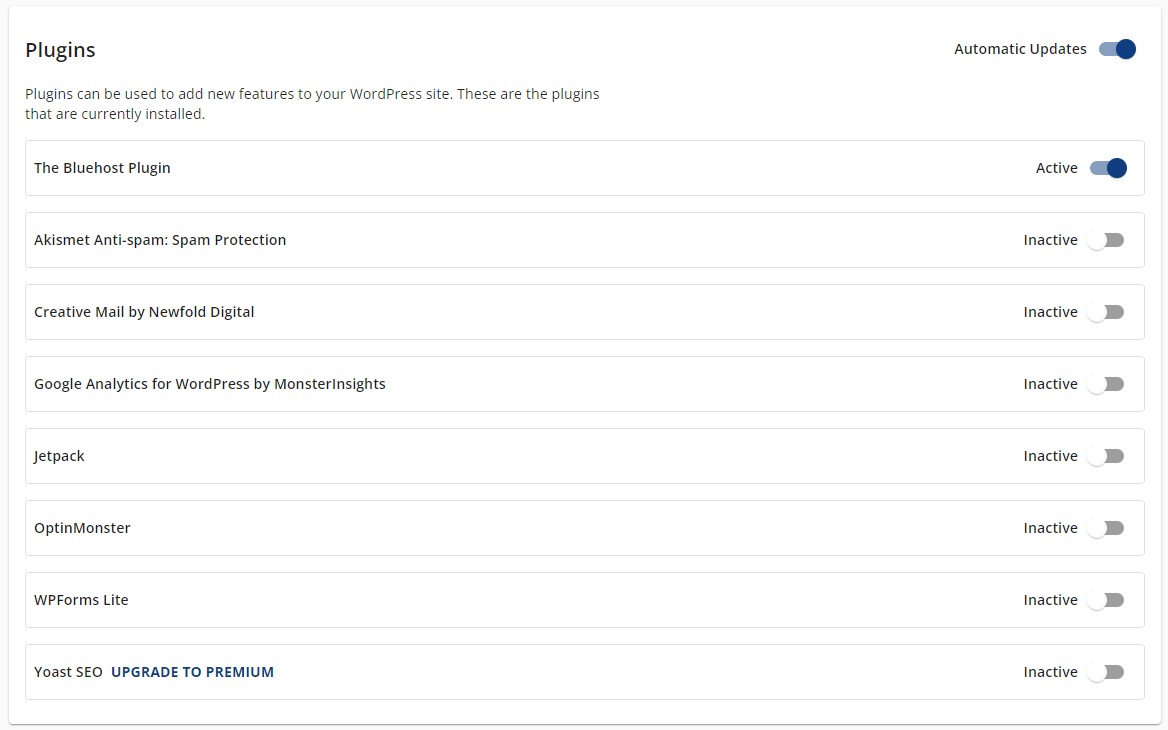
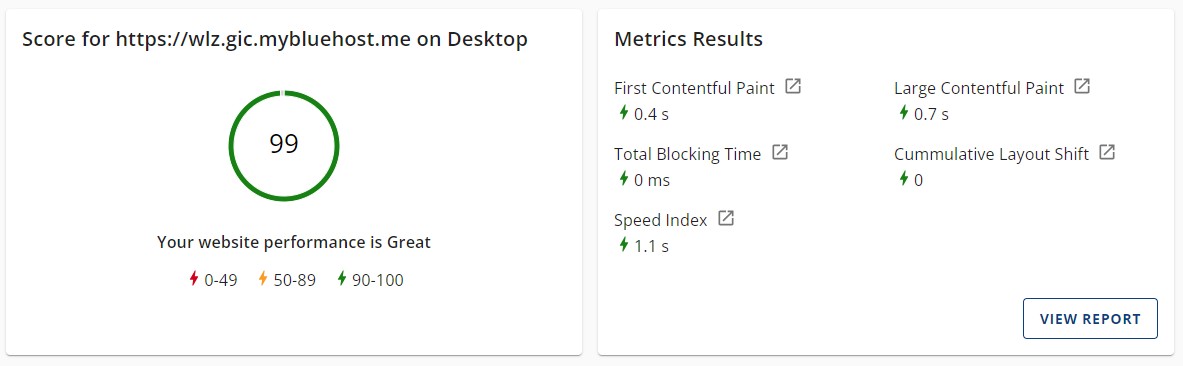
I followed Google's guidance onhow to improve Speed Indexand disabled third-party plugins, before running the speed test again and immediately seeing a jump in performance.

I think the tools are not necessary to have on all the time, as I don't think I need to monitor my SEO score constantly and there are ways to monitor website traffic with less overheads. For example, you can just paste a Google URL into your page that monitors traffic rather than using a plugin.

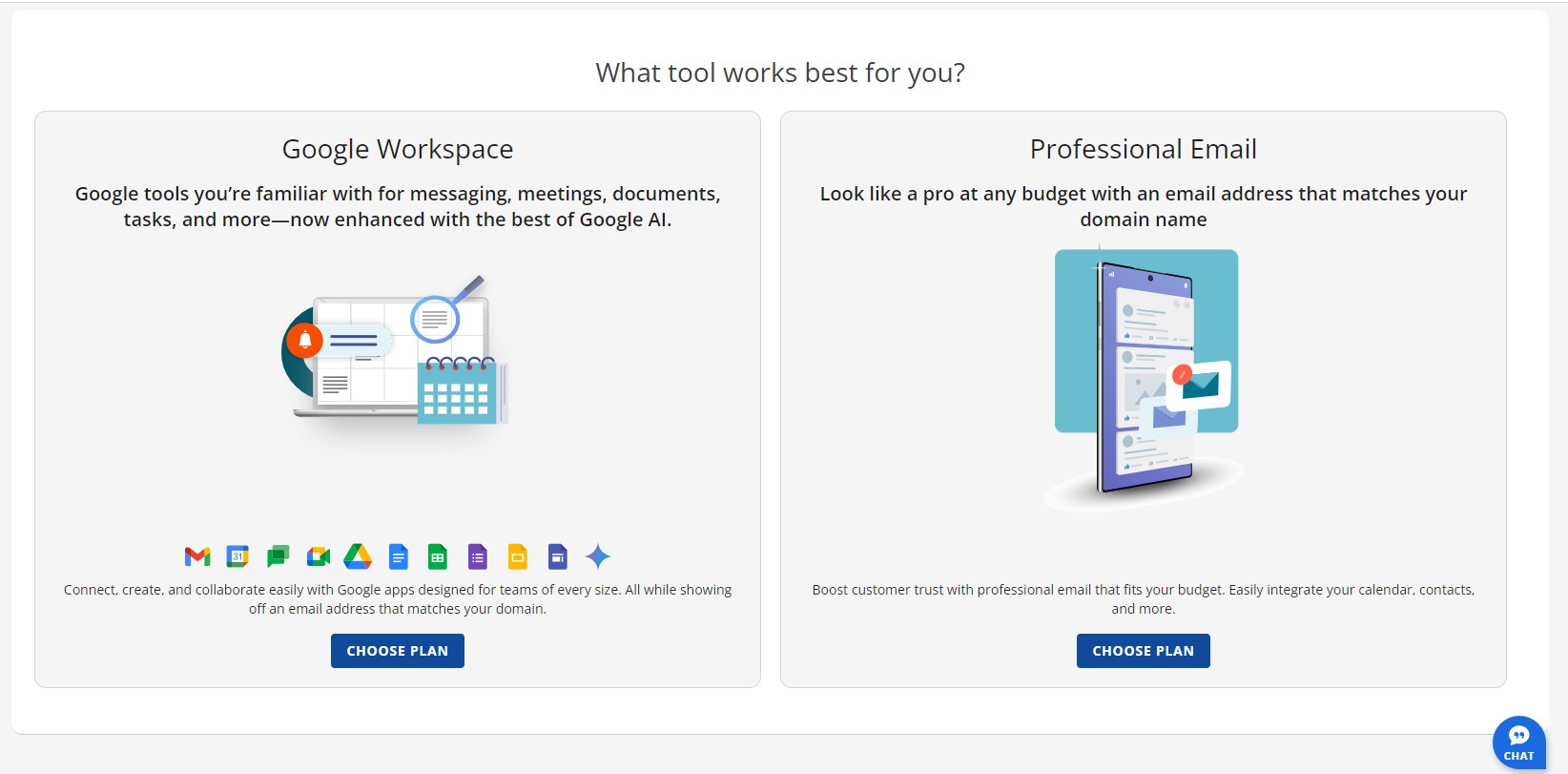
The Google Workspace integration caught my interest for a while. Obviously, most of these Google tools are free and you can (like I have previously) integrate these things into your website without paying for it.

For example, if you want to make a booking, you can use Google Calendar with a standard Gmail account, but you will need to use the @gmail email address. There are some workarounds that include setting up your own email and then configuring the settings, which could save you money.

I cannot decide what I would do. Obviously, it's easier to just pay Bluehost every month, and I don't think it's more expensive than paying for your own Google Workspace and then linking the account. In fact, you might get a discount at Bluehost.Email hostingIs a bit cheaper but might not come with the same storage space.

In the past I didn't use Google tools or features other than on simple sites I'd set up for recreational clubs.

For professional business websites, I just used email hosting from my hosting provider. This is something that I'm going to look into at a later date. If I was in a rush, I would just pay Bluehost. It's nothing that cannot be changed at a later date.

60:00

Overall impressions

My overall impression of Bluehost is good, and this little poke around has reinforced my belief thatBluehost is best for WordPressout of all thebest WordPress hostingoptions - at least for beginners.

Anyone who requiresWordPress hosting for an agencyor needs more performance like thebest small business web hostingwould likely be better off withSiteGround.

Bluehost is obviously fully committed to WordPress, and so pretty much everything is geared towards the CMS. Overall, I liked the page building experience. I think the initial templates are a little bland but the WonderBlocks tool really helped add things to the pages with very little hassle, and the management tools were also very straightforward.

Lastly, even though I deliberated over whether I thought the Google Workspace tools were worth it, I do like that Bluehost relies on familiar tools which are widely used, so people already know how to use them and there are already plenty of tutorials and helpful resources available.

I managed to set up a site, make some speed optimizations, and get a good feel around Bluehost in an hour, and that's the most I've managed to do with most hosts I've tried.

Like this article? For more stories like this, follow us on MSN by clicking the +Follow button at the top of this page.