Showing posts with label operating systems. Show all posts

Tuesday, December 30, 2025

Windows 10 Update Forces Windows 11 Ads on Some Users

Featured Image

New Windows 10 Update Introduces Persistent Upgrade Prompts for Windows 11

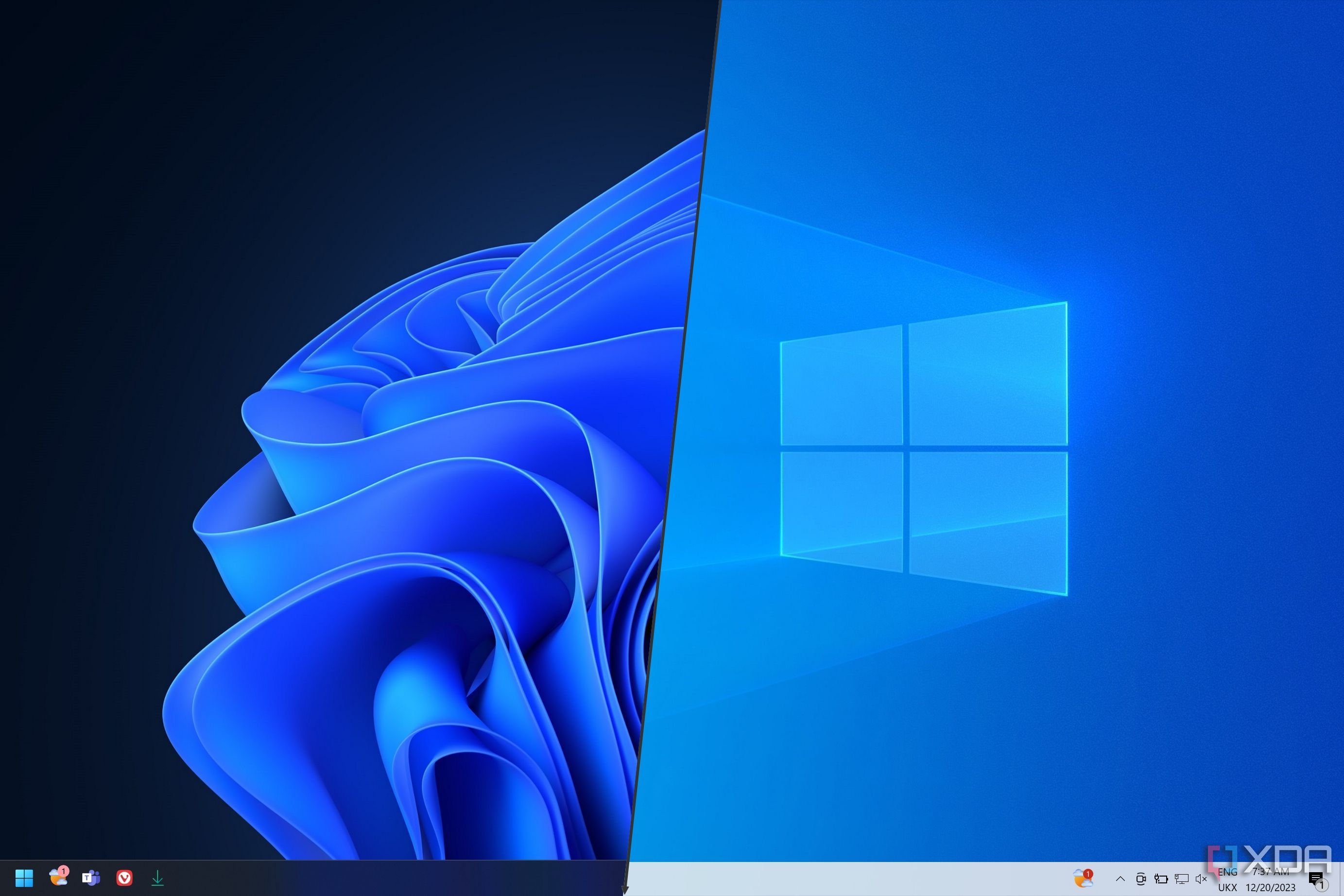
Microsoft has rolled out a new update for Windows 10 that includes a highly visible and unescapable prompt urging users to upgrade to Windows 11. This change is part of the company’s broader strategy to encourage users to transition away from the aging operating system, especially as its support period draws to a close.

The latest Windows 10 August update introduces a full-screen recommendation for upgrading to Windows 11. Unlike previous notifications, which were often subtle or tucked away in settings menus, this update features an inescapable pop-up that blocks user interaction until they either accept the upgrade or choose to defer it temporarily. Even after users confirm they plan to remain on Windows 10, the nag screen continues to appear, suggesting that Microsoft is determined to keep pushing the upgrade message.

Why Is Microsoft Pushing the Upgrade?

With Windows 10's end-of-life date set for October 14, Microsoft is making it clear that support for the operating system will soon be ending. While the company has provided users with an option to extend their support for an additional year, the overall goal remains to transition as many users as possible to Windows 11. This shift aligns with Microsoft’s broader vision for its future operating systems, which include enhanced features like improved AI integration, better performance, and more seamless cloud connectivity.

The persistent upgrade prompts are not entirely new, but they are becoming more aggressive as the deadline approaches. This suggests that Microsoft is ramping up its efforts to ensure that users do not miss the opportunity to upgrade before support ends.

What Are the Options for Windows 10 Users?

For those still using Windows 10, there are several options available:

  • Extend Support: Users can pay for extended support, which provides continued security updates and technical assistance beyond the standard support period.
  • Switch to Another OS: Some users may prefer to move to a different operating system, such as Linux, which offers a free and open-source alternative.
  • Upgrade to Windows 11: For those who want to stay within the Microsoft ecosystem, upgrading to Windows 11 is the most straightforward path forward.

Despite these choices, Microsoft clearly favors the upgrade path. The company has also been promoting its new line of Copilot+ devices, which are designed to take full advantage of Windows 11’s features, further encouraging users to make the switch.

The Impact on Users

The aggressive nature of the upgrade prompts has raised concerns among some users. Many feel that the constant reminders are intrusive and could lead to frustration, especially for those who have no intention of upgrading. However, Microsoft argues that these messages are necessary to inform users about the approaching end of support and the potential risks of continuing to use an unsupported operating system.

In addition to the upgrade prompts, Microsoft has also been rolling out other changes aimed at improving the user experience on Windows 11. These include enhanced productivity tools, improved multitasking features, and better integration with cloud services.

Final Thoughts

As Windows 10 moves closer to its end-of-life, users are being given a final opportunity to decide their next steps. Whether they choose to extend support, switch to another operating system, or upgrade to Windows 11, the decision comes with its own set of considerations. For now, the persistent upgrade prompts serve as a reminder that the time to act is quickly approaching.


Windows 10 Update Forces Windows 11 Ads on Some Users

Featured Image

New Windows 10 Update Introduces Persistent Upgrade Prompts for Windows 11

Microsoft has rolled out a new update for Windows 10 that includes a highly visible and unescapable prompt urging users to upgrade to Windows 11. This change is part of the company’s broader strategy to encourage users to transition away from the aging operating system, especially as its support period draws to a close.

The latest Windows 10 August update introduces a full-screen recommendation for upgrading to Windows 11. Unlike previous notifications, which were often subtle or tucked away in settings menus, this update features an inescapable pop-up that blocks user interaction until they either accept the upgrade or choose to defer it temporarily. Even after users confirm they plan to remain on Windows 10, the nag screen continues to appear, suggesting that Microsoft is determined to keep pushing the upgrade message.

Why Is Microsoft Pushing the Upgrade?

With Windows 10's end-of-life date set for October 14, Microsoft is making it clear that support for the operating system will soon be ending. While the company has provided users with an option to extend their support for an additional year, the overall goal remains to transition as many users as possible to Windows 11. This shift aligns with Microsoft’s broader vision for its future operating systems, which include enhanced features like improved AI integration, better performance, and more seamless cloud connectivity.

The persistent upgrade prompts are not entirely new, but they are becoming more aggressive as the deadline approaches. This suggests that Microsoft is ramping up its efforts to ensure that users do not miss the opportunity to upgrade before support ends.

What Are the Options for Windows 10 Users?

For those still using Windows 10, there are several options available:

  • Extend Support: Users can pay for extended support, which provides continued security updates and technical assistance beyond the standard support period.
  • Switch to Another OS: Some users may prefer to move to a different operating system, such as Linux, which offers a free and open-source alternative.
  • Upgrade to Windows 11: For those who want to stay within the Microsoft ecosystem, upgrading to Windows 11 is the most straightforward path forward.

Despite these choices, Microsoft clearly favors the upgrade path. The company has also been promoting its new line of Copilot+ devices, which are designed to take full advantage of Windows 11’s features, further encouraging users to make the switch.

The Impact on Users

The aggressive nature of the upgrade prompts has raised concerns among some users. Many feel that the constant reminders are intrusive and could lead to frustration, especially for those who have no intention of upgrading. However, Microsoft argues that these messages are necessary to inform users about the approaching end of support and the potential risks of continuing to use an unsupported operating system.

In addition to the upgrade prompts, Microsoft has also been rolling out other changes aimed at improving the user experience on Windows 11. These include enhanced productivity tools, improved multitasking features, and better integration with cloud services.

Final Thoughts

As Windows 10 moves closer to its end-of-life, users are being given a final opportunity to decide their next steps. Whether they choose to extend support, switch to another operating system, or upgrade to Windows 11, the decision comes with its own set of considerations. For now, the persistent upgrade prompts serve as a reminder that the time to act is quickly approaching.
Saturday, August 23, 2025

I can’t stop using Windows 11’s secret God mode

You’ve probably used God modes in PC games before where you type in a code to get supernatural powers that defy the normal physics of the game or make you invincible. Well – surprise! Windows 11 has one of those too.

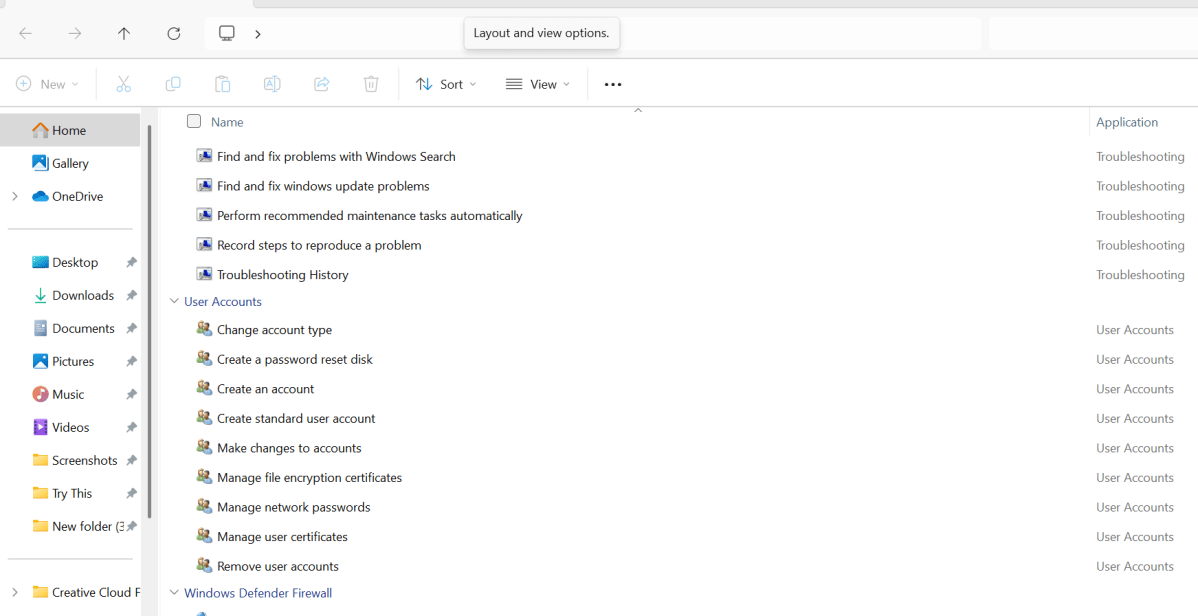
In Windows’ case, though, you don’t get supernatural powers. What you get is access to a whole heap of commands that you’d normally have to dig deep to find in menus, submenus, and tabs.

I use Windows God mode to find and manage Windows administrative tools quicker than I normally would be able to, to adjust and check things like my PC’s power plan, and to view my devices. Suffice it to say it saves me a bunch of time by cutting down the time I spend with useless faffing about.

In fact, I recommend Windows God mode as a quick way to access functions that you use a lot and wish you had shortcuts for on your desktop. Here’s how to switch it on!

What to do:

・Right click on your desktop and select New > Folder to create a new folder.

・Rename the folder: GodMode.{ED7BA470-8E54-465E-825C-99712043E01C}.

・This should turn your new folder into a desktop icon. If it doesn’t happen right away, give it a few minutes — it will.

・Double-click on the icon. You will now see a list of functions to choose from. Select the function you want to run by clicking on it at will.

Dominic Bayley / Foundry

I hope that’s enabled you to run a roulette of commonly used functions quicker than you otherwise could. That’s a wrap for this Try This tip. If you’d like more tips and tricks like this one emailed to you directly twice a week, be sure to sign-up to our The Shiro CoprTry This newsletter.

Friday, August 22, 2025

Windows 11's Copilot app gets a facelift — plus tools you'll actually use. Here's why I like it.

TheCopilotapp forWindows 11is a new "home experience," according toan August 20thblog postfrom Microsoft. Indeed, I have the update on one of my PCs, but it's a slow rollout as my others, includingthe best AI laptops, have yet to receive it.

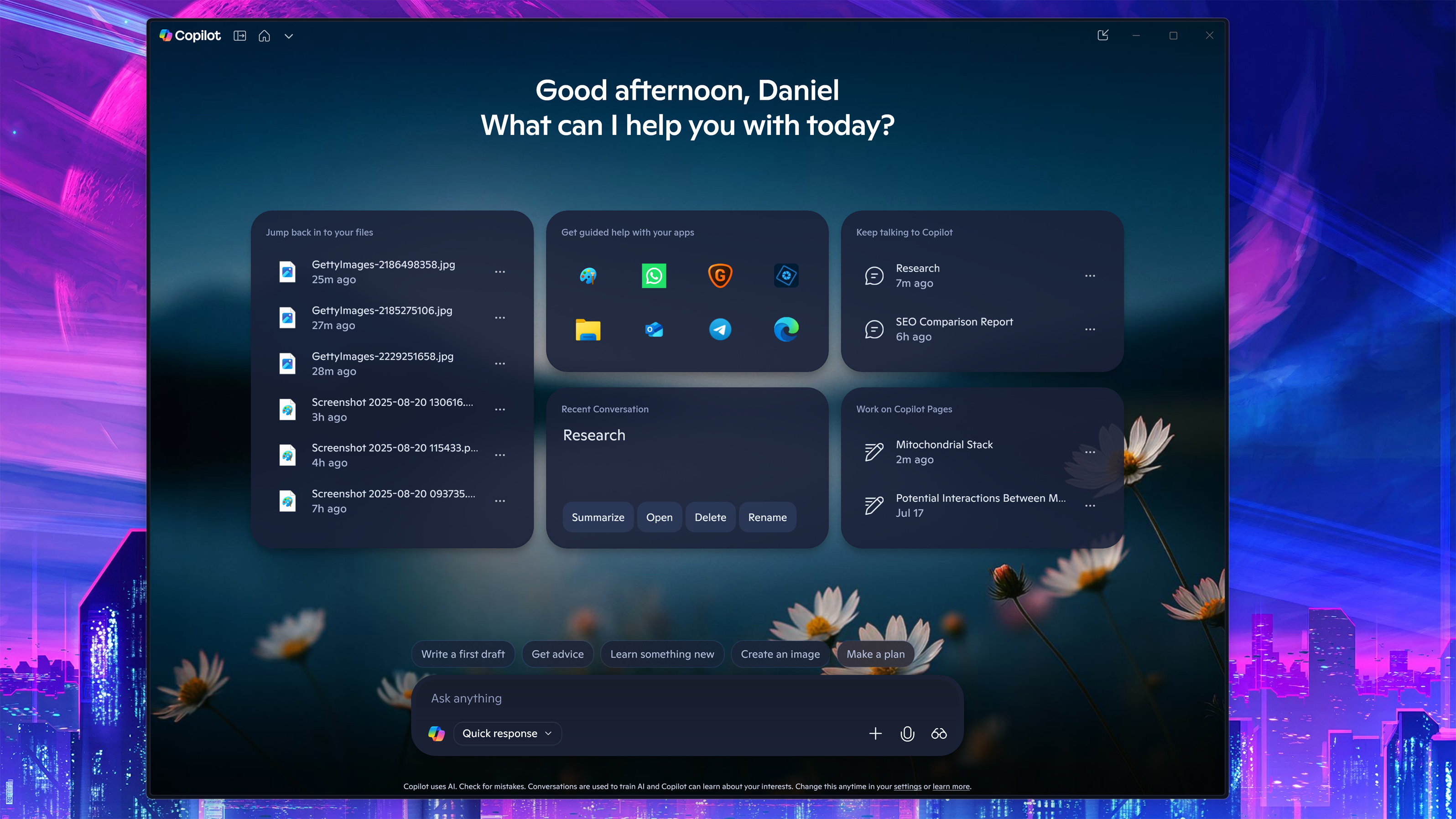
Version 1.25082.132.0 (and higher) should have a new, punchier layout that not only looks better, but also has some useful features that make it feel more integrated with the OS.

Upon launching, the austere purple/blue background is gone, and in its place is a bokeh-rich photo with some daisies, clouds, and a blue sky, offering a welcoming calming effect without being distracting.

But it's the new "modules" that add value to the update. I count five of them, including recent files, Copilot Pages, a recent apps launcher, and current Copilot conversations. Below is the usual start new conversation window, along with suggested functions above it if you're at a loss for giving Copilot some chores.

Let's break some of these down, and I'll also share some other new upcoming features, and a tip on how to get Copilot's memory working.

New Copilot features explained

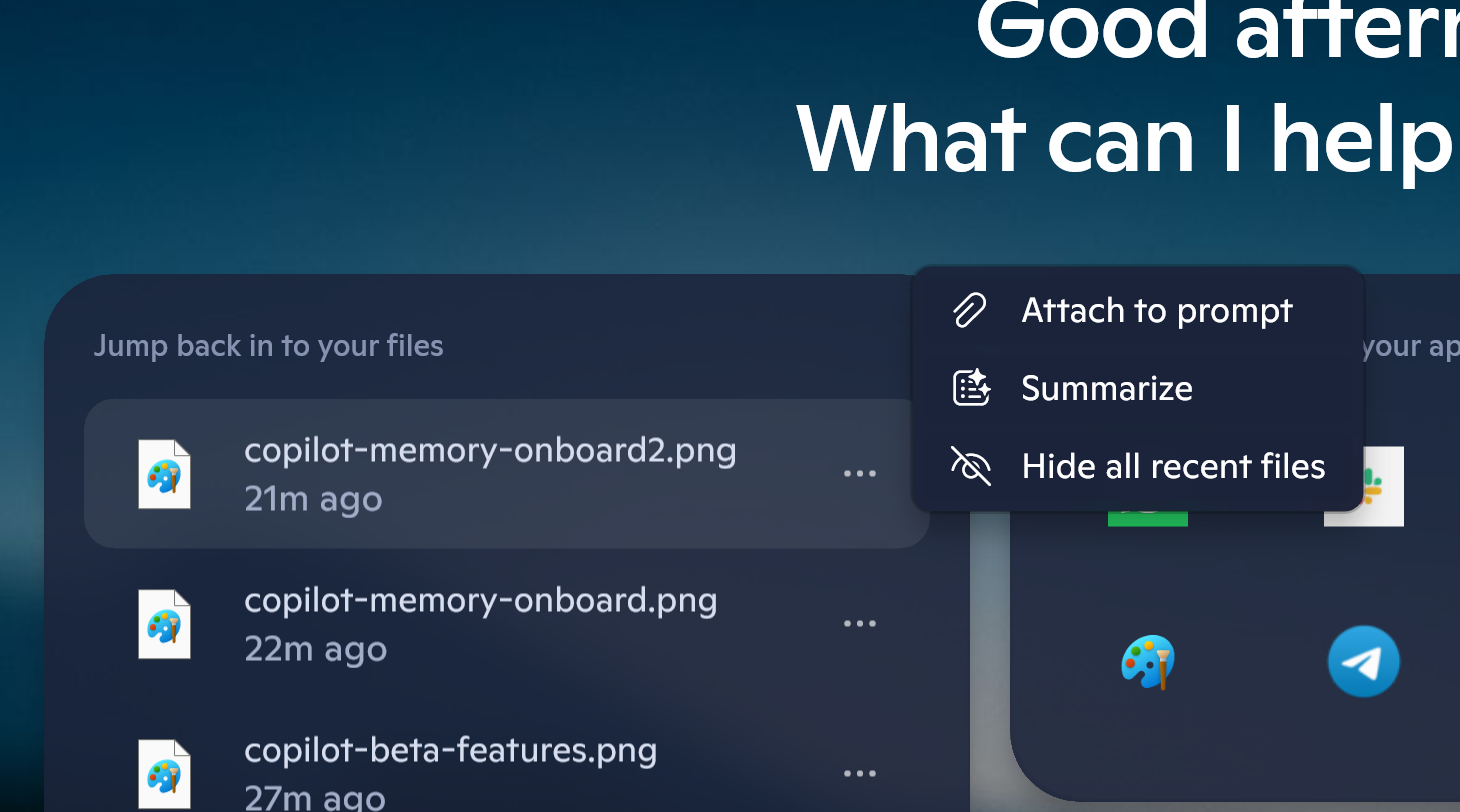
TheRecent FilesThe module matches the same recent files list found in the Start Menu. Access to this feature is available in Copilot's settings under 'Permission settings,' which also allows you to turn the feature off in case you are concerned about sensitive files appearing in that list (to be replaced by a module explaining the feature).

How it works is simple: Whatever recent files you've accessed on your PC appear there and can now be clicked and acted on by the AI (attach to prompt or summarize) — whether that is manipulating (or searching) an image, Word documents, and more.

Files not compatible with Copilot arenotdisplayed.

Work on Copilot PagesList is a twofer if you didn't know aboutPages.

Any query into Copilot can be turned into a more permanent Page that you can also edit (via the 'edit in page' icon at the bottom of the Copilot request). Think of these as ongoing research projects in Copilot that you'll return to and continue to expand. So, this module simply shows the most recent ones for quicker access.

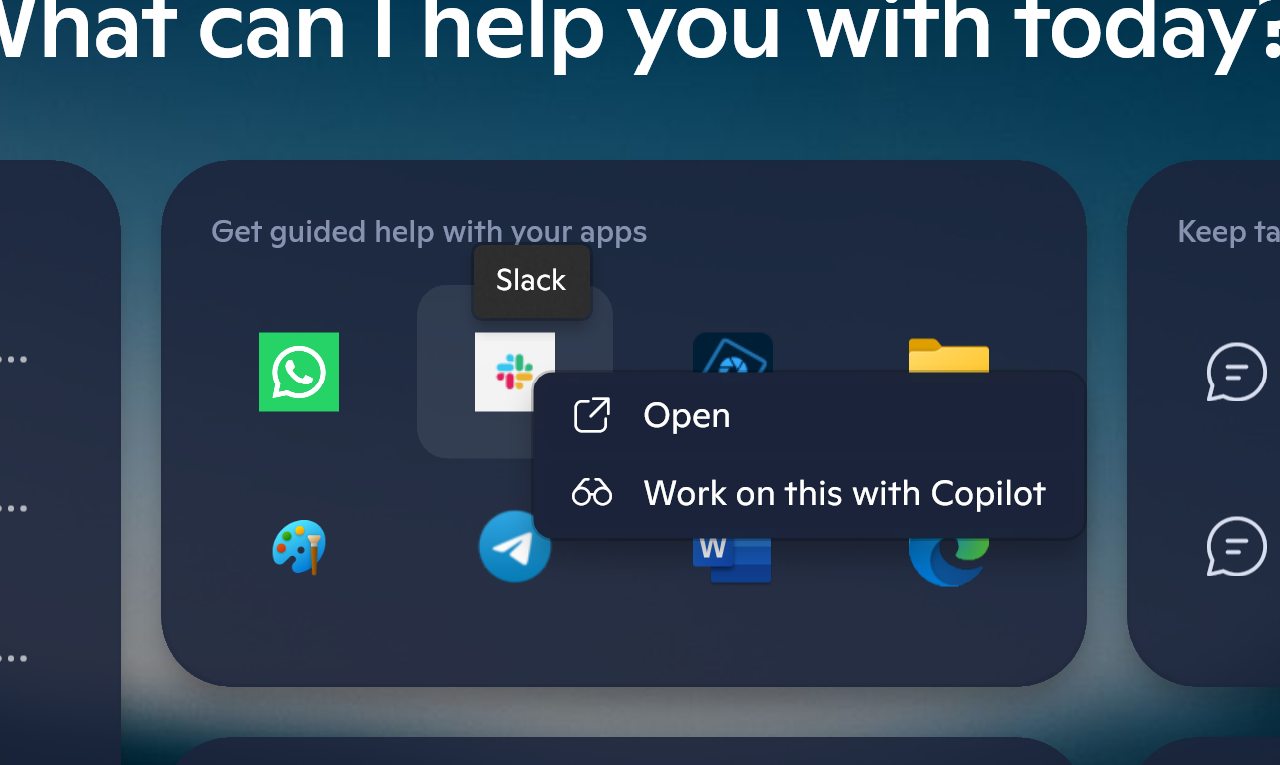
TheApps launcheris the most interesting as it's basically an app-specific quick launcher usingCopilot Vision(the feature that lets Copilot "see" your computer screen). If you click any of your apps, it will launch, but there is also a Copilot window hovering over and focused on the app (and only the app).

From there, you can ask Copilot questions about the app, how to use something, or search for more information on it. I think this is a fascinating way to encourage people to use Copilot Vision, which relies on voice interaction instead of typing.

Finally, there is just theRecent Copilot conversationswindow to jump back into previous AI inquiries.

Copilot - More features (return of Share)?

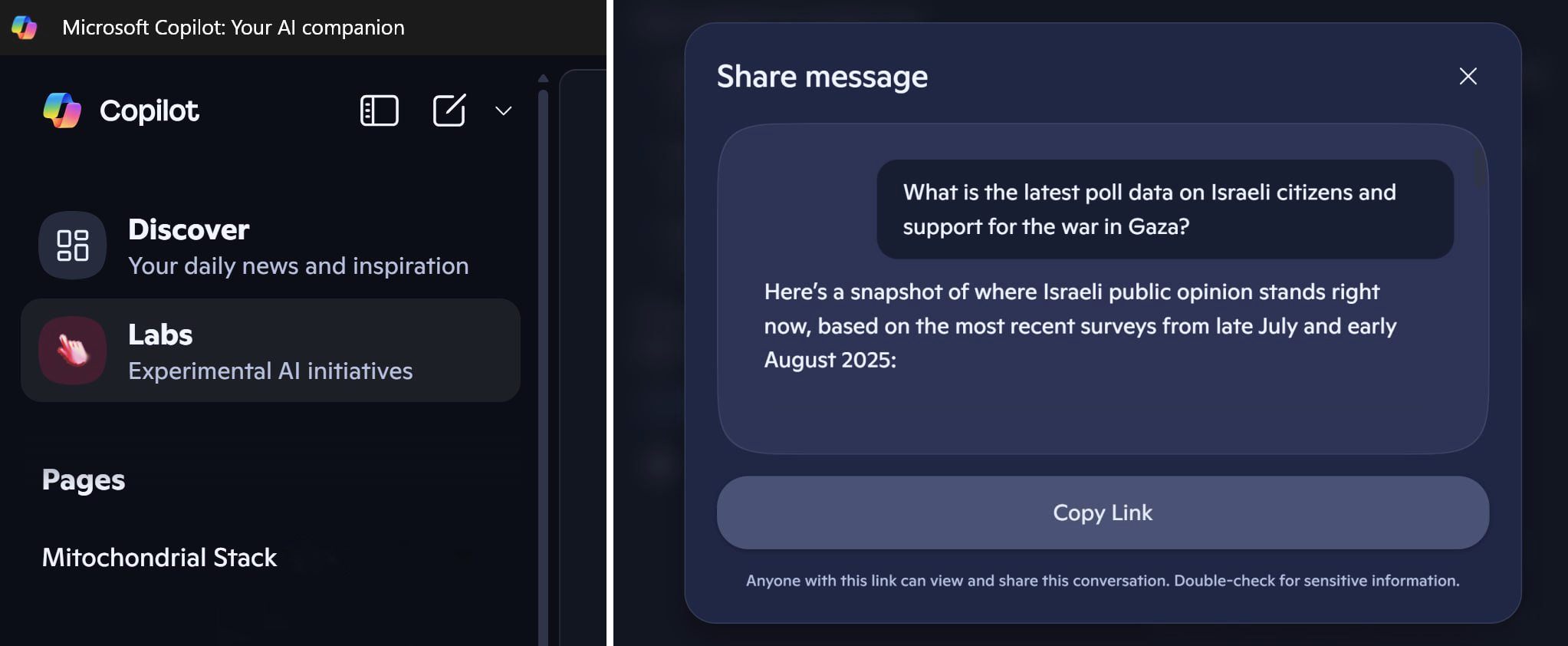
I've seen some recent A/B testing (I assume) of newer features likely coming to Copilot, including the return of 'share.'

Sharing was one of the first features in the original Copilot app, but was removed duringthe major rewrite this past March. The new version had a share button at the end of the query, which, when clicked, opened a Share Message window with the query and the ability to copy the link for sharing.

Sharing is a highly desired feature for Copilot, so hopefully, Microsoft brings it back as it has been long overdue by now.

I've also seen Copilot Labs appear in the app, where users can try out new features being developed and found on the Copilot Labs web page.

For me, both features were only around for a day or so and are now gone on my active PCs.

Tip: Get Copilot to know you better

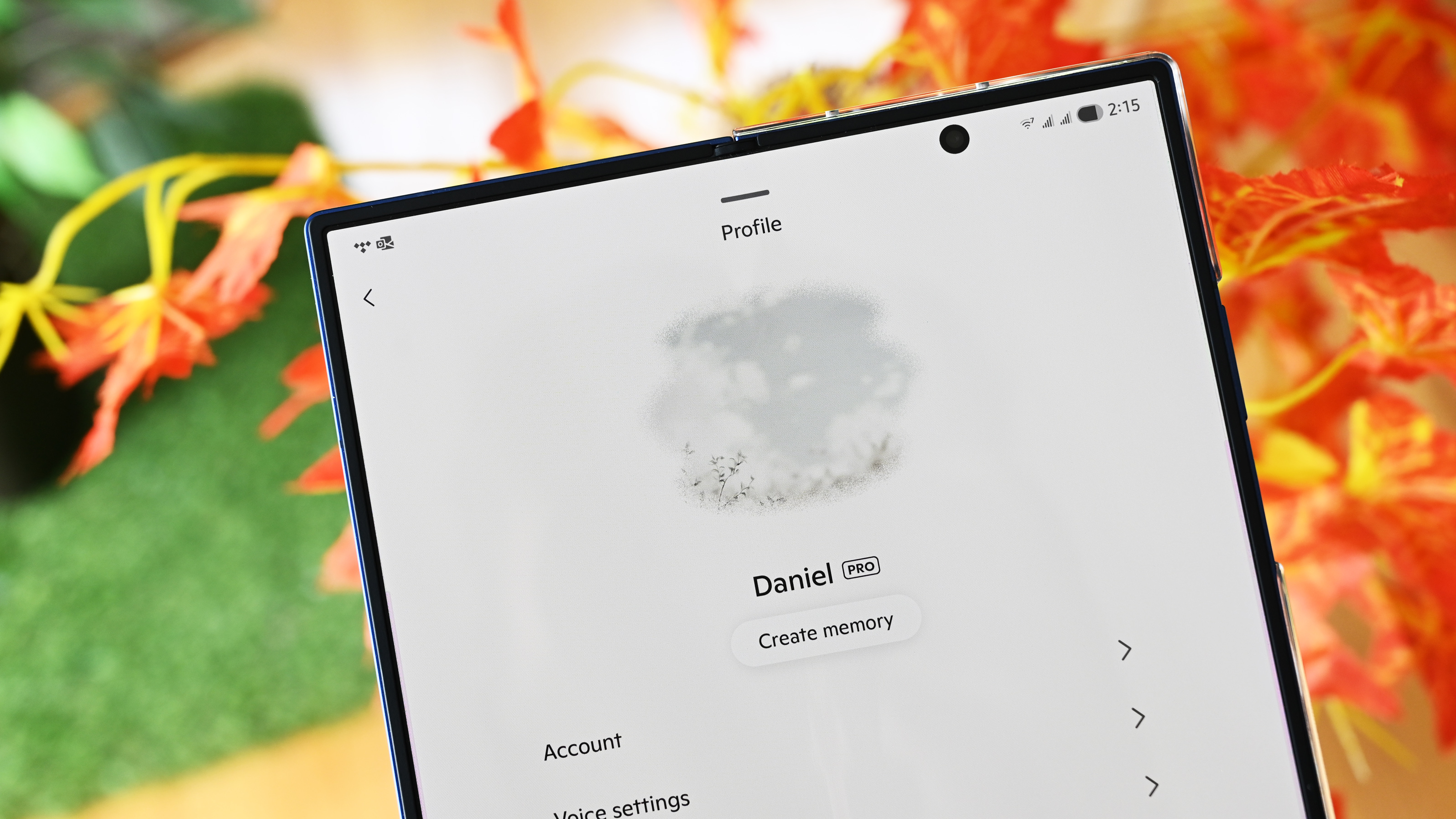
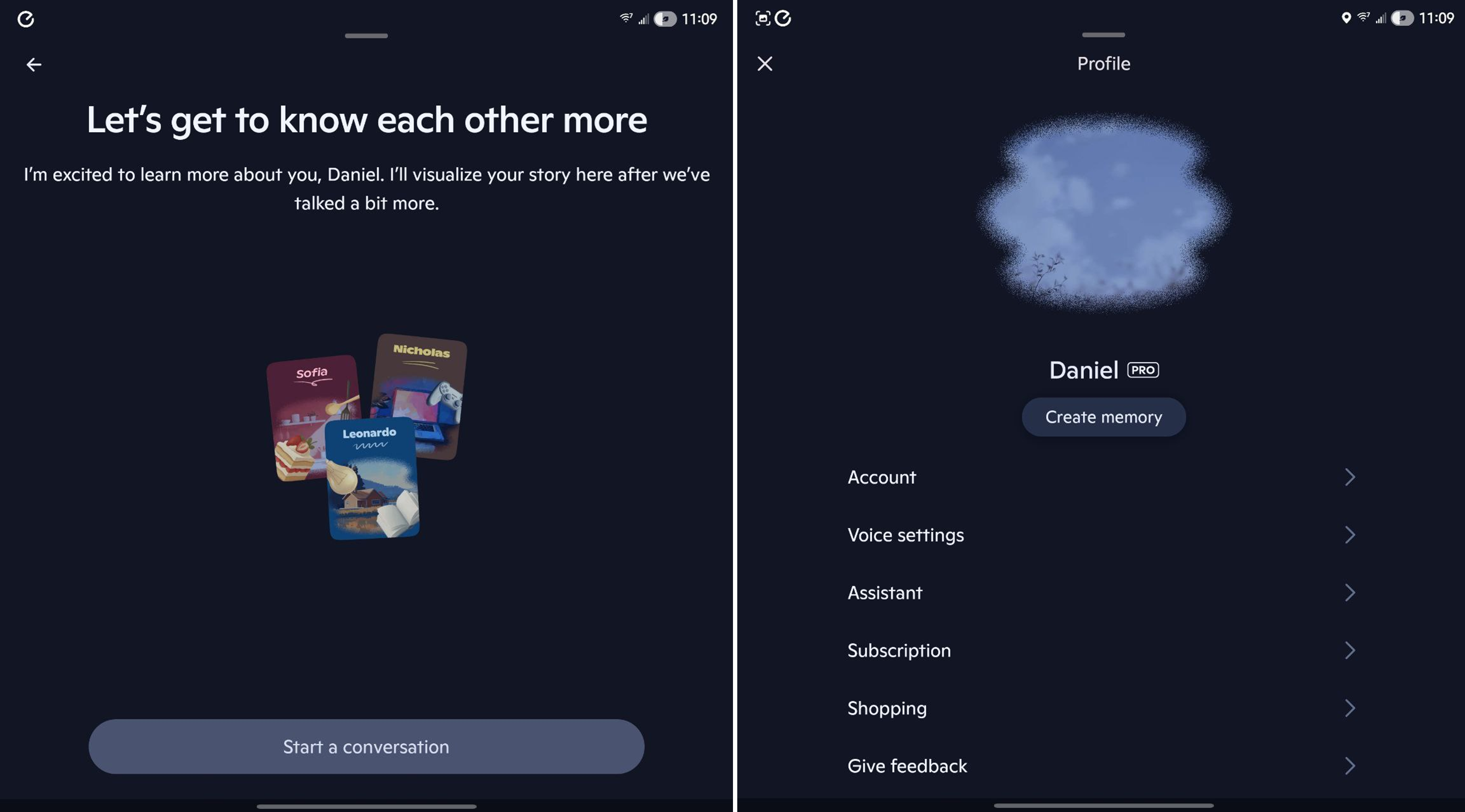
One feature, or rather trigger, I've seen in the Android app for Copilot is the learning/memory feature (announced in April), where Copilot tries to learn more about you and how you use the service.

Under Settings in the app, there is a button that says, "Create memory," and clicking it opens a prompt where Copilot will ask a series of questions based on previous search results for more clarification.

Interestingly, you could just trigger this yourself if you don’t have this feature in any of your apps. Simply type in this prompt, and it should work (unless it's a Copilot Pro feature only):

I heard you have memory, which helps you understand me better. Ask me questions to get to know me better.

Give it a shot!

Copilot is coming along (and I like it)

I have access to Gemini Pro from my work account, and it works well, don't get me wrong, and the Android app also has some additional features and advantages. But my go-to AI app now is Copilot, partially because it feels (and looks) less mechanical and prompt-focused than other LLMs, and I have also been happy with the results.

Next to Click-to-Do and Recall, I think Copilot has one of the best UI designs for Microsoft.

And because I use Copilot in Windows 11, having it on Android and in other Microsoft apps is also a win. That said, I think Microsoft has an uphill battle as Google has the mobile advantage and ChatGPT has the cultural influence going for it. Either way, I'm excited to see how these features continue to evolve.

What about you?Let me know in comments on why you do (and don't) use Microsoft's Copilot, and which is your preferred LLM (and why).

Like this article? For more stories like this, follow us on MSN by clicking the +Follow button at the top of this page.