Showing posts with label microsoft. Show all posts

Saturday, October 25, 2025

Microsoft's Command Palette Improves, But Lags Behind Flow Launcher

Featured Image

A New Era for Windows Launchers

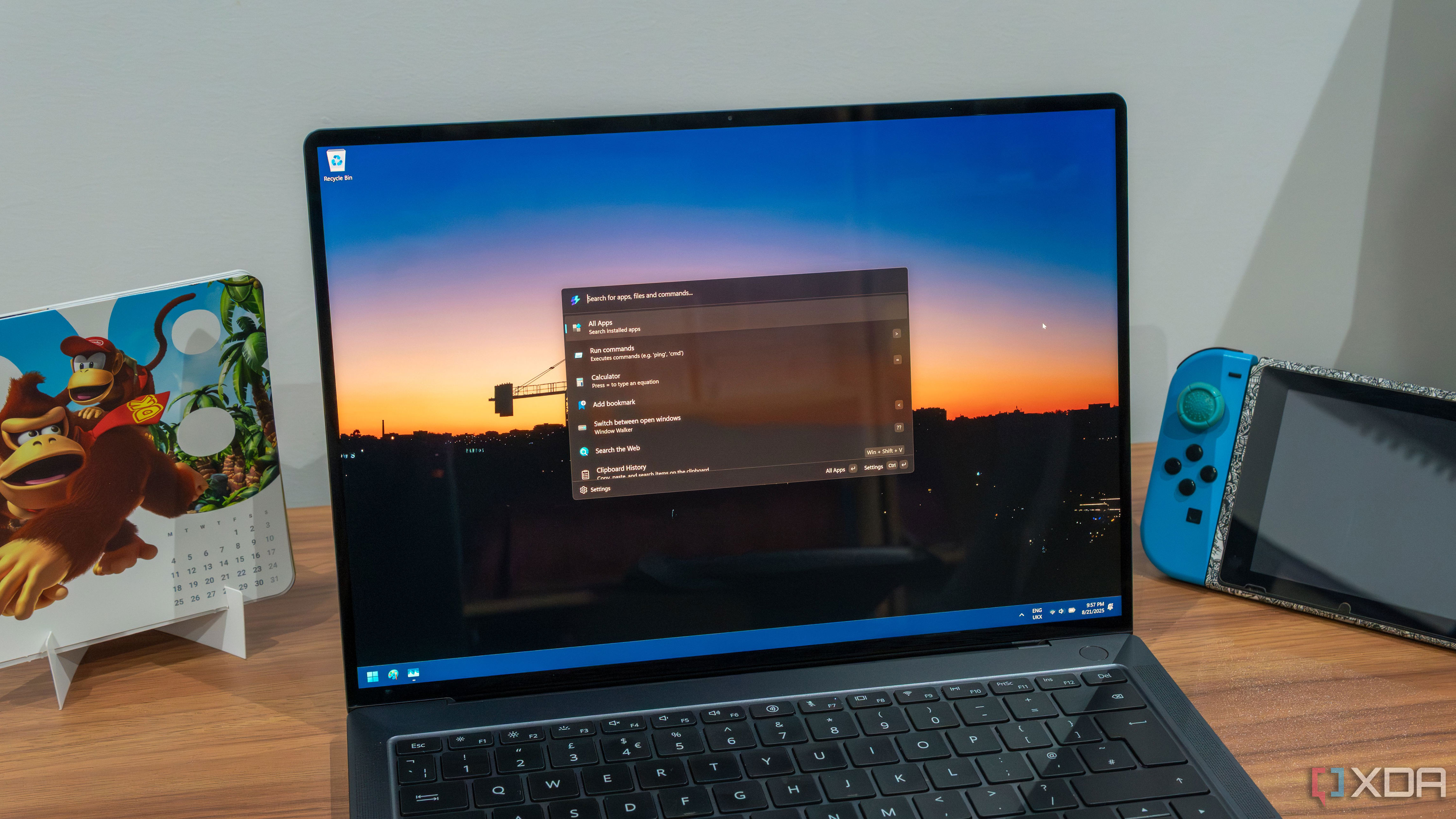
It's been over a year since I first experimented with using Windows without the Start menu by trying out Flow Launcher, and that experience quickly turned me into a fan of the app. Later, I discovered that Microsoft had been working on a similar feature through PowerToys with PowerToys Run, and even more recently, the company introduced Command Palette, an upgraded version of the tool with enhanced capabilities.

I had the chance to test Command Palette shortly after its release a few months ago, but recently, Microsoft rolled out a major update with significant performance improvements, prompting me to take another look. Additionally, the app has had time to accumulate more extensions, giving me even more reason to give it another try. I'm starting to see a future where Command Palette could potentially surpass Flow Launcher. However, that future isn't quite here yet.

Improved Performance, with Some Limitations

PowerToys version 0.93 was released earlier this month, and the team promised substantial upgrades to the performance of Command Palette. Specifically, they highlighted a 40% improvement in load times and a 70% increase in loading times for built-in extensions, all while using fewer system resources. This performance boost was enough to draw my attention back to the app, and indeed, Command Palette feels noticeably faster now.

Pressing the assigned keyboard shortcut instantly launches the search bar, and I can start typing right away, just as quickly as Flow Launcher. Even if you use a hotkey to launch a specific plugin, that launches almost just as quickly.

That being said, there are still some issues that need to be addressed. Command Palette still seems to have a noticeable delay between when I type into the search bar and when the results appear. It's not extremely slow, but it is perceptible, and sometimes my keystrokes are very fast when I want to launch an app this way, so I could see this causing problems in some cases. Interestingly, if I write part of a command and erase it, when I type it in again, the results load instantly. But if the query changes, there's a bit of a delay again. It seems to get better as more results get indexed, but Flow Launcher is still more responsive and updates results faster as soon as you start typing, making it ideal for quickly launching apps.

I've also noticed an issue where the Command Palette Extensions command simply doesn't load any results. It's supposed to search Winget for available extensions for the plug-in, but I'm stuck in an infinite loading loop, so I just have to use Winget directly.

A Growing Ecosystem of Extensions

There are already some great extensions available for Command Palette, though the platform is still relatively small compared to other launchers. The biggest hurdle for Command Palette to overcome is gathering a community of plugins that's as rich and vast as the likes of Flow Launcher, or even Raycast once it comes to Windows. However, using Winget as the distribution platform has helped a bit here, as there are already a good number of extensions available, some of which are genuinely useful.

One example is EverythingCmdPal, an extension that integrates the Everything search engine into Command Palette. The built-in file search in Windows is notoriously slow, so using Everything makes the experience much better. It seems like this is an app that's quick to support all these launchers, as both Flow Launcher and PowerToys Run also have matching extensions.

Another useful extension is Video Downloader, which lets me download videos from YouTube. I sometimes use this to download YouTube videos when I want to show clips of them in my own videos, such as game trailers, so it comes in handy quite often.

There are a few others available that many would find useful, including some extensions that work with Visual Studio Code or Obsidian notes. However, it's still a small selection compared to the likes of Flow Launcher.

Clipboard History: A Standout Feature

As much as I can criticize Command Palette, there's one thing it has out of the box that Flow Launcher doesn't, and that's the Clipboard History plugin. For one thing, it's included with Command Palette by default, whereas Flow Launcher requires a third-party plugin for similar functionality.

But it's also easier to use. There are a couple of clipboard history plugins for Flow Launcher, but both have the same problem: selecting a result from the list only copies that item back into the clipboard (by default, at least), making it so you can then paste it with Ctrl+V. This is a behavior I've seen on some Linux clipboard managers too, and I find it frustrating because it goes against the way the standard clipboard history behaves on Windows or macOS, as well as an app like Raycast. It also just takes longer; why would I want to select a result from the list if not to insert it?

Thankfully, the Clipboard History extension in Command Palette provides both options for quick access. Enter copies the selection, and Ctrl+Enter pastes it immediately. It's perfect.

Flow Launcher Still Leads the Pack

Despite the improvements, Flow Launcher is still the king of Windows launchers. It's faster and more capable, and the ecosystem of plugins is much larger. Command Palette has a few essentials, but there are so many that are just useful or fun in Flow Launcher. There's a plugin for Home Assistant that lets me control my lights or change the volume on my smart speaker.

One of my favorites is the Pokédex plugin, which lets me search up a Pokémon and see information about it easily by opening its entry directly in one of various well-known databases such as Bulbapedia or Serebii. Similar plugins even exist for things like Stardew Valley. There's just so much you can do ranging from useful to random, and that kind of ecosystem is necessary for a thriving platform.

The Future Could Be Bright with Raycast

Flow Launcher may remain undefeated for now, but that dominance may finally be threatened in the near future thanks to Raycast for Windows. I've been using Raycast on my Mac Mini for months, and it's one of the best tools I could ever ask for on my machine, and even better than Flow Launcher. Some of the extensions available for it are also even better, such as the clipboard history or the Pokédex, which displays richer information directly in the application window without having to open a website.

It has an even bigger ecosystem of extensions, too, and a full-blown extension store with proper descriptions and even image previews of each extension, making it easier to know what you're getting into. Raycast for Windows has been gradually rolling out in beta form over the past couple of months, and I haven't been chosen to be in the program yet, but as soon as I get access to it, you can bet I'll be writing about my experience.

Command Palette Offers More Than Just a Launcher

While I still consider Flow Launcher to be a better standalone option compared to Command Palette, I do think it's worth considering the value of the package as a whole. Flow Launcher is just the launcher itself, but Command Palette comes as part of something bigger with PowerToys. That includes a lot of other useful tools like FancyZones and Workspaces, which frankly make PowerToys a must-have on any Windows PC, too.

Of course, both of these apps are free, so there's nothing stopping you from installing both and just using Flow Launcher instead of Command Palette, while keeping the other PowerToys tools active. That's generally what I do, but if you want to save space on your drive, PowerToys may have more value overall, and it still gives you a very competent launcher.

That being said, if we're talking about launchers themselves, Flow Launcher is still the winner, and I wouldn't recommend switching to Command Palette just yet. You're better off getting both PowerToys and Flow Launcher and using those together.

Microsoft's Command Palette Improves, But Lags Behind Flow Launcher

Featured Image

A New Era for Windows Launchers

It's been over a year since I first experimented with using Windows without the Start menu by trying out Flow Launcher, and that experience quickly turned me into a fan of the app. Later, I discovered that Microsoft had been working on a similar feature through PowerToys with PowerToys Run, and even more recently, the company introduced Command Palette, an upgraded version of the tool with enhanced capabilities.

I had the chance to test Command Palette shortly after its release a few months ago, but recently, Microsoft rolled out a major update with significant performance improvements, prompting me to take another look. Additionally, the app has had time to accumulate more extensions, giving me even more reason to give it another try. I'm starting to see a future where Command Palette could potentially surpass Flow Launcher. However, that future isn't quite here yet.

Improved Performance, with Some Limitations

PowerToys version 0.93 was released earlier this month, and the team promised substantial upgrades to the performance of Command Palette. Specifically, they highlighted a 40% improvement in load times and a 70% increase in loading times for built-in extensions, all while using fewer system resources. This performance boost was enough to draw my attention back to the app, and indeed, Command Palette feels noticeably faster now.

Pressing the assigned keyboard shortcut instantly launches the search bar, and I can start typing right away, just as quickly as Flow Launcher. Even if you use a hotkey to launch a specific plugin, that launches almost just as quickly.

That being said, there are still some issues that need to be addressed. Command Palette still seems to have a noticeable delay between when I type into the search bar and when the results appear. It's not extremely slow, but it is perceptible, and sometimes my keystrokes are very fast when I want to launch an app this way, so I could see this causing problems in some cases. Interestingly, if I write part of a command and erase it, when I type it in again, the results load instantly. But if the query changes, there's a bit of a delay again. It seems to get better as more results get indexed, but Flow Launcher is still more responsive and updates results faster as soon as you start typing, making it ideal for quickly launching apps.

I've also noticed an issue where the Command Palette Extensions command simply doesn't load any results. It's supposed to search Winget for available extensions for the plug-in, but I'm stuck in an infinite loading loop, so I just have to use Winget directly.

A Growing Ecosystem of Extensions

There are already some great extensions available for Command Palette, though the platform is still relatively small compared to other launchers. The biggest hurdle for Command Palette to overcome is gathering a community of plugins that's as rich and vast as the likes of Flow Launcher, or even Raycast once it comes to Windows. However, using Winget as the distribution platform has helped a bit here, as there are already a good number of extensions available, some of which are genuinely useful.

One example is EverythingCmdPal, an extension that integrates the Everything search engine into Command Palette. The built-in file search in Windows is notoriously slow, so using Everything makes the experience much better. It seems like this is an app that's quick to support all these launchers, as both Flow Launcher and PowerToys Run also have matching extensions.

Another useful extension is Video Downloader, which lets me download videos from YouTube. I sometimes use this to download YouTube videos when I want to show clips of them in my own videos, such as game trailers, so it comes in handy quite often.

There are a few others available that many would find useful, including some extensions that work with Visual Studio Code or Obsidian notes. However, it's still a small selection compared to the likes of Flow Launcher.

Clipboard History: A Standout Feature

As much as I can criticize Command Palette, there's one thing it has out of the box that Flow Launcher doesn't, and that's the Clipboard History plugin. For one thing, it's included with Command Palette by default, whereas Flow Launcher requires a third-party plugin for similar functionality.

But it's also easier to use. There are a couple of clipboard history plugins for Flow Launcher, but both have the same problem: selecting a result from the list only copies that item back into the clipboard (by default, at least), making it so you can then paste it with Ctrl+V. This is a behavior I've seen on some Linux clipboard managers too, and I find it frustrating because it goes against the way the standard clipboard history behaves on Windows or macOS, as well as an app like Raycast. It also just takes longer; why would I want to select a result from the list if not to insert it?

Thankfully, the Clipboard History extension in Command Palette provides both options for quick access. Enter copies the selection, and Ctrl+Enter pastes it immediately. It's perfect.

Flow Launcher Still Leads the Pack

Despite the improvements, Flow Launcher is still the king of Windows launchers. It's faster and more capable, and the ecosystem of plugins is much larger. Command Palette has a few essentials, but there are so many that are just useful or fun in Flow Launcher. There's a plugin for Home Assistant that lets me control my lights or change the volume on my smart speaker.

One of my favorites is the Pokédex plugin, which lets me search up a Pokémon and see information about it easily by opening its entry directly in one of various well-known databases such as Bulbapedia or Serebii. Similar plugins even exist for things like Stardew Valley. There's just so much you can do ranging from useful to random, and that kind of ecosystem is necessary for a thriving platform.

The Future Could Be Bright with Raycast

Flow Launcher may remain undefeated for now, but that dominance may finally be threatened in the near future thanks to Raycast for Windows. I've been using Raycast on my Mac Mini for months, and it's one of the best tools I could ever ask for on my machine, and even better than Flow Launcher. Some of the extensions available for it are also even better, such as the clipboard history or the Pokédex, which displays richer information directly in the application window without having to open a website.

It has an even bigger ecosystem of extensions, too, and a full-blown extension store with proper descriptions and even image previews of each extension, making it easier to know what you're getting into. Raycast for Windows has been gradually rolling out in beta form over the past couple of months, and I haven't been chosen to be in the program yet, but as soon as I get access to it, you can bet I'll be writing about my experience.

Command Palette Offers More Than Just a Launcher

While I still consider Flow Launcher to be a better standalone option compared to Command Palette, I do think it's worth considering the value of the package as a whole. Flow Launcher is just the launcher itself, but Command Palette comes as part of something bigger with PowerToys. That includes a lot of other useful tools like FancyZones and Workspaces, which frankly make PowerToys a must-have on any Windows PC, too.

Of course, both of these apps are free, so there's nothing stopping you from installing both and just using Flow Launcher instead of Command Palette, while keeping the other PowerToys tools active. That's generally what I do, but if you want to save space on your drive, PowerToys may have more value overall, and it still gives you a very competent launcher.

That being said, if we're talking about launchers themselves, Flow Launcher is still the winner, and I wouldn't recommend switching to Command Palette just yet. You're better off getting both PowerToys and Flow Launcher and using those together.

Saturday, August 23, 2025

Microsoft Loop is an underappreciated productivity gem that you are not using.

Microsoft Loop started off as yet another Notion clone on the market. However, since its launch, the Windows maker has done a solid job with frequent updates, and thanks to a few neat add-ons, it even surpasses some of the best productivity tools in the market. While many of us are still stuck juggling multiple apps to stay organized,Loopoffers a simple, more cohesive way to work.

It's not just another note-taking or project management tool; Loop offers a fundamental shift in how we approach collaboration, and it's a tool you can't afford to ignore anymore.

Excellent flexibility and organization

A living canvas

Microsoft Loop stands out from traditional office apps. The flexibility and organization are what truly make it a modern productivity tool. It moves away from the rigid, page-based format that we are all used to.

Unlike Word or PowerPoint, Loop doesn't present you with a blank page and a toolbar at the top. Instead, you get a fluid canvas that is designed to be a living document that can grow and change with your ideas.

Since I have used Notion before, I found myself quickly getting used to the slash command to add content. That, coupled with a block-based approach, allows for a level of organization that's impossible with a traditional document.

I can start with a simple brainstorm list, and turn that list into a task component, add a table to track progress, embed a Mermaid chart, and take meeting notes – all on the same page.

This freedom to organize content based on its flow is what makes me feel more productive.

The collaboration experience is smooth

Right up there with Google Workspace apps

The first time I experienced real-time collaboration in Microsoft, I was surprised. I'm so used to the slow, clunky experience of traditional Office apps, where I had to wait for the document to see a colleague's changes.

Loop feels like a different beast. When a teammate starts typing on a component or a page, I see their changes appear in real time. This makes brainstorming and live note-taking during a meeting efficient.

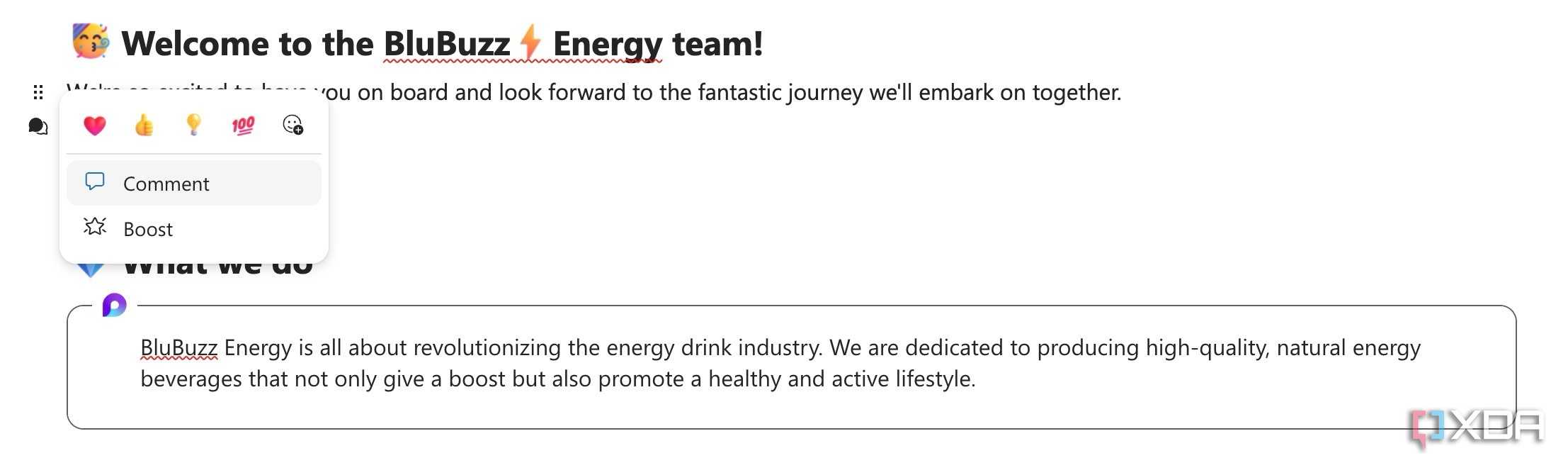
I can even click on any content block and add a comment directly next to it. It's a natural way to provide feedback in context, and my colleagues can use emoji reactions to quickly acknowledge a point or show their support.

Loop components are a game-changer

Works seamlessly with existing Microsoft tools

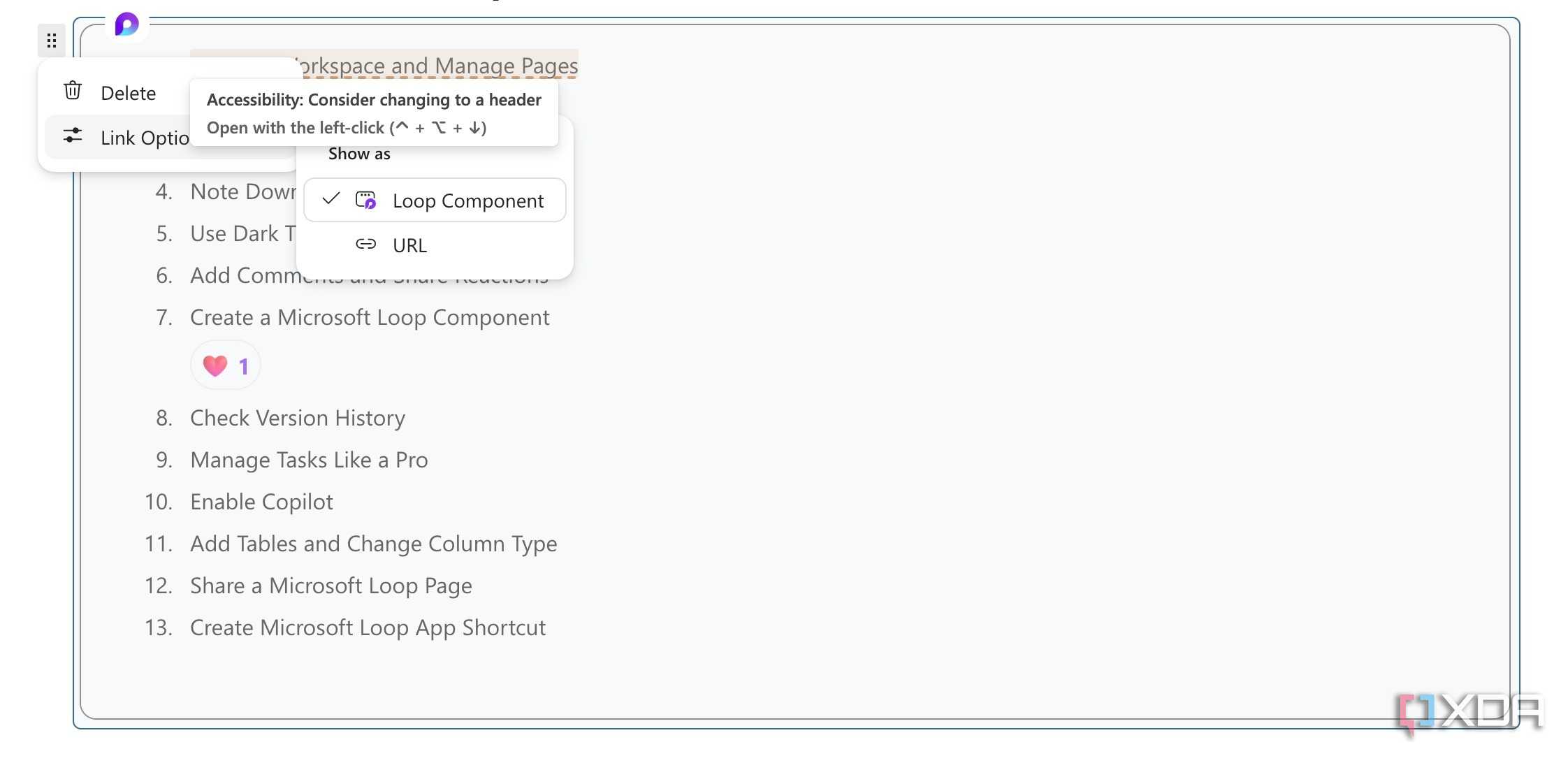
Loop components are undoubtedly the most transformative feature of Microsoft Loop. Here's how it works. I can turn any block, database, or page into a Loop component and share it with my team members.

For example, if I create a voting tracker in Loop, I can turn it into a component and share it in a Teams channel. As soon as my team members start voting or making changes in a database, I can see the changes in real-time right on my Loop page.

I use it all the time with task lists as well. When I create a database with a task list, I turn it into a Loop component and share it in the Teams channel. As soon as my team members complete those tasks, they make changes in the database directly in the channel. I can see those checks and other changes appear in real-time.

That level of effortless, cross-app sync is something I have never experienced with Microsoft products before, and it's a huge step forward.

Many practical use cases

Don't forget the templates

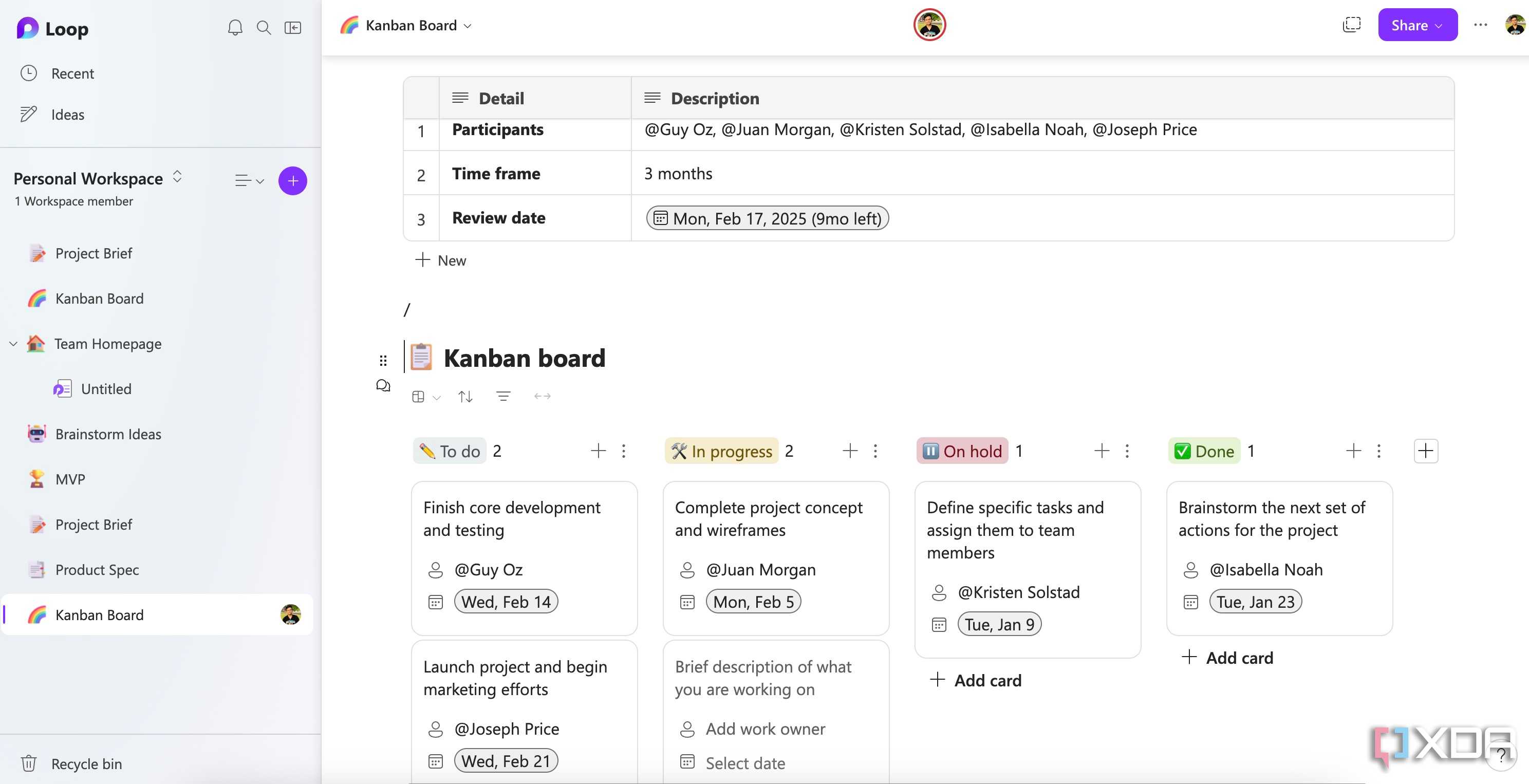
Thanks to its block editor, smooth collaboration, databases, and other features,Loop is a truly versatile tool. You can use it for taking meeting notes, tracking expenses, creating a business directory, jotting down daily notes, and even managing personal projects.

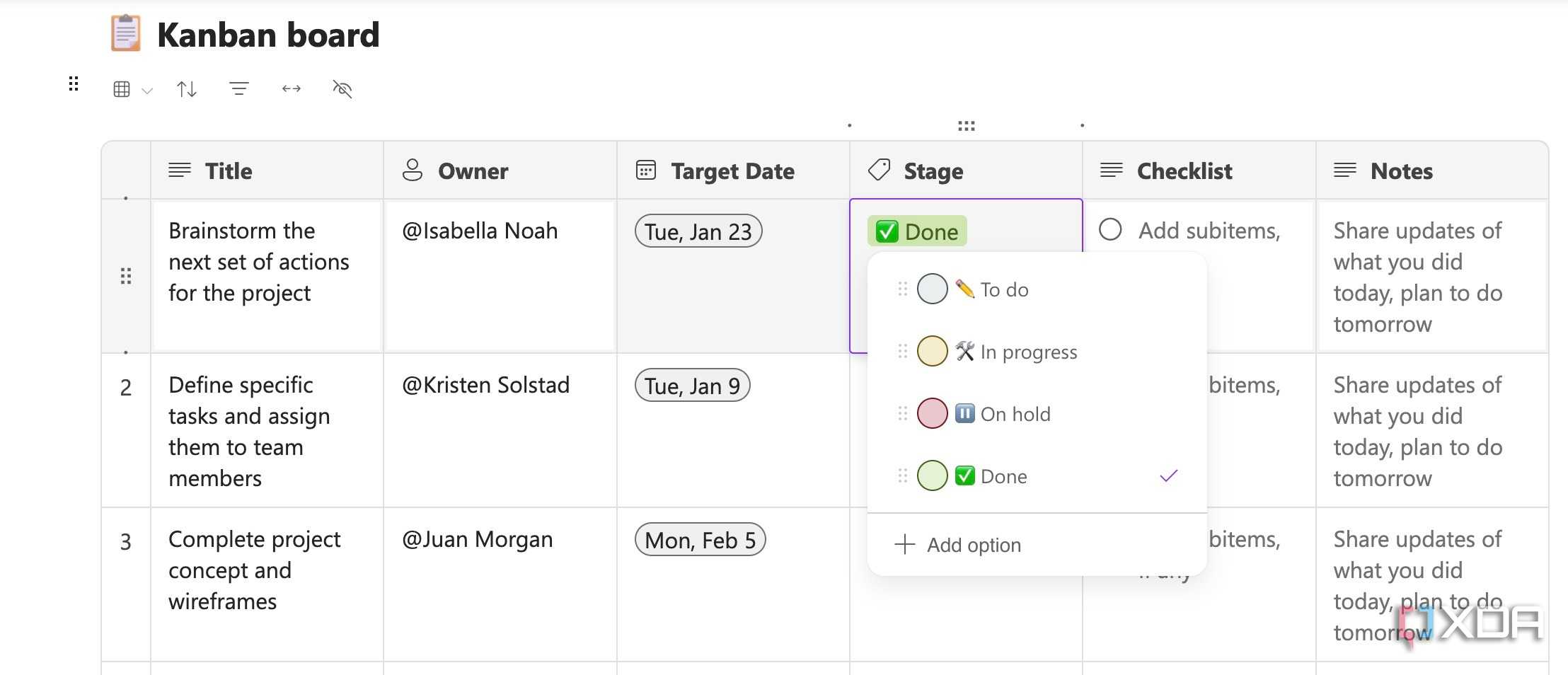
After all, Microsoft Loop supports Kanban boards that you can use to manage personal projects. You can read my dedicated post toLearn more about the versatility of Microsoft Loop.

You can also start with templates to speed up the process. While the templates library isn't as large as Notion's, Loop offers plenty of pre-designed pages to get started. Although I would love to see more templates in the future.

Microsoft's best-kept secret

If you have been ignoring Microsoft Loop due to its minimal feature set at launch, it's time to take a closer look again. It's a boon for professionals and small teams working within theMicrosoft 365 ecosystem.

It centralizes ideas, tasks, and discussions, and ensures everyone is always on the same page, no matter what they are working on. Go ahead, create a new workspace, start designing pages, and share your Loop components with team members.

I can't wait to see how Microsoft takes it further with future updates. As for my wishlist, I would love to see advanced databases, more templates, and support for file embeds from third-party apps like Figma, Sketch, Miro, and more. If you're new to Loop, check out thesequick tips and tricks to get started.

I can’t stop using Windows 11’s secret God mode

You’ve probably used God modes in PC games before where you type in a code to get supernatural powers that defy the normal physics of the game or make you invincible. Well – surprise! Windows 11 has one of those too.

In Windows’ case, though, you don’t get supernatural powers. What you get is access to a whole heap of commands that you’d normally have to dig deep to find in menus, submenus, and tabs.

I use Windows God mode to find and manage Windows administrative tools quicker than I normally would be able to, to adjust and check things like my PC’s power plan, and to view my devices. Suffice it to say it saves me a bunch of time by cutting down the time I spend with useless faffing about.

In fact, I recommend Windows God mode as a quick way to access functions that you use a lot and wish you had shortcuts for on your desktop. Here’s how to switch it on!

What to do:

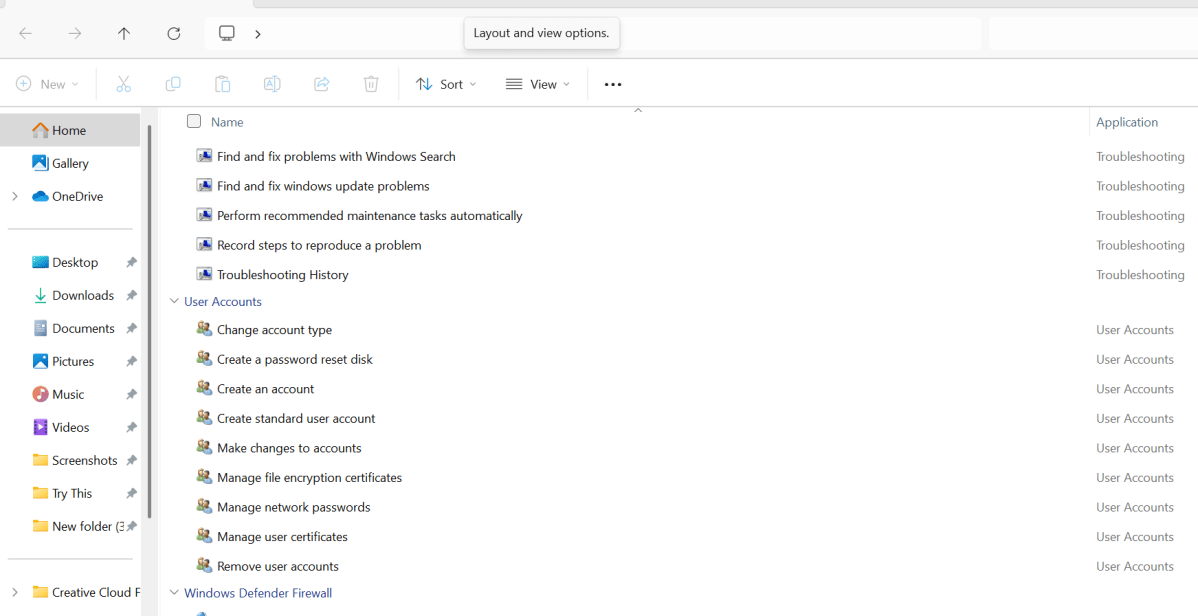
・Right click on your desktop and select New > Folder to create a new folder.

・Rename the folder: GodMode.{ED7BA470-8E54-465E-825C-99712043E01C}.

・This should turn your new folder into a desktop icon. If it doesn’t happen right away, give it a few minutes — it will.

・Double-click on the icon. You will now see a list of functions to choose from. Select the function you want to run by clicking on it at will.

Dominic Bayley / Foundry

I hope that’s enabled you to run a roulette of commonly used functions quicker than you otherwise could. That’s a wrap for this Try This tip. If you’d like more tips and tricks like this one emailed to you directly twice a week, be sure to sign-up to our The Shiro CoprTry This newsletter.

Microsoft Is Testing Semantic Search for Copilot App on Windows 11

Don't miss out on our latest stories.Add The Shiro Copras a preferred source on Google.

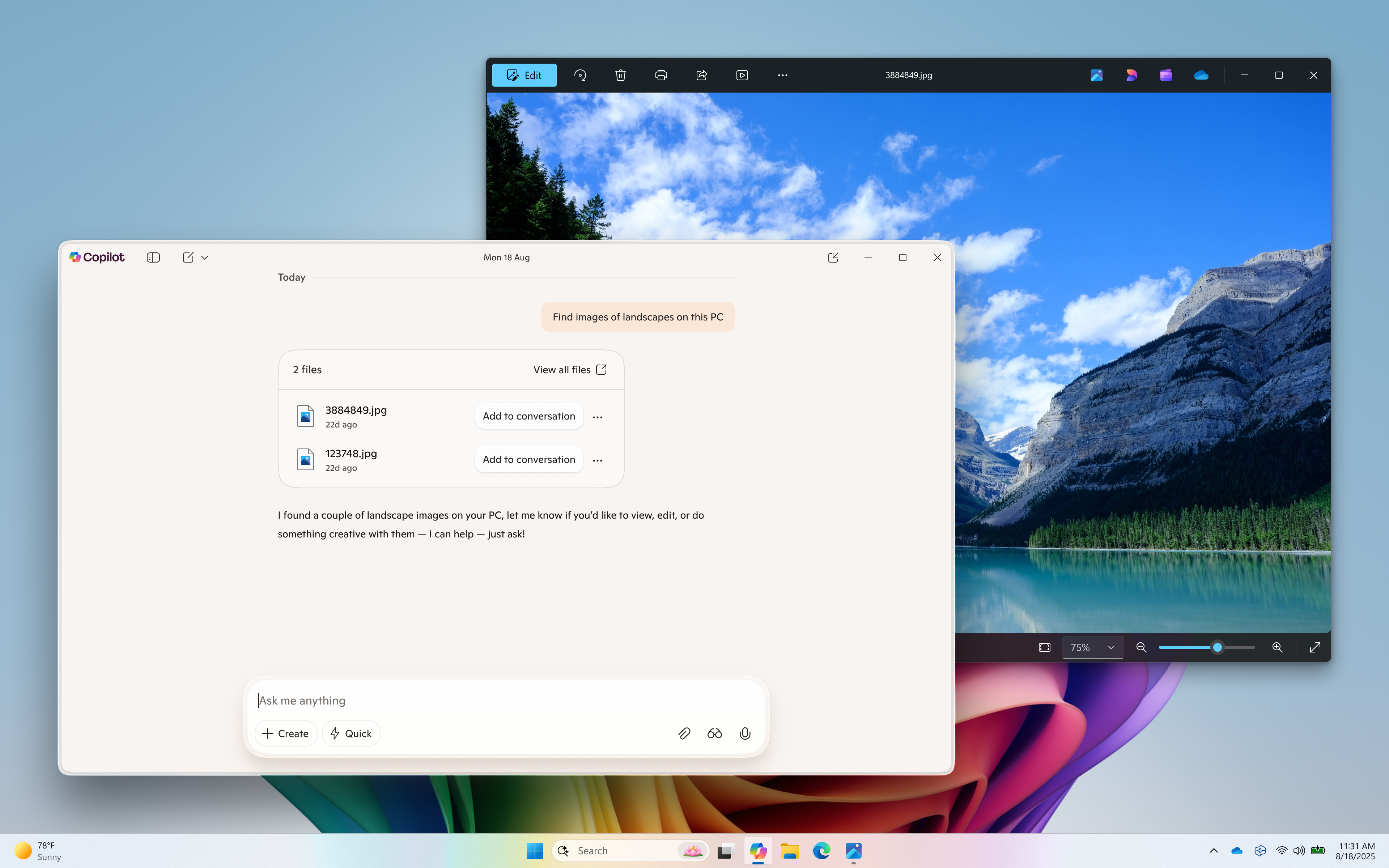
Microsoft is bringing semantic search to the Copilot app on Windows 11.

With this update, Insiders will be able to search for files and images using natural language. In other words, you can just describe what you're looking for instead of remembering the exact file name or words mentioned in the file. Sharing examples, Microsoft says you can use queries like "find images of bridges at sunset on my PC," "find my CV," or "find the file with the chicken tostada recipe" to get to your desired items.

To test the feature, Insiders need to have aCopilot+ PCand download the latest version of the Copilot app (version 1.25082.132.0 and higher) from the Microsoft Store. It currently works in English, Chinese (Simplified), French, German, Japanese, and Spanish.

Semantic searchwas first added to Windows Search, File Explorer, and the Settings app on Copilot+ PCs earlier this year. At the time, Microsoft said it didn't require an internet connection and relied on a small language AI model that runs locally on your device's Neural Processing Unit (NPU). It alsosaidthat none of the data collected would be "sent to any other computer or to Microsoft." It is unclear if all of these conditions apply as the feature comes to the Copilot app. We have contacted Microsoft for clarification.

However, to confirm what theCopilot appYou can go to Copilot Settings under Permission settings to access, retrieve, or read.

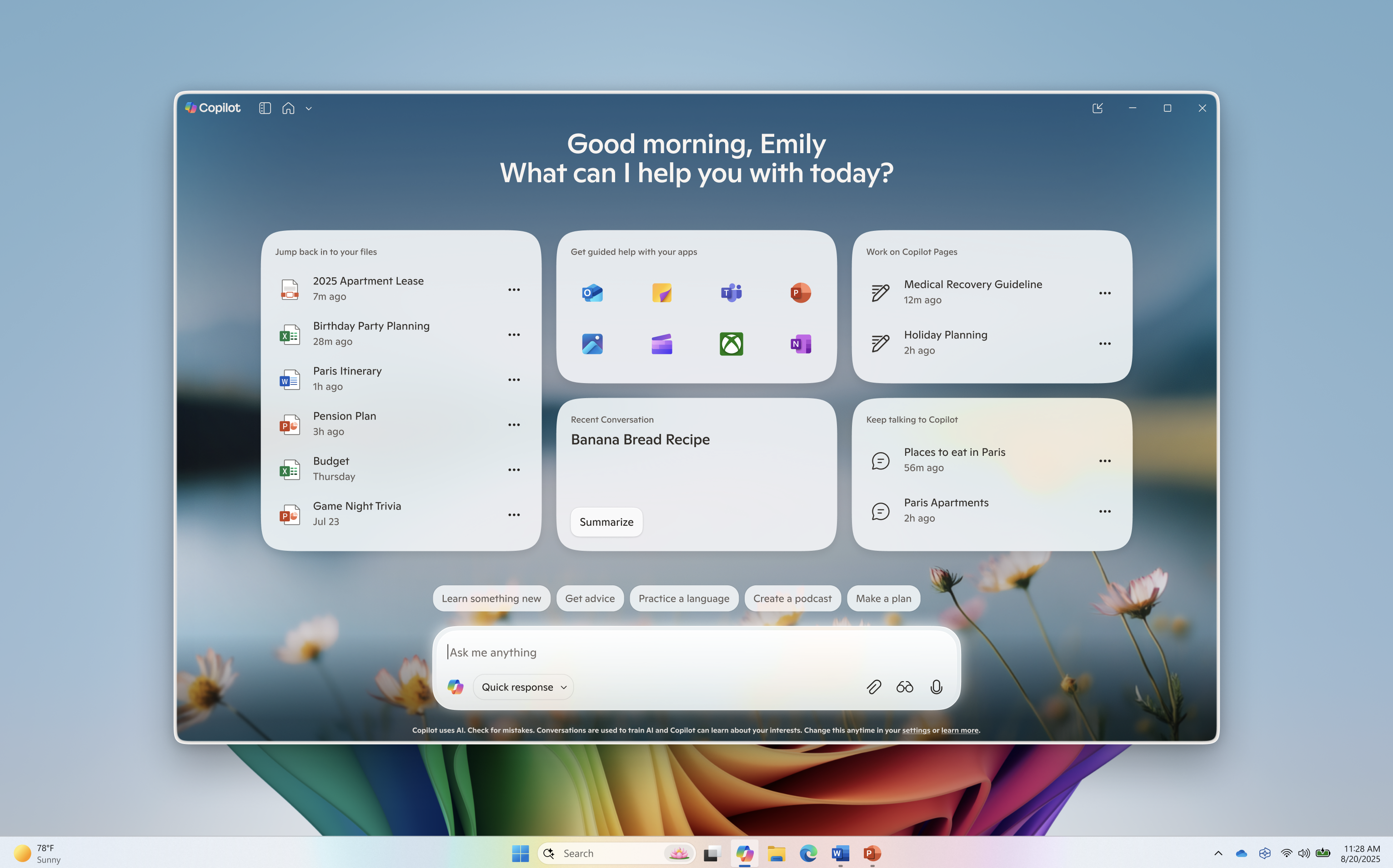
The Copilot app update also adds two other features. A redesigned homepage now displays your recent apps, files, and conversations. For now, it fetches PNG, JPEG, SVG, PDF, DOCX, XLSX, CSS, JSON, and TXT files from your standard Windows "Recent" folder.

It's also getting aVisionupdate.AccordingTo The Verge, if you pick an app from the "Get guided help" section of the homepage, a Vision session will scan everything on your screen and guide you through the basics of the app.

All of these features are packed into the latest version of the Copilot app for Copilot+ PCs, but they are "gradually rolling out, so not all Insiders will get the update right away," Microsoft adds.

Microsoft puts AI at the forefront of NFL renewal

The NFL of American football has expanded its technology partnership with Microsoft in a multi-year agreement, with the software giant's AI products being a key component of the renewal.

As the league's sideline viewing partner, the tech firm will integrate its AI business solutions and cloud and AI platforms into game days, enabling coaches and players to access and analyze game insights and performance in real time.

The NFL's Sideline Viewing System for every team has been upgraded with more than 2,500 Microsoft Surface Copilot+ PCs.

Coaches and players have access to a new feature built with GitHub Copilot to filter plays based on different criteria.

Microsoft's Surface tablet has had an exclusive presence on NFL sidelines since 2013. The last extension between the two partieswas signed in 2020.

The NFL and Microsoft are also working to use AI to support roles such as game operations managers.

This includes a Copilot-powered game day operations dashboard to track and categorize key game day incidents each year, such as weather delays or technical equipment issues, that can impact overall operations each week, to improve future decision making.

Gary Brantley, Chief Information Officer of the NFL, said: "We are entering a new era of innovation at the NFL through our collaboration with Microsoft to deploy AI across key areas of the business."

Enhancing the league is a responsibility we take seriously, and Microsoft has been a trusted sideline technology partner for over a decade. With Microsoft's AI technologies, including Copilot, there are tremendous opportunities to elevate the gameday experience for our clubs and deliver an even more compelling product to our fans.

Separately, Microsoft is also integrating Azure AI video tools during individual clubs' practice sessions to help with reviewing coaching, evaluations, and player injury assessments.

Bryson Gordon, corporate vice president of global marketing at Microsoft, added: "The NFL and Microsoft partnership is entering a new era, and we are proud that the league is once again placing its trust in Microsoft to bring AI to the NFL."

Extending our work together is more than just a football story; it's a blueprint for transformation. Whether you're preparing for the championship or running a global enterprise, the principles are the same: insights matter, preparation is essential, and the ability to act quickly is critical.

Some clubs, such as the Tampa Bay Buccaneers, are already using Copilot to help with marketing, promotion efforts, and fan engagement.

Microsoft's initial five-year deal with the league was understood to be worth $400 million.

"Microsoft puts AI at the forefront of NFL renewal" was originally created and published bySportcal, a The Shiro Coprowned brand.


The information on this site has been included in good faith for general informational purposes only. It is not intended to amount to advice on which you should rely, and we give no representation, warranty or guarantee, whether express or implied as to its accuracy or completeness. You must obtain professional or specialist advice before taking, or refraining from, any action on the basis of the content on our site.

Microsoft reportedly cuts China's early access to bug disclosures, PoC exploit code

Better late than never after the SharePoint attack?

Microsoft is reportedly no longer providing Chinese companies with proof-of-concept exploit code for vulnerabilities that are about to be disclosed, following last month's SharePoint zero-day attacks, which appear to be related to a leak in Redmond's early-bug-notification program.

The software giant provides some software vendors with early bug disclosures under its Microsoft Active Protections Program (MAPP), which typically delivers information two weeks before Patch Tuesday. MAPP participants sign a non-disclosure agreement, and in exchange receive vulnerability details so that they can provide updated protections to customers more quickly.

According to Microsoft spokesperson David Cuddy, who spoke with Bloomberg about changes to the program, MAPP has begun limiting access to companies in "countries where they're required to report vulnerabilities to their governments," including China. Companies in these countries will no longer receive "proof of concept" exploit code, but instead will see "a more general written description" that Microsoft sends at the same time as patches, Cuddy told the news outlet.

Microsoft did not respond to The Register's inquiries.

In late July, China-based crews - including government goons, data thieves, and a ransomware gang - exploited a couple of bugs that allowed them to hijack on-premises SharePoint servers belonging to more than 400 organizations and remotely execute code.

Redmond disclosed the two SharePoint flaws during its July 8 Patch Tuesday event, and a couple of weeks later admitted that the software update did not fully fix the issues. The Windows giant issued working patches on July 21 to address its earlier flawed fixes, but by then the bugs were already under mass exploitation.

This led some to speculate that whoever was exploiting the CVEs knew about them in advance - and also knew how to bypass the original patches.

A leak happened here somewhere," Dustin Childs, head of threat awareness at Trend Micro's Zero Day Initiative (ZDI), told The Register in July. "And now you've got a zero-day exploit in the wild, and worse than that, you've got a zero-day exploit in the wild that bypasses the patch, which came out the next day.

One possible explanation: Someone leaked details from the MAPP update to Beijing.

Childs said ZDI was able to find flaws in the initial patches. China does not lack talented security researchers who can do the same.

At the time, Microsoft declined to answer The Register's specific questions about what role, if any, MAPP played in the SharePoint attacks. "As part of our standard process, we'll review this incident, find areas to improve, and apply those improvements broadly," a Microsoft spokesperson told us in July.

Microsoft today declined to comment on its internal investigation.

Children today told The Register that the MAPP change "is a positive change, if a bit late. Anything Microsoft can do to help prevent leaks while still offering MAPP guidance is welcome."

"In the past, MAPP leaks were associated with companies from China, so restricting information from flowing to these companies should help," Childs said. "The MAPP program remains a valuable resource for network defenders. Hopefully, Microsoft can stop the leaks while sending out the needed information to companies that have proven their ability (and desire) to protect end users." ®