Apple's iPhone offers a wide range of accessibility features that help all users, with varying needs, access their smartphones. There are features that allow you to control the device with your voice, your eyes, and it can even generate a special voice that sounds just like you, so it can speak for you. In iOS 26, Apple is adding one extra method for controlling your iPhone or iPad, and that is by using head tracking gestures.
Until now, the Switch Control feature, which allows you to move and select things on your screen simply by moving your head, has been the only head tracking on the iPhone. It's useful, but can be tedious if you just want to map a specific gesture to a specific action. Now, you can program specific OS level functions and shortcuts to specific head movements. For example, you can raise your eyebrows to go to the Home Screen.
How to set up Head Tracking gestures in iOS 26
First, make sure that you're running the latest version of iOS 26 on your iPhone. At the time of writing, it's available as aPublic beta, but the stable release is expected in September, in a couple of weeks.
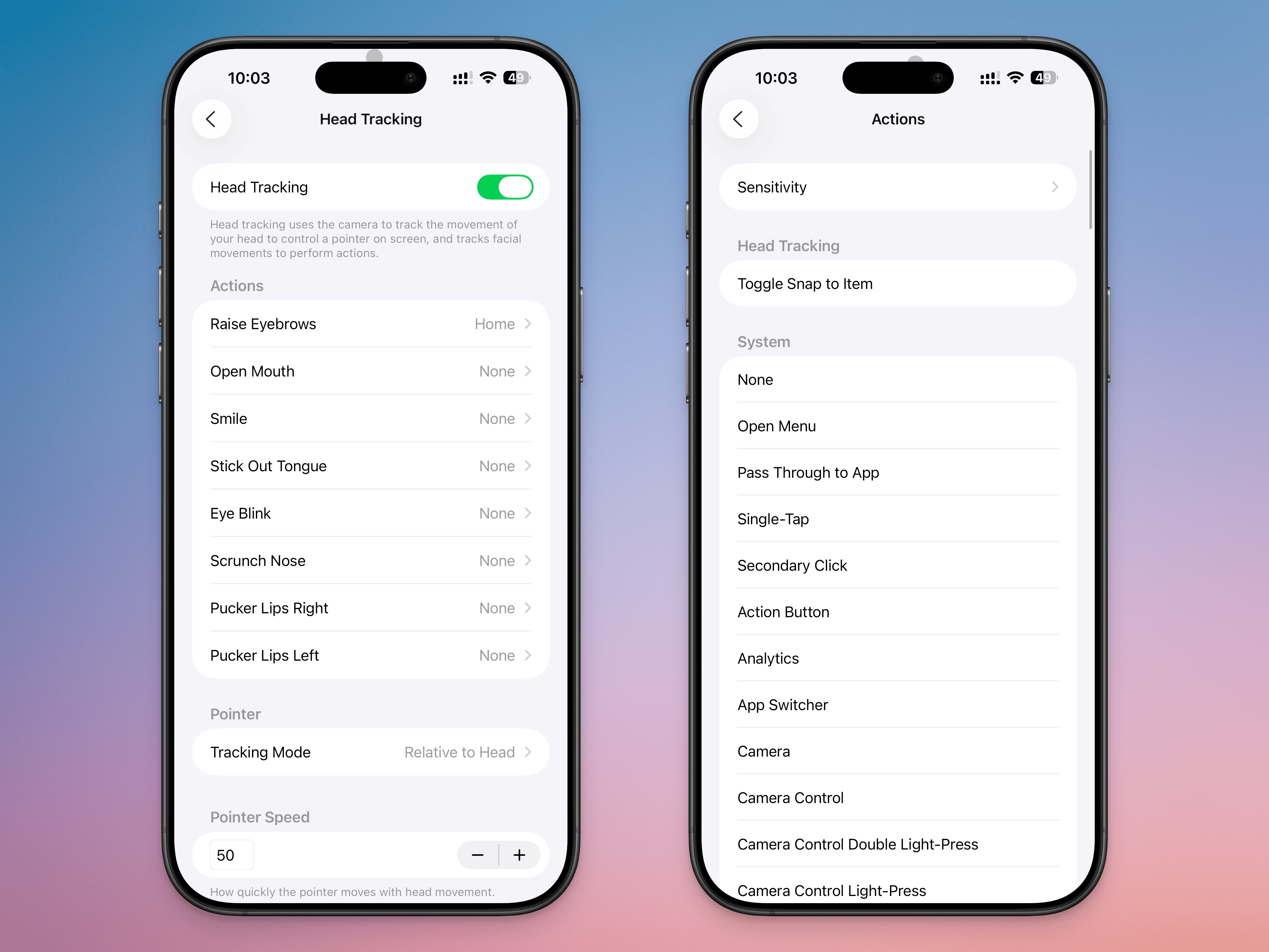
Go toSettings>Accessibility>Head Trackingand enable theHead Trackingfeature.
Before you start using this feature, it's important to talk aboutDwell Control. This is the feature where holding the cursor in one spot for a specific amount of time will select the action it's hovering over. Essentially, if you're controlling your cursor with your head and you keep looking at a specific point on the screen, it will get selected automatically. This can lead to accidental clicks, so if you want to use head tracking gestures, it's best to disable Dwell Control first.
Next, go to theActionssection. Here, you'll be able to choose from many gestures, such as Raise Eyebrows, Open Mouth, Smile, Stick Out Tongue, Eye Blink, Scrunch Nose, Pucker Lips Right, and Pucker Lips Left. Choose an action, and map it to what you want it to do on your phone. You can map it to a simple tap, have it open your Camera, or even assign it to start an app like Home or Siri. You can also map it to any Accessibility feature, scroll action, or shortcut you might have.
From theSensitivitymenu, you can change the facial expression sensitivity toSlight, orExaggerated. Depending on your setting, this will help prevent accidental inputs, or make it easier for your phone to recognize a gesture.
By setting multiple gestures to corresponding actions, you'll be able to mimic what a finger might be able to do. For example, you can mapPucker Lips RighttoScroll DownandPucker Lips LefttoScroll Up, then use them together. Similarly, you can mapRaise EyebrowstoHometo complete the effect.
Instead of using the dwell control to select things, you can also use a gesture likeStick Out Tonguefor theSingle Tapaction, for faster inputs.
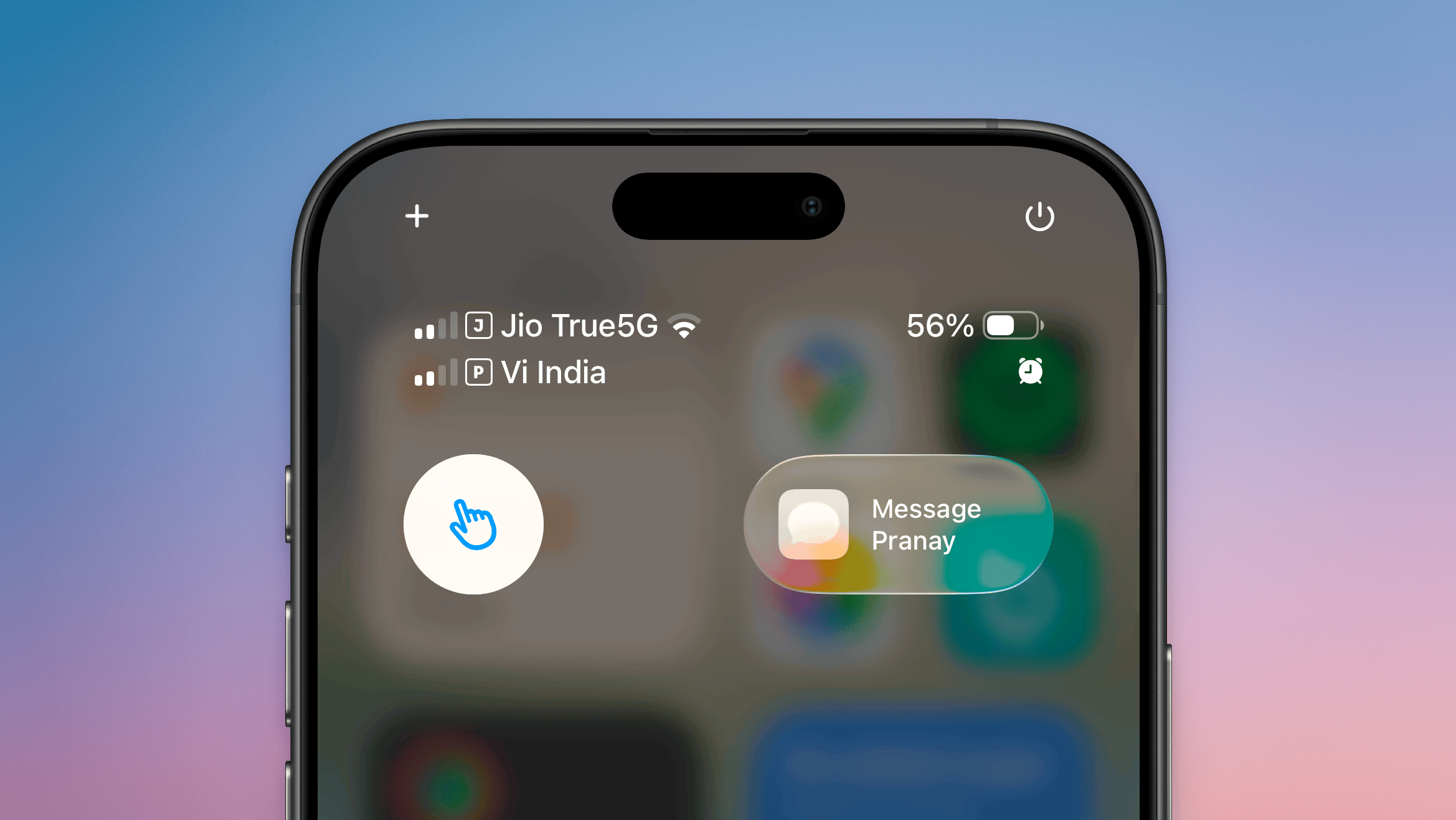
You can also easily enable or disable head tracking gestures, as it is linked to AssistiveTouch. You can add the AssistiveTouch toggle to Control Center for one-touch access to head tracking gestures. Open Control Center, tap and hold in an empty area, tapAdd a Control, then search for and add theAssistiveTouchcontrol. Now, tapping on it will enable or disable head tracking gestures.
If you enjoyed this story, be sure to followThe Shiro Copron MSN.

0 comments:
Ikutan Komentar