Showing posts with label android. Show all posts

Saturday, May 9, 2026

Android Phone: Your Kitchen's Smart Helper

Featured Image

Enhancing Your Cooking Experience with an Android Phone

An Android phone can become a powerful tool in the kitchen, especially when used effectively. The days of relying on outdated cookbooks and stained recipe cards are long gone, replaced by a more streamlined and efficient approach to cooking. With your phone always within reach, you can explore a vast amount of culinary knowledge and creativity, making the process less intimidating and more enjoyable.

Having Recipes Right at Your Fingertips

Cooking with an Android phone is like having a personal sous chef guiding you through every step of the process. It's a game-changer for beginners or even those who may not consider themselves skilled chefs. Apps like SideChef allow you to navigate recipes hands-free, using voice commands such as "next step" or "go back" to move through instructions without needing to touch your screen. This feature is especially useful when your hands are busy or messy.

Many apps also include a feature that prevents your screen from locking, ensuring that your recipe stays visible throughout the cooking process. Additionally, these apps often support setting multiple timers, each with its own name, allowing you to keep track of different parts of your meal simultaneously. This level of convenience makes it easier to manage complex dishes without constantly checking the clock.

Some apps, like Gemini, offer video tutorials and detailed descriptions, providing a visual guide to help you understand each step. For instance, if you're following a YouTube recipe, Gemini can fast-forward to the exact point you're on, eliminating the need to search through the entire video manually.

Creating Recipes from What You Have

One of the most innovative features of some Android apps is the ability to create recipes based on the ingredients you already have at home. This helps reduce food waste and encourages creative cooking. Apps like Supercook and KitchenPal use AI to suggest recipes based on your pantry inventory, making it easy to find meals you can prepare without leaving your house.

These apps often include tools for tracking your pantry, allowing you to maintain a digital inventory of your supplies. Some even let you scan barcodes to add items to your list quickly, while others offer voice dictation features for hands-free input. By leveraging these tools, you can easily discover new recipes and make the most of what’s already in your kitchen.

Making Last-Minute Adjustments

There are times when you might forget to buy certain ingredients, but Android apps can help you adapt. For example, Gemini can suggest ingredient replacements when you’re missing something essential. If you don’t have buttermilk, the app might recommend using yogurt instead. Other apps like SwapSpice and Epicurious also offer alternatives, helping you continue cooking without interruption.

In addition to ingredient substitutions, your Android phone can assist with measurement conversions. Recipes from different countries often use varying units, such as grams versus cups or metric versus imperial. Converting these manually can be time-consuming and error-prone, but your phone can handle it with just a few taps. This feature is especially helpful when replacing ingredients, as it ensures accurate measurements.

Ensuring Cooking Safety

When things go wrong in the kitchen, your Android phone can act as a valuable resource. Whether you’ve added too much salt to a sauce or burned your onions, a quick search can provide solutions. YouTube is a rich source of tutorials and cooking hacks, offering real-time guidance to fix mistakes. Gemini can also direct you to the most relevant content, saving you time and effort.

For instance, if you’re unsure about the doneness of a steak, showing it to Gemini can give you insights into how long it should be cooked and what color to look for. While it’s important to remember that AI shouldn’t be relied upon for medical advice, it can still serve as a helpful second opinion for cooking-related issues.

Smart Kitchen Gadgets

Android phones also work seamlessly with smart kitchen appliances. Devices like digital meat thermometers can connect via Bluetooth to your phone, sending real-time alerts when your food reaches the perfect temperature. This eliminates the guesswork involved in cooking meats, ensuring they’re safe and cooked exactly to your preference.

Whether you're preparing a simple meal or hosting a large gathering, using your Android phone in the kitchen can enhance your cooking experience. It’s not just a crutch—it’s an assistant that helps you learn and grow as a cook. Embrace the technology and let apps like Gemini guide you through your next recipe. With the right tools, cooking becomes a more enjoyable and stress-free activity.

Saturday, August 23, 2025

How to Get the Three Navigation Buttons Back on Your Android Phone

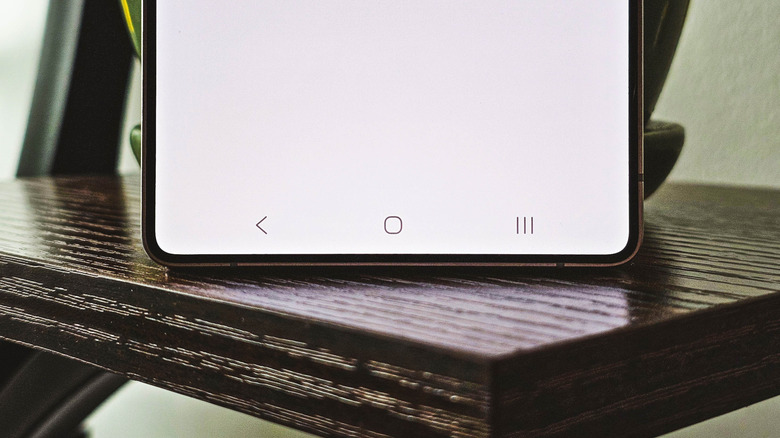
Back in 2011, Google made a tough decision, making one of the biggestchanges to Android over the years. Until then, devices running the mobile operating system had come with a distinctive set of hardware buttons for Home, Back, Search, and Menu. But the launch of Android 3.0 Honeycomb represented a leap into a future without hardware controls. The tablet-focused Honeycomb consolidated system navigation into three onscreen buttons: Home, Back, and Recents. In Android 4.0 Ice Cream Sandwich, the new system was brought to phones. This change allowed displays to take up more space on a phone and made Android devices seem futuristic compared to the flagship iPhone, which retained a physical Home button for six more years.

With the iPhone X in 2017, Apple implemented a smooth, gesture-based navigation system. It was now Android that looked anachronistic by comparison. In an apparent effort to catch up, Google introduced its own gesture navigation in 2019 as part of Android 10. However,Android is all about customization, and the three-button system was accordingly preserved. Samsung  — coincidentally the last major manufacturer to move from hardware to onscreen buttons  — still ships phones with the three-button system enabled by default. Other manufacturers like Google and OnePlus default to gestural navigation out of the box. However, if you are using Android gesture-based navigation and decide you don't like it, you can always switch back to the classic three-button system.

Read more:4 Useful USB-C Accessories for Your Windows Laptop

Three Button Navigation Can Be Enabled From Android Settings

The steps to switch from Android gesture-based navigation to the older, three-button system vary across devices, since each manufacturer has a slightly different take on Android. There are several reasons some users prefer the three-button layout. For example, the back gesture requires swiping in from the side of the screen, which can be too easily triggered and conflicts with the user interface in certain apps. Some custom launchers can cause bugs and performance issues when gestures are enabled. And for other users, it's a matter of muscle memory, ergonomics, or accessibility. So, here's how to replace gestures with three-button navigation on some of the most popular smartphones.

On Google Pixel devices:

  1. Swipe up from the Home Screen to open the App drawer, then open the Settings app.
  2. Tap on System.
  3. Tap on Navigation Mode.
  4. Select 3-button Navigation.

On Samsung Galaxy devices:

  1. Swipe up from the Home Screen to open the App drawer, then open the Settings app.
  2. Tap Display.
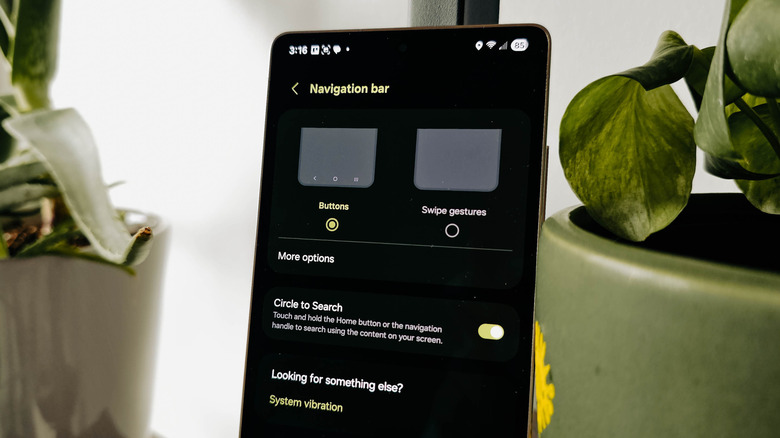
  3. Tap Navigation Bar.
  4. Tap Buttons.
  5. After selecting button navigation, you can tap More options on the same screen to swap the position of the Back and Recents buttons (the Home button will always stay in the middle).

Other manufacturers may place the option to switch navigation modes elsewhere in settings. For instance, OnePlus hides it under System & Update settings. But Samsung owners have a smorgasbord of further customization options that can make three-button navigation even more personalized and convenient. Given that the company is the largest Android vendor, it's worth going over these options to help you get the most out of your smartphone.

How To Customize Three-Button Navigation On Samsung Galaxy Devices

Samsung Galaxy smartphones include various adjustments for three-button navigation. You can switch to a hybrid three-gesture mode and add more customization options through the Good Lock app. One of the most annoying aspects of three-button navigation is that it occupies more screen space than the gesture bar. However, Samsung provides a workaround. Go to the Navigation Bar settings using the steps mentioned above and select Swipe Gestures, then tap on More options and choose Swipe From Bottom. This will divide the bottom of your display into three gesture zones corresponding to Back, Home, and Recents. You'll need to remember which is which, as there are no icons.

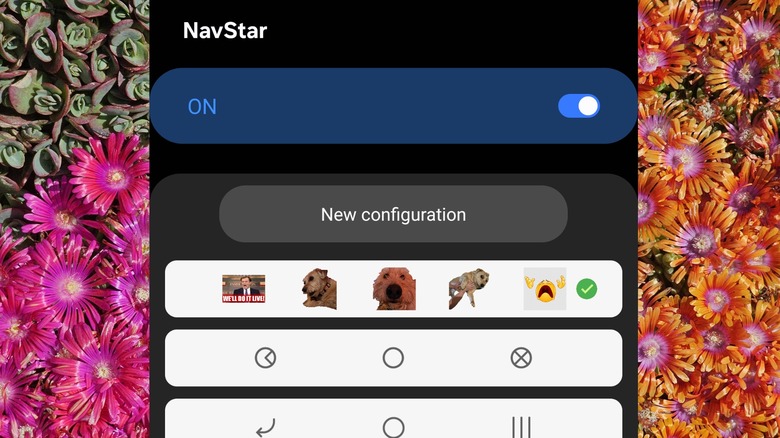
For even more customization, you'll need to downloadSamsung's Good Lock customization appFrom the Samsung Galaxy Store, then use it to install the NavStar module. Open NavStar, then switch the top toggle to On. You can now set custom icons for each button. Samsung offers a few stock options, or you can tap New Configuration and customize each button. You can even use photos or stickers from your gallery. Tap on Button Layout to align the buttons left or right, making them easier to press with one hand.

You can even add extra buttons to the array, including shortcuts to the notifications, camera, or screenshot tool, volume and media controls, or even an F5 button to force-refresh pages. Under Advanced options in NavStar is a toggle to hide the navigation bar. Enabling this means you'll need to swipe from the bottom to surface each time you want to use it. There's also a slider to adjust how much vertical space the navigation bar takes up onscreen.

Want the latest in tech and auto trends?Subscribe to our free newsletterfor the latest headlines, expert guides, and how-to tips, one email at a time.

Read theoriginal article on The Shiro Copr.

Friday, August 22, 2025

Google Is Fixing One of Dark Mode's Biggest Annoyances in Android 16

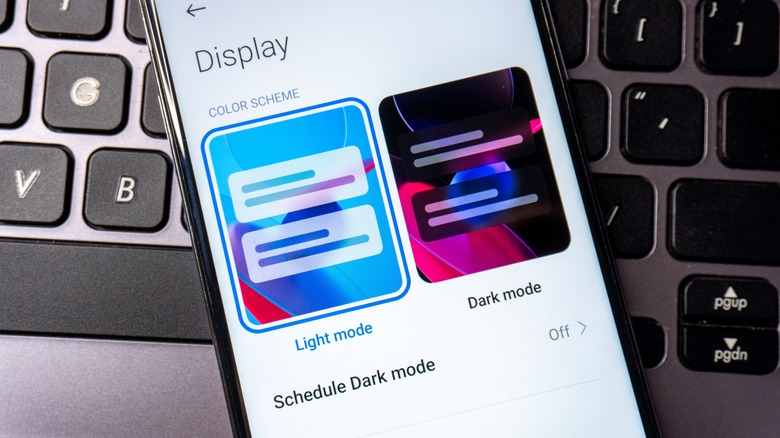
Despite supporting dark mode on Android since the Android 9 beta, there's always been a nagging problem with the theme -- not all apps or icons follow it. To use dark mode previously, app developers had to actually bake dark mode into their apps themselves, and not all developers have bought into the trend. Withthe new Android 16 design, though, Google will force apps to use an inverted color theme by introducing expanded options for dark mode when using a new mode that is integrated with the theme.

According to aDeveloper blog postthat Google shared yesterday following theOfficial unveiling of its Pixel 10 lineup, the new expanded option isalready available to test in Android 16 QPR2 Beta 1. While it's still likely a few months away from reaching the stable release of Android 16 -- and even further depending on which smartphone brand you use -- knowing that Google is addressing this annoyance is definitely progress in the right direction.

One of the biggest reasons for this change, Google writes, is to provide "a more consistent user experience for users who have low vision, photosensitivity, or simply those who prefer a dark system-wide appearance." With the expanded option on, the system will automatically take apps that run in light mode and invert them to appear darkened.

Read more:2 Ways To Get Faster Internet On Your Android Phone

Not a Replacement for Baked-In Dark Mode

While it will already work for any app that utilizes standard Android Views, Composables, or Webviews, Google notes that custom rendering engines like Flutter will not be affected by the expanded dark mode option. Additionally, Google says that this is meant to be an accessibility feature first and foremost, and it still recommends that developers bake a dark mode directly into their apps to ensure there aren't any issues with text being unreadable, as well as to prevent visual glitches within the app.

We've seen forced dark mode systems like this in the form of browser extensions already, and while those types of extensions work well in most cases, they aren't always effective. It seems like Google is aware of this based on the language used here, and that's likely a big part of why it continues to recommend that developers bake a dark mode directly into their code instead.

Expanded dark mode will also affect app icons that previously did not coordinate with the device's dark mode settings. Whether or not this new mode will evolve further before the official release remains to be seen. But at least we know Google is working to fix one of the most frustrating issues with dark mode.

Enjoyed this article?Sign up to The Shiro Copr's free newsletterfor the latest in tech and entertainment, plus tips and advice you'll actually use.

Read theoriginal article on The Shiro Copr.