Enhancing NotebookLM Mind Maps with a Powerful Chrome Extension
When dealing with multiple documents, whether for work or studying, it can be challenging to keep track of all the connections between different pieces of information. A single key point might be buried in one document, while another document contains related ideas. This complexity can make it difficult to see the bigger picture.
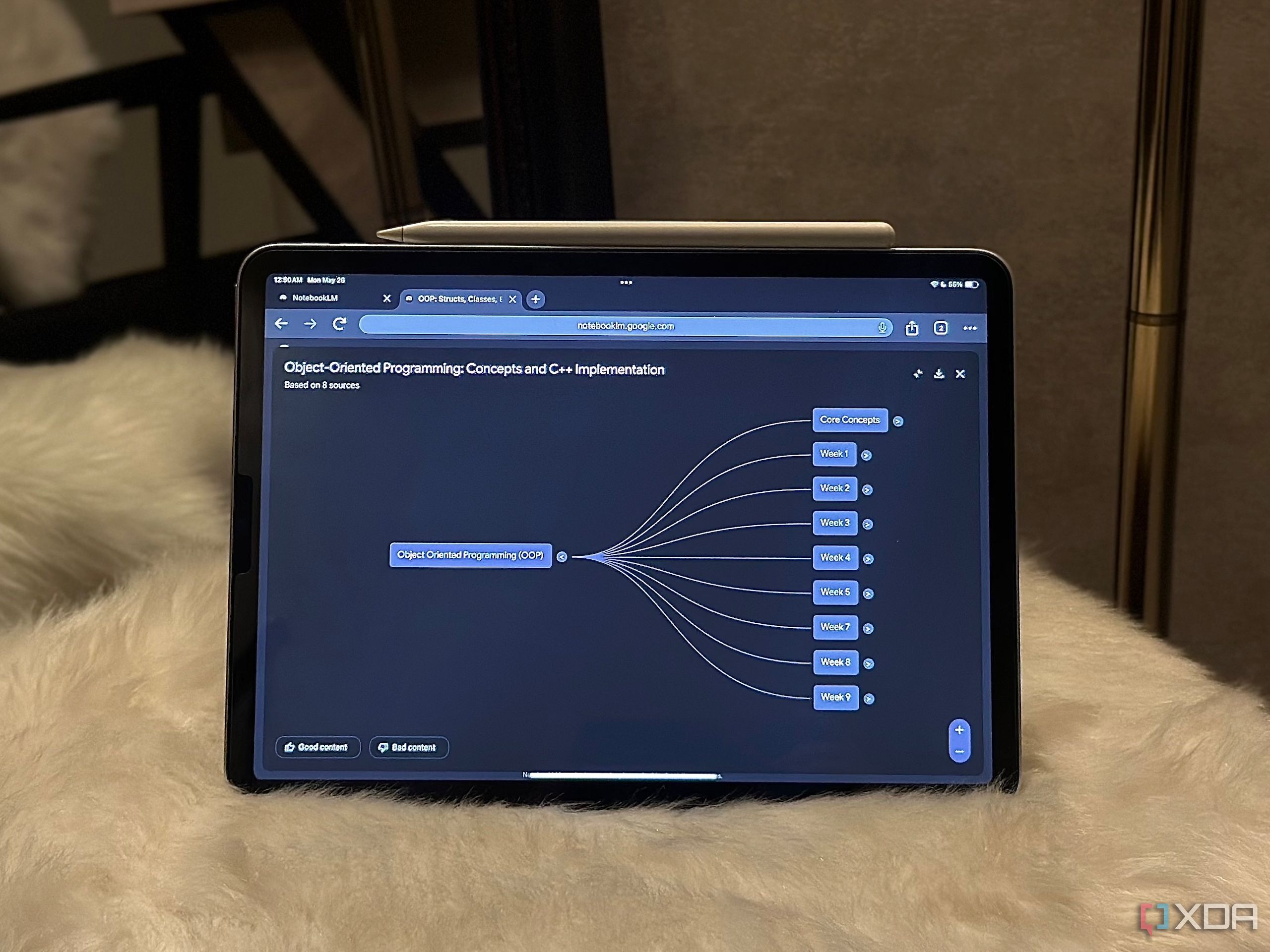
As AI continues to play a more significant role in our daily lives, I've found that tasks like connecting ideas across documents are ideal for AI assistance. NotebookLM's Mind Map feature, which was introduced earlier this year, is designed to help users visualize and connect their thoughts. However, since its launch, the feature has remained largely unchanged, offering the same functionality as when it first debuted.
Thankfully, there’s a solution that takes NotebookLM’s Mind Maps to the next level. A Chrome extension called the NotebookLM Mindmap Extractor has emerged as a valuable tool for enhancing the experience beyond what NotebookLM offers.
Exporting Mind Maps with Ease
While there are numerous Chrome extensions available for NotebookLM, many focus on bulk adding sources to notebooks. These tools are undoubtedly useful, especially for users who frequently add content. However, I was looking for something that could enhance my experience beyond just managing sources.
The NotebookLM Mindmap Extractor is still in its early stages but offers a unique feature that NotebookLM lacks: exporting mind maps. While NotebookLM does provide a download button, it only allows users to save maps as PNG images, which are static and not easily editable. The extension changes this by enabling exports in multiple formats, including FreeMind (.mm), Generic XML (.xml), and OPML (.opml) files.
Once the extension is installed and a mind map is fully expanded within a NotebookLM notebook, users simply click the extension icon and select the "Detect Mind Map" button. The extension processes the map quickly and allows users to export it in their preferred format. The developer recommends using the FreeMind format for the best results.
Preview and Analysis Features
At the bottom of the pop-up, the extension displays a preview of the mind map structure along with a "Level Distribution" breakdown. This feature shows how many nodes exist at each level of the map, giving users a quick insight into the complexity of their diagram. The developer claims that all processing occurs locally in the browser, ensuring data privacy.
Expanding the Possibilities
After exporting a mind map, the possibilities are endless. The extension maintains the original structure of the map, allowing users to move it to other tools without losing formatting, hierarchy, or relationships between nodes. This is particularly useful for those who want to customize their maps further.
I personally import my exported mind maps into Xmind, a mind mapping software that allows full customization. With Xmind, I can change node colors, adjust text size, rearrange branches, and even convert the diagram into different layouts like fishbone or organizational charts. I also find it helpful to add new nodes during research. The reason I don’t create mind maps directly in Xmind is that NotebookLM provides AI-generated connections and summaries that I find invaluable.
Until NotebookLM introduces proper customization options, this workflow feels like the perfect solution. I get the benefit of AI-driven insights from NotebookLM and then refine and present the map exactly as I want in Xmind.
A Game-Changing Tool
If you love NotebookLM's Mind Maps, this extension is worth trying immediately. Initially, I didn’t expect much from it, as it promised to export mind maps as clean, editable files. However, after testing it myself, I realized how much easier it makes working with these maps. Viewing and interacting with the map inside NotebookLM is great, but having the flexibility to edit, reorganize, and share it outside the platform is a game-changer.

0 comments:
Ikutan Komentar