Exploring Wireless Connectivity for an Old Speaker System
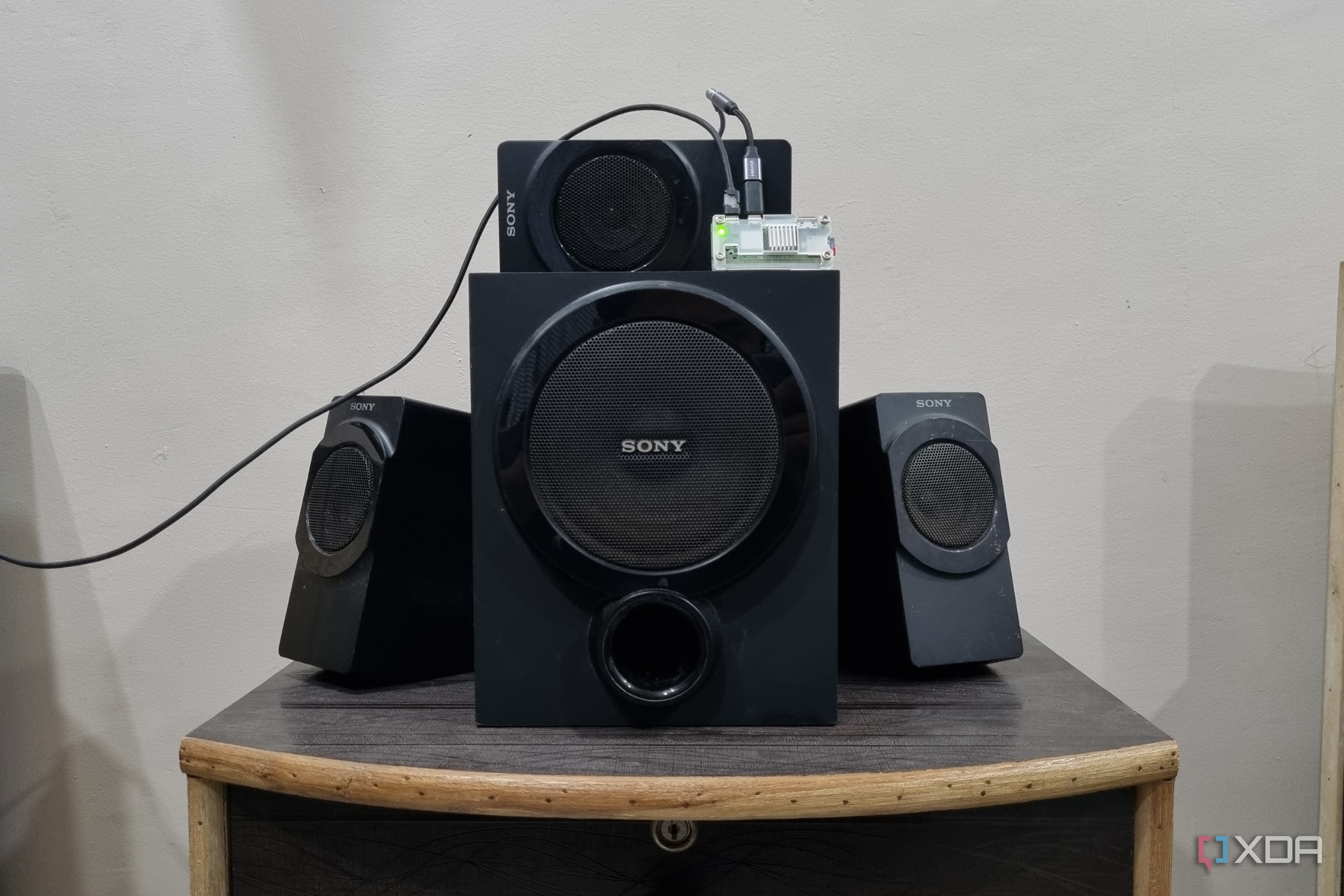
Repurposing old devices can be a rewarding and creative endeavor. I have an older Sony speaker system that, while still functional, only accepts audio through an AUX cable. This limitation made it inconvenient to use with my other Tribit speaker, which offers wireless playback. To address this, I started exploring self-hosted services and Raspberry Pi operating systems, eventually finding a solution that transformed my Hi-Fi speaker into a modern wireless device.
The Challenge of Adding Bluetooth
The main challenge was integrating Bluetooth connectivity into the speaker, which lacked this feature. Instead of soldering or modifying the speaker itself, I opted for a more straightforward approach by using a Raspberry Pi Zero 2W. This affordable single-board computer has built-in Bluetooth capabilities, making it an ideal choice for the project.
To connect the speaker to the Pi, I used an AUX adapter with a built-in DAC. Since the Pi doesn't have an AUX port, I used a micro USB to USB-C adapter and connected an audio DAC that I previously used with my Samsung Galaxy S21 FE. This setup allowed me to avoid any physical modifications to the speaker.
Choosing the Right Operating System
After setting up the hardware, I needed an appropriate operating system. I chose moOde Audio OS, a dedicated audio streaming OS for Raspberry Pi. It’s based on Raspberry Pi OS Lite and includes a music streaming server, making it perfect for this project.
I used the Pi Imager tool to flash moOde Audio OS onto an SD card. During the setup, I configured Wi-Fi and SSH settings to enable a headless setup. Once the Pi booted up, I accessed the web interface by entering its IP address in a browser. However, I encountered an issue: there was no audio output initially.
Adjusting Audio Output Settings
Upon investigation, I realized that the OS defaults to HDMI as the audio output. To fix this, I navigated to the "Configure" section, selected "Audio," and then "Output device." By clicking the "Scan" button, I found the USB DAC and selected it as the audio source. After adjusting the volume levels, the audio played correctly through the speaker.
Next, I formatted a USB drive with the FAT32 file system and copied several tracks to it. The software automatically recognized the USB drive, allowing me to play audio without manual configuration. Rebooting the Pi confirmed that the USB drive was detected, and I could access the tracks from the library interface.
Enabling Bluetooth Connectivity
While the web interface provided a convenient way to manage local playback, my primary goal was to enable Bluetooth connectivity. I manually installed Bluetooth packages using the following commands:
sudo apt install bluetooth bluez blueman
sudo systemctl enable bluetooth
sudo systemctl start bluetooth
Then, I went back to the "Configure" section and enabled Bluetooth connectivity under the "Renderer" option. After restarting the controller, I paired my phone with the Pi via Bluetooth. A quick test with a YouTube video confirmed that the audio connection worked smoothly.
Final Results and Benefits
This project turned out to be one of the easiest Raspberry Pi projects I've completed. My Hi-Fi speaker now supports wireless playback without the need for an AUX cable. The moOde Audio OS not only solved the connectivity issue but also offered a user-friendly web interface for local playback.
Both the web interface and Bluetooth functionality work exceptionally well, with no noticeable degradation in audio quality. If you have an old speaker with AUX connectivity that lacks Bluetooth or Wi-Fi support, consider using a Raspberry Pi Zero 2W and moOde Audio OS to give it a modern upgrade. It's a cost-effective and efficient way to breathe new life into your existing audio equipment.

0 comments:
Ikutan Komentar