Showing posts with label wi fi tips. Show all posts

Tuesday, November 11, 2025

The Ultimate Wi-Fi 6 and Wi-Fi 7 Setup for Your Home

Featured Image

Universal Settings for Better Wireless Signal

Whether you're running a Wi-Fi 6 router or have already upgraded to Wi-Fi 7, it's important to understand which settings will give you the best performance. The answer might surprise you, as most homes are considered low-density environments, meaning you don’t need to optimize for high traffic like an office building.

If you haven't started looking for a new router yet, either Wi-Fi version should be suitable for your needs. However, I would recommend Wi-Fi 6E over Wi-Fi 6 because of the 6GHz band, which offers significant improvements in wireless connectivity. That said, any new router will require some optimization based on your specific living space, so let’s dive into the details.

Before focusing on specific Wi-Fi versions, there are some general tips that apply to all routers. Your router should be placed in a central location, at a height above waist level, and away from obstacles such as TVs or shelves. If your router supports automatic firmware and security updates, enable those so you don’t have to worry about them manually. If not, set a reminder to check for updates periodically.

Another key setting is to configure your Wi-Fi SSID to a single, unique name across all bands your router supports. This ensures that devices can connect reliably to the best available band. Enable band steering if it isn’t already active, so the router can direct devices to the preferred band. The only issue I've encountered with a unified SSID is with some IoT devices that only support 2.4GHz. In such cases, you can temporarily separate the bands to connect those devices and then restore the settings.

For security, make sure you’re using at least WPA2, and preferably WPA3 if available.

Wi-Fi 6: A Solid Home Network

Wi-Fi 6 provides a strong foundation for home networks, but the settings you should enable are relatively limited. Beamforming should be turned on for better connection stability, and using WPA3 for security is recommended. If your router supports Wi-Fi 6E, take advantage of the 6GHz band whenever possible. Keep in mind that the 6GHz band has a shorter range compared to 5GHz or 2.4GHz. Additionally, many mesh networks use one of the bands for wireless backhaul, which could cause devices to disconnect unless you use wired backhaul between nodes.

For optimal channel widths:

  • 20 MHz for 2.4GHz – this minimizes interference
  • 80 MHz for 5GHz – to maximize throughput
  • 160 MHz for 6GHz – if available, for both throughput and compatibility

Most modern routers are designed to automatically adjust these settings for the best signal, so you may not need to change anything unless you encounter issues.

Wi-Fi 7: More Features, But Not All Are Needed

Wi-Fi 7 brings several new features that can significantly boost speeds, but not all of them will be useful if you have older devices on your network. One of the key features is Multi-Link Operation (MLO), which allows Wi-Fi 7 clients to combine multiple wireless bands for higher throughput. This makes the idea of using multiple bands more effective than ever before.

Set the same channel widths as with Wi-Fi 6E, but you can try 320 MHz for the 6GHz band. If you experience connectivity issues, reduce this setting. Not all devices will work well with Wi-Fi 7, especially older IoT devices. If your smart home devices start having problems, create a guest network that uses only the 2.4GHz band and connect your smart devices to that. This should resolve compatibility issues without disabling advanced Wi-Fi 7 features.

Most Homes Don’t Need Advanced Settings

For the average home, most settings are handled automatically by modern routers. These devices are capable of delivering great performance with minimal input, so you can mostly leave them alone. If you're using prosumer-grade hardware, you may need to tweak settings like transmit power on access points, but even then, advanced features are typically designed to be left untouched. Focus on placing your router correctly and ensuring your network is secure for the best results.

The Ultimate Wi-Fi 6 and Wi-Fi 7 Setup for Your Home

Featured Image

Universal Settings for Better Wireless Signal

Whether you're running a Wi-Fi 6 router or have already upgraded to Wi-Fi 7, it's important to understand which settings will give you the best performance. The answer might surprise you, as most homes are considered low-density environments, meaning you don’t need to optimize for high traffic like an office building.

If you haven't started looking for a new router yet, either Wi-Fi version should be suitable for your needs. However, I would recommend Wi-Fi 6E over Wi-Fi 6 because of the 6GHz band, which offers significant improvements in wireless connectivity. That said, any new router will require some optimization based on your specific living space, so let’s dive into the details.

Before focusing on specific Wi-Fi versions, there are some general tips that apply to all routers. Your router should be placed in a central location, at a height above waist level, and away from obstacles such as TVs or shelves. If your router supports automatic firmware and security updates, enable those so you don’t have to worry about them manually. If not, set a reminder to check for updates periodically.

Another key setting is to configure your Wi-Fi SSID to a single, unique name across all bands your router supports. This ensures that devices can connect reliably to the best available band. Enable band steering if it isn’t already active, so the router can direct devices to the preferred band. The only issue I've encountered with a unified SSID is with some IoT devices that only support 2.4GHz. In such cases, you can temporarily separate the bands to connect those devices and then restore the settings.

For security, make sure you’re using at least WPA2, and preferably WPA3 if available.

Wi-Fi 6: A Solid Home Network

Wi-Fi 6 provides a strong foundation for home networks, but the settings you should enable are relatively limited. Beamforming should be turned on for better connection stability, and using WPA3 for security is recommended. If your router supports Wi-Fi 6E, take advantage of the 6GHz band whenever possible. Keep in mind that the 6GHz band has a shorter range compared to 5GHz or 2.4GHz. Additionally, many mesh networks use one of the bands for wireless backhaul, which could cause devices to disconnect unless you use wired backhaul between nodes.

For optimal channel widths:

  • 20 MHz for 2.4GHz – this minimizes interference
  • 80 MHz for 5GHz – to maximize throughput
  • 160 MHz for 6GHz – if available, for both throughput and compatibility

Most modern routers are designed to automatically adjust these settings for the best signal, so you may not need to change anything unless you encounter issues.

Wi-Fi 7: More Features, But Not All Are Needed

Wi-Fi 7 brings several new features that can significantly boost speeds, but not all of them will be useful if you have older devices on your network. One of the key features is Multi-Link Operation (MLO), which allows Wi-Fi 7 clients to combine multiple wireless bands for higher throughput. This makes the idea of using multiple bands more effective than ever before.

Set the same channel widths as with Wi-Fi 6E, but you can try 320 MHz for the 6GHz band. If you experience connectivity issues, reduce this setting. Not all devices will work well with Wi-Fi 7, especially older IoT devices. If your smart home devices start having problems, create a guest network that uses only the 2.4GHz band and connect your smart devices to that. This should resolve compatibility issues without disabling advanced Wi-Fi 7 features.

Most Homes Don’t Need Advanced Settings

For the average home, most settings are handled automatically by modern routers. These devices are capable of delivering great performance with minimal input, so you can mostly leave them alone. If you're using prosumer-grade hardware, you may need to tweak settings like transmit power on access points, but even then, advanced features are typically designed to be left untouched. Focus on placing your router correctly and ensuring your network is secure for the best results.
Saturday, August 23, 2025

What Exactly Does The Reset Button On A Router Do? Here's When To Use It

The thing about routers is that they're mostly a set-and-forget type of device. Once you finish configuring your Wi-Fi and basic settings, you typically won't be touching the router again — unless, of course, it's to fix an internet issue. Because you'll rarely check the device after setup, it's easy to overlook some of its practical physical features.

For one, you're probably notusing the USB ports on your routerat all. These can come in handy for sharing files, charging small electronics, and even transforming your printer into a wireless model. Then, there's the WPS button that helps quickly connect new devices to the network without needing to enter the password.

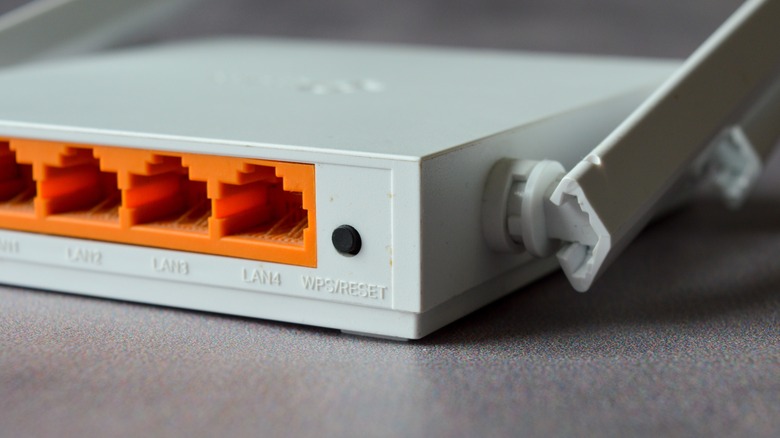
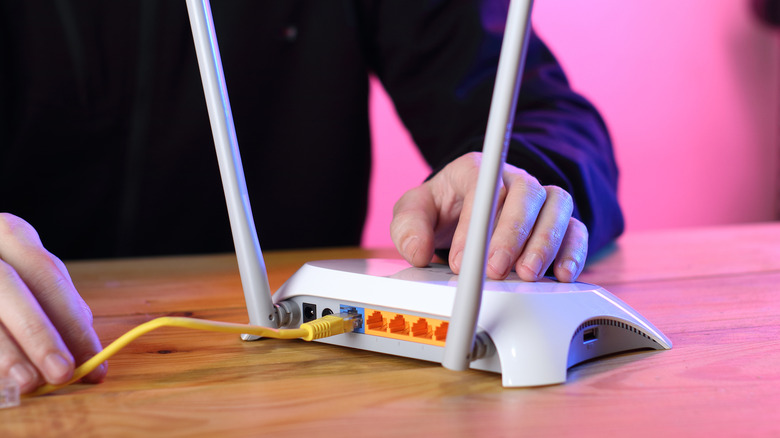
Another useful function on your router is the reset button, usually located at the back. The router's reset button permanently deletes your current configurations and returns them to factory defaults. Reset is entirely different from reboot, though. While a reboot only turns your router off and on again, a reset restores the device to its original state before you initially set it up. But why would you even need the reset button, and how do you use it?

Read more:10 Must-Have Smart Home Devices For Your Outdoor Spaces

When to Use the Reset Button on Your Router

Resetting your router to factory settings might not be something you need to do every day, but it can actually be a lifesaver in various situations. The most common reason you might need to use the reset button on your router is when you forget the login credentials for the router's app or web-based admin panel. If your router does not offer a recovery feature, the only way to regain access to the admin panel is by resetting the router. This allows you to use the default username and password usually printed on the back of the device.

You might also want to reset the router if you'reconnected to Wi-Fi but have no internet accessor experiencing persistent software bugs. A reset is usually the last resort when troubleshooting such issues. If you are giving away your router, returning it, or suspecting that it has been compromised, it is a good idea to reset it as well. You would want to protect your personal data and prevent others from knowing your previous Wi-Fi settings and network activity.

You can use the reset button on your router when you simply want a clean slate. Say you want to change the Wi-Fi name and password, set up a new guest network, and assign different static IP addresses to your devices. Instead of undoing everything one by one, just reset the router to erase all your personalized configurations.

How To Use Your Router's Reset Button

It's easy to use the reset button on your router. For mostMajor wireless router brands, you just need to hold down the button for about 30 seconds until you see the LED indicators blink or turn off. Some routers, like the TP-Link, Starlink, and NETGEAR, have a reset hole instead of a button, so you can't readily push it with your finger. Use a slim needle-shaped tool like a paper clip or SIM card ejector to press and hold the button.

Once you've successfully reset your router, you'll need to set it up again. Take note that you'll be starting from scratch, so if you want to keep your old settings, make sure to write them down or back up your configuration if your router comes with such a feature. To set up your router, simply sign in to the admin panel, configure the Wi-Fi name and password, and then reconnect your devices to the network.

Want the latest in tech and auto trends?Subscribe to our free newsletterFor the latest headlines, expert guides, and how-to tips, one email at a time.

Read theoriginal article on The Shiro Copr.