Understanding Notion's Feed View
Notion is a highly versatile tool packed with features that cater to various needs, from task management to project planning. However, some of its features often go unnoticed, and one such feature is the Feed view. This view offers a unique way to interact with your databases, making it an essential addition to your workflow if you haven't already started using it.
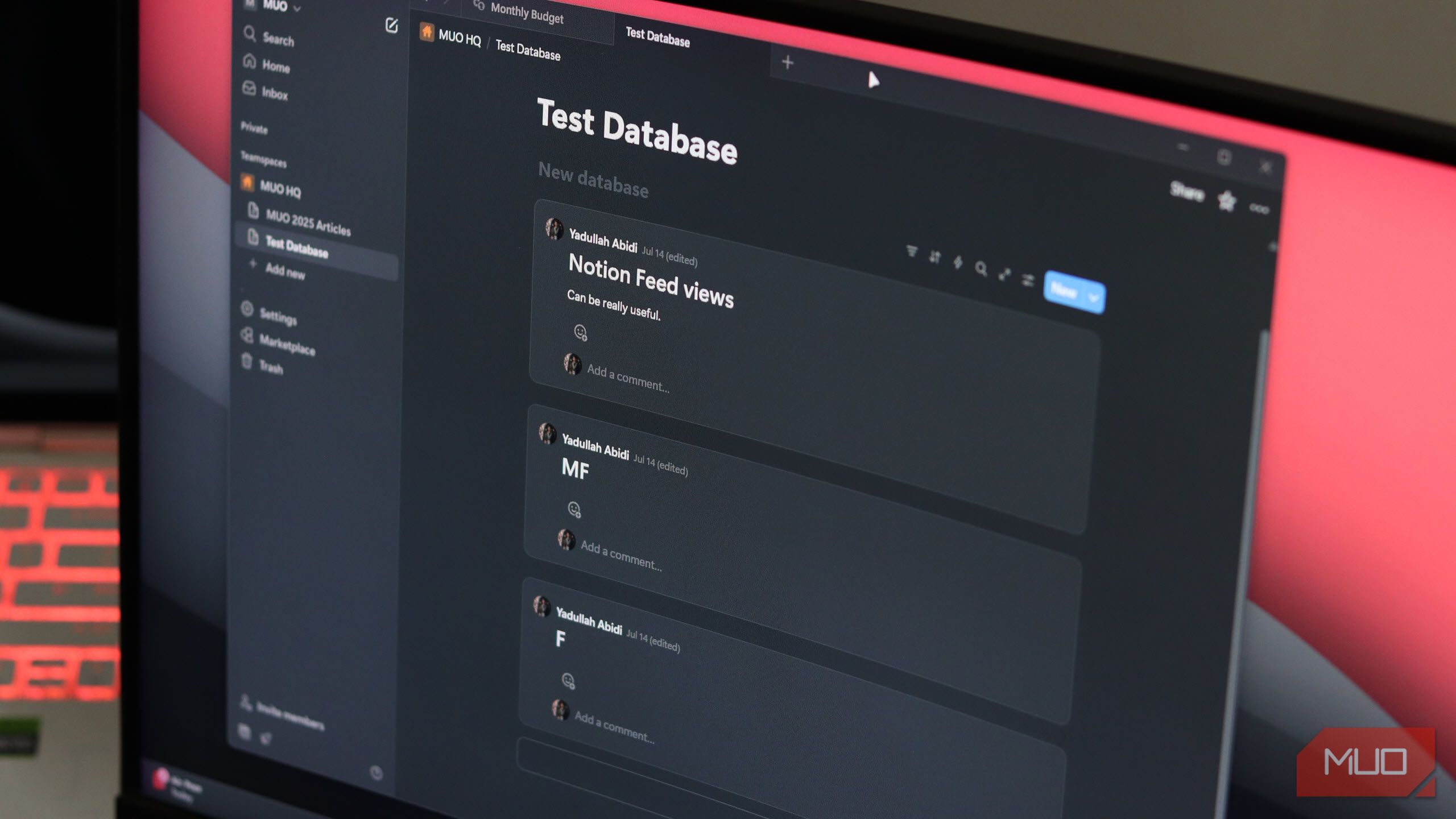
The Feed view functions similarly to scrolling through social media platforms like Instagram. Instead of seeing posts, you'll see entries from your Notion databases. Each entry appears as a scrollable card, displaying the actual content of the page without requiring you to click and open a new page. You can preview, comment on, and engage with the content directly from the main view, making it an efficient way to manage tasks and data.
The Power of Feed View
What makes the Feed view particularly powerful is that it retains all the database functionalities that Notion users have come to appreciate. You can still filter, sort, group, and organize your data just as you would in other views. However, instead of navigating through a table and clicking individual items to access their pages, everything is displayed in one cohesive view.
This feature allows you to get the most information from your databases in the simplest way possible. Each entry appears as a post, with the page content visible in the feed. You can easily see task descriptions, notes, updates, and any additional data you've added to each task without any hassle.
Setting Up and Customizing Feed View
Getting started with the Feed view is straightforward. Simply click the settings icon at the top right of your database, then navigate to the layout section and select the Feed view from the list of available options. Alternatively, you can type /feed view on any page to create a new database with the Feed view as the default layout.
There are several configuration options available to customize the Feed view according to your preferences. You can adjust how the data is displayed, set up filters, and even modify the layout of individual pages within the feed. To do this, open any page and click the "Customize layout" button located above the page title. This button only appears when you hover over the page name, so be sure to look for it.
Once you've clicked the button, you can adjust settings such as the page structure, enable or disable discussions, and control how inline comments are shown. The way you configure your feed will depend on your specific needs. For instance, if you're using the Feed view for personal planning, it's recommended to disable Page discussions in the Customize layout menu to reduce unnecessary elements from your view.
Streamlining Your Workflow with Feed View
Feed view significantly simplifies working with databases. Large tables with numerous rows and data can be overwhelming, especially when time is limited. Checking task details usually requires clicking on each item to open a new page, which can be inefficient.
In contrast, the Feed view allows you to see your entire day's workload sorted or filtered in a single glance. Instead of cryptic task titles in a table, you can quickly assess what needs to be done. If you're working with a team, leaving comments on individual items is an effective way to update everyone involved and have quick discussions. These comments appear directly beneath each item, making them easy to reference later if needed.
Overcoming Database Anxiety
For many users, the transition from traditional spreadsheets like Excel and Google Sheets to Notion can be challenging. I used to experience "database anxiety" when working in Notion because of the complexity of the databases. While I built my entire workflow in Notion, the complicated structures ended up hindering my productivity.
One of the reasons I struggled with Notion was the lack of flexibility in using formulas. Unlike spreadsheets, where you can pick data from any cell or range, Notion's formula capabilities are more limited. This led to inefficient tracking, forcing me to return to my spreadsheets.
However, the Feed view has made a significant difference. It presents relevant data at a glance while keeping major details hidden, reducing the cognitive load on my brain. This means I spend less time deciphering what a task requires and more time quickly accessing the information I need before moving on.
Conclusion
Feed view is an excellent alternative to traditional table views, especially for daily planning. While table views have their uses, the Feed view takes the lead in terms of simplicity and efficiency. If you're feeling overwhelmed by a massive table of pending tasks, visualizing your data differently might be the key to unlocking better productivity. Whether you're managing personal tasks or collaborating with a team, the Feed view offers a practical and user-friendly approach to working with your databases.

0 comments:
Ikutan Komentar